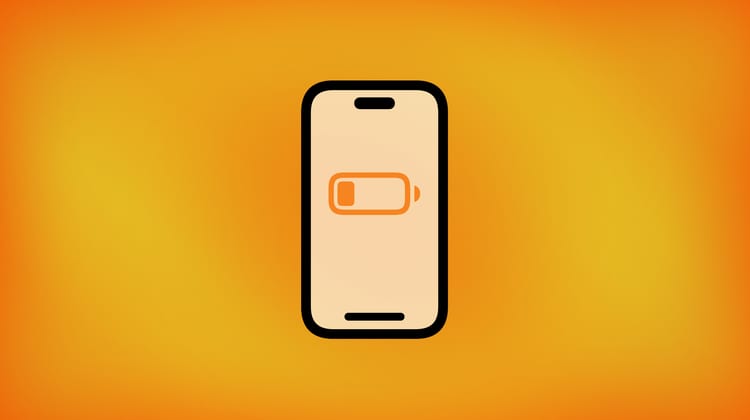
Some iPhone users say battery life got worse after installing iOS 27.2 or the iOS 27.2.1 bug-fix update that arrived November 9. Other users say the opposite. One iPhone 18 Pro Max owner wrote on X that 27.2.1 "has drastically improved the battery life." Another wrote the battery "doesn't last at all." Apple has not confirmed that 27.2.1 causes battery drain as of 2026-11-16, and the iOS 27.2.1 release notes say only "bug fixes and security updates for your iPhone." Apple's own battery-drain support document lists checks in a set order. Here is that order, with exact menu paths.
Wait a few days before calling it iOS 27.2.1 battery drain
Apple's instruction is short. If battery life decreased after updating, wait a few days and then check again. The device is usable right away, but update-related tasks continue in the background and might affect battery life and thermal performance. While they run, open Settings and tap Battery. You might see the insight "Ongoing iOS Update." Apple says battery life returns to normal when the activity finishes, without promising a fixed number of days.
The iOS 27.2 release notes warn that software updates "may affect performance and/or battery life" and point to Apple's software-update explainer, which calls a temporary impact right after an update normal while the device indexes data and updates apps. That warning sits in the iOS 27.2 entry, not the 27.2.1 one.
Check Daily Usage before blaming the update
Open Settings and tap Battery. The Daily Usage chart compares today's battery use with your last seven days and tells you whether you are using more, less, or similar battery as usual. App and System Activity Usage below it lists the three apps that used the most battery today. Usage types worth reading include Background Activity, No Mobile Coverage and Low Signal, and Notifications. Wi-Fi uses less power than cellular. We walked the Battery Insights screen in an earlier fix.

Power Mode, Adaptive Power, and Low Power Mode menu paths
On iPhone 15 and later the path is Settings > Battery > Power Mode. On iPhone 14 and earlier there is no Power Mode step: Settings > Battery has the switch. Adaptive Power sits on the same Power Mode screen, documented on its own Apple support page. It is on by default on iPhone Duo, iPhone 18 and 17 models, and iPhone Air, and off by default on the iPhone 16 models, iPhone 16e, and iPhone 15 Pro models. One footnote matters: Adaptive Power needs at least 7 days to learn your charging habits before it engages. When it engages, it can lower screen brightness by a small amount, limit background activity, and turn on Low Power Mode at 20 percent.. Our earlier tip on Adaptive Power Notifications covers the alerts side.
Low Power Mode also works from Control Center. Swipe down from the top-right corner and tap the battery icon. It turns off when you charge the device to 80 percent or higher.
Battery Health is the last check, and Service means replacement
On iPhone 15 and later, open Settings, tap Battery, then tap Battery Health. On iPhone 14 and earlier the screen is called Battery Health & Charging. If you see Service next to Battery Health, Apple says to consider replacing the battery and to follow the onscreen instructions. This check separates a bad update week from an aging cell.
Two things this article will not tell you to do: install the iOS 27.3 beta or run a third-party battery calibrator. iOS 27.3 is still at beta 1 as of 2026-11-16, and calibrators are not in Apple's checklist. If Daily Usage looks normal after the wait and Battery Health shows no Service, look at the top three apps on that chart before blaming 27.2.1. For more tuning, see our ten iPhone battery settings rundown.
Photo: Apple