Apple has not announced iPhone Duo 2. Bloomberg's Mark Gurman wrote in the November 15 Power On newsletter that prototypes are testing Face ID on the outer display, and 9to5Mac picked the report up the same day. Our own write-up notes the feature may even slip to Duo 3. Until Apple says something, the iPhone Duo you can buy now has plenty to try. These 10 features all come from Apple's support pages for iOS 27, checked on November 16, 2026.
1. Open two apps in Split View on iPhone Duo
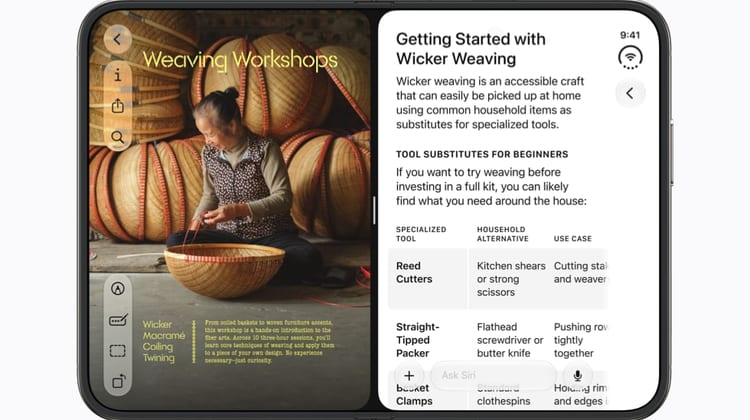
With iPhone Duo open in landscape, two apps share the screen equally. While using an app, swipe up from the bottom, pause in the center, then drag the app to the left or right side. Tap the second app on the Home Screen or in App Library. Apple's own example pairing is Photos and Messages. Full steps are in Apple's Split View support page.
2. Open a second window of the same app
Apps that support multiple windows, such as Mail, Notes, Safari, or Files, can open a second window beside the first. Open the app in Split View, then tap its icon again on the Home Screen or in App Library. Two Safari tabs side by side works. A Mail inbox next to a draft works too. Apple names those apps only, so do not expect every app to do this. Apple says more than 100,000 apps are already optimized for iPhone Duo, and multiwindow apps are the ones to look for.
3. Pair two apps so they open together
With two apps in Split View, tap the divider between them to pair them. After that, opening either app opens both at the same time. To unpair, drag the divider all the way to the left or right edge. That same drag also gives one app full screen. Swipe up from the middle of the screen to return to the Home Screen.
4. Use StandBy on iPhone Duo without a charger
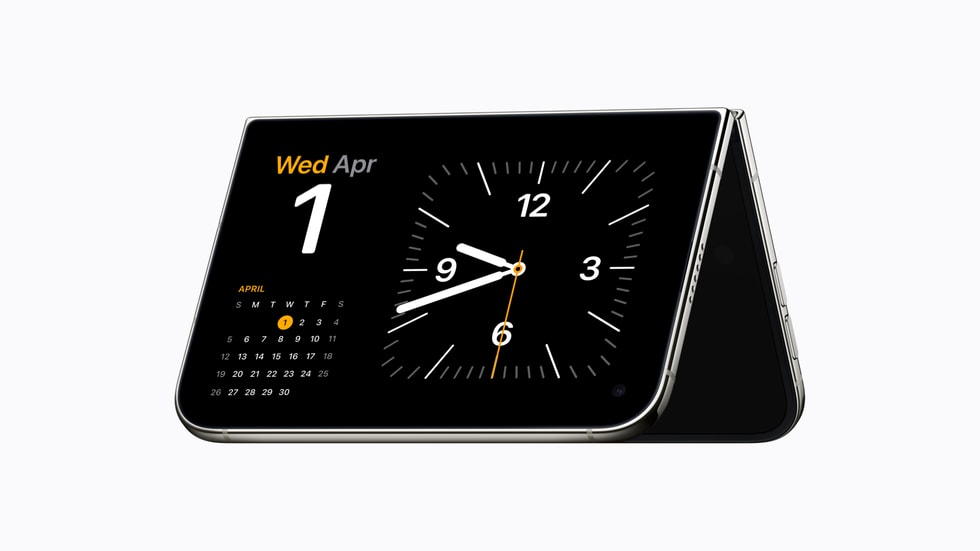
On the Lock Screen, partially fold iPhone Duo like a book or like a tent and set it down. StandBy starts. No charger needed. Other iPhone models must sit on their side while charging first. Apple's StandBy page lists Settings > StandBy options including Night Mode, Show Notifications, and on Duo a choice of which folded positions enter StandBy. The Only While Charging switch is there, but it is optional.
5. Unlock iPhone Duo with Touch ID on the side button
Rest the finger you registered with Touch ID on the side button. That is the unlock method Apple documents for iPhone Duo. The specs page lists a fingerprint sensor built into the side button and no Face ID. An Apple Watch can also unlock iPhone Duo. Face ID on a future outer display is reporting only for now, not a shipping feature.
6. Take group photos with Smart Take
Smart Take takes a photo when you strike a pose or hold still, so you can be in the group photo yourself. Set iPhone Duo on a table or tripod, open Camera, then tap the Smart Take button that appears when the phone is stable. It takes up to 20 photos over a couple of minutes, and the flash blinks on each shot. Long-press the thumbnail to preview. Smart Take is on by default when Duo sits on a surface.
7. Show your subject a preview with Duo Preview
Duo Preview shows a mirrored preview on the outer display, so your subject can adjust before you shoot. Open Camera, tap the control on the inner display, then tap Duo Preview. The outer display shows only the preview. No camera controls appear there. Shutter, Record, either volume button, or Camera Control all take the shot.

8. Get children and pets to look at the camera with Kid Cue
Kid Cue plays a fun animation on the outer display to pull a child's or a pet's eyes toward the lens. Tap the control on the inner display, then tap Kid Cue. The animation plays on the outer display while you tap Shutter or Record. Apple lists children and pets as the targets. Duo Preview and Kid Cue are separate switches.
9. Let someone nearby join a FaceTime call with Duo FaceTime
Duo FaceTime uses both displays, the Center Stage front camera, and the under-display FaceTime camera. A person next to you joins the group call on the outer display instead of everyone squeezing into one frame. During a call, tap the screen, tap the More button, then tap Duo FaceTime. The call then shows on both the outer and the inner displays.
10. Pair Apple Pencil (USB-C) and turn on Scribble
iPhone Duo works with Apple Pencil (USB-C) only. Other Apple Pencil models are not compatible. Slide open the end of the pencil, connect it to the USB-C cable that came with Duo, plug the other end into Duo, then tap "Tap to Connect". The pencil stays paired until you restart Duo, turn off Bluetooth, or pair it elsewhere. Apple's setup page also covers Settings > Apple Pencil, where Only Draw with Apple Pencil and Scribble live. Our earlier Apple Pencil pairing guide goes into what resets the pairing.
Photo: Apple.
Source: Apple Support, 9to5Mac.