If your iPhone battery drains fast overnight or right after a software update, open Settings and tap Battery before you change anything else. Apple’s own troubleshooting for fast drain starts on that screen, and the first thing to look for is an Insights entry called Ongoing iOS Update. Most day-one drain after an update is background work, not a broken setting. The order below follows Apple’s support pages as checked on 2026-11-05.
Ongoing iOS Update in Battery Insights explains most day-one drain
When an update finishes installing, tasks keep running in the background and can affect battery life and thermal performance for a while. Open Settings and tap Battery during that window and you might see the Insight Ongoing iOS Update. A new device can show Ongoing Device Setup instead. Apple’s advice in its battery-drain support page is simple: wait a few days and then check again. If battery life is still worse after that, work through the checks below. Resetting all settings on day one throws away data and rarely fixes anything. If you are still deciding whether to install the newest public build, our iOS 27.2 update coverage lists what it changed.
Daily Usage and View All Battery Usage show what actually used power
The Daily Usage chart needs iOS 26 or iPadOS 26 or later. It summarizes the day. Tap View All Battery Usage to see the battery usage percentage over the last eight days, then tap the top apps. Apple labels each usage type. Background Activity means the app worked while you were not looking at it. No Mobile Coverage and Low Signal mean the phone was hunting for a signal. Notifications means the app kept waking the screen. When the label matches what you see overnight, cut that app’s background use or notifications first.
Signal is the fix Apple puts first for the low-signal labels. Use Wi-Fi when you can. If you know you will be somewhere with no coverage for hours, turn on Airplane Mode. On iPhone 12 and later, iPhone SE (3rd generation), and 5G iPad models, 5G Auto is the better default: Settings → Cellular → Cellular Data Options → Voice & Data → 5G Auto lets the phone fall back to LTE when 5G adds nothing.
Adaptive Power and Low Power Mode live under Power Mode
Settings → Battery → Power Mode holds both controls, and Apple documents them on its Adaptive Power page. Adaptive Power predicts when you will need extra battery, then makes performance adjustments, lowers screen brightness by a small amount, and limits background activity. When the battery reaches 20 percent it can turn on Low Power Mode by itself. It needs iOS 26 or later and one of these devices: iPhone 18 models, iPhone Duo, iPhone 17 models, iPhone Air, iPhone 16 models, iPhone 15 Pro, iPhone 15 Pro Max.
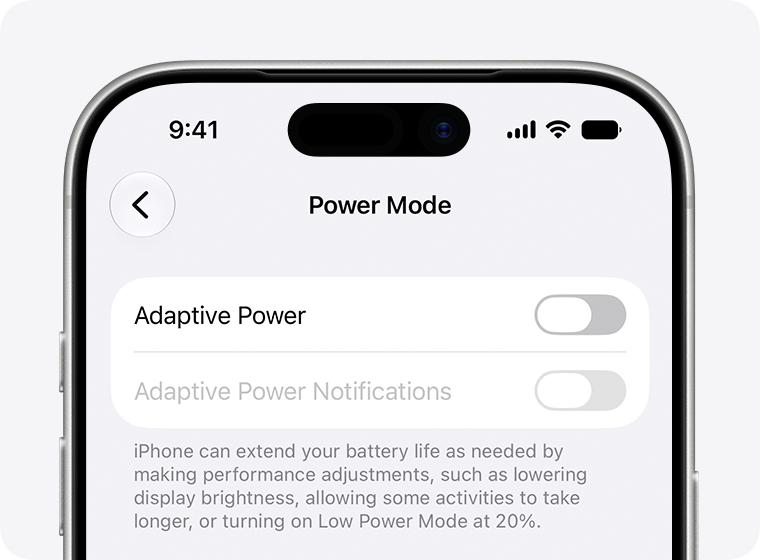
Whether you have to turn it on depends on the model. Apple lists Adaptive Power as on by default for iPhone Duo, iPhone 18 Pro and 18 Pro Max, iPhone 17, 17e, 17 Pro and 17 Pro Max, and iPhone Air. It is off by default on the iPhone 16 line, iPhone 16e, and iPhone 15 Pro and 15 Pro Max. If you own one of those, flip it on manually. One more control worth checking: turn on Adaptive Power notifications so the phone tells you when it slows down to stretch battery.
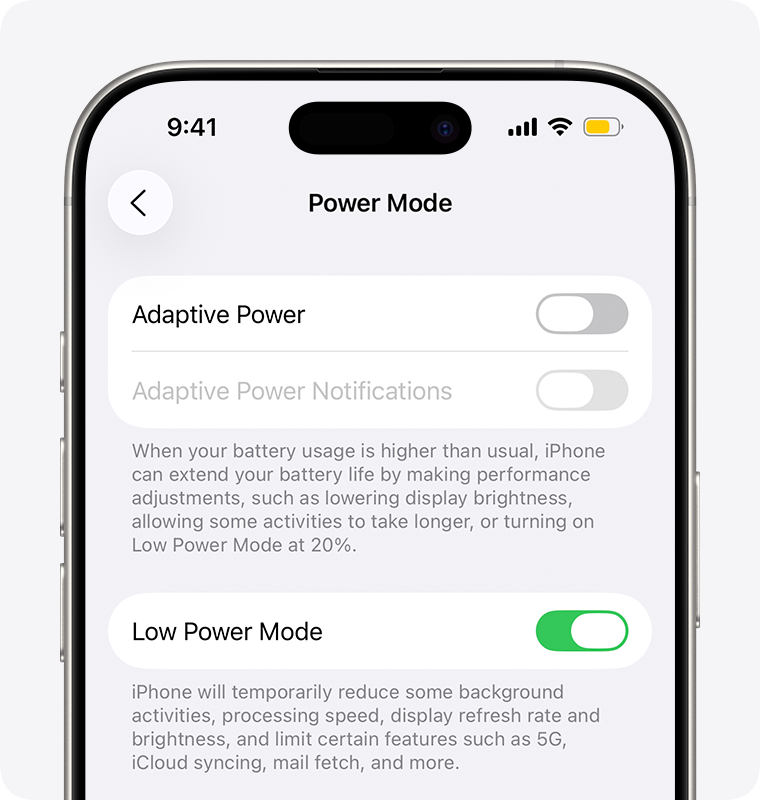
Low Power Mode is the blunter tool, and Apple describes it in its Low Power Mode support page. It cuts Mail fetch, Hey Siri, Background App Refresh, and some visual effects. The battery icon turns yellow while it is active, and it turns off again when you charge the device to 80% or higher.
Battery Health shows Service when the battery is the real problem
Not every drain problem is software. On iPhone 15 and later, open Settings, tap Battery, then tap Battery Health. On iPhone 14 and earlier the menu is Battery Health & Charging. If you see Service next to Battery Health, Apple says to consider replacing the battery to restore full performance and capacity. On iPhone Duo, Battery Health shows each of the two batteries separately, with cycle count, when the battery was manufactured, and when it was first used. Apple’s battery and performance page has the details. Before you book a swap, our 10 iPhone battery settings to change before a $99 swap covers the software side one more time.
Charging habits affect lifespan over years, not drain overnight. Unless Battery Health shows Service, skip the charging rabbit hole and fix the labels in Daily Usage first.
Photo: Apple.
Source: Apple Support.