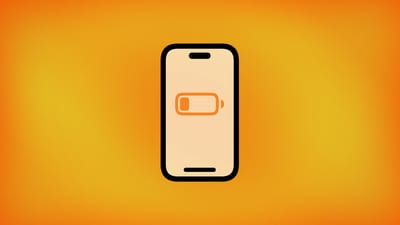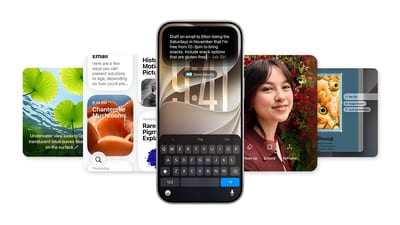
Weak Wi-Fi is worse than no Wi-Fi. The iPhone holds onto the dying signal and stalls, and Apple Music will not start in the driveway. iOS 27 has a setting for exactly this gap. Connectivity Assist adds cellular data when Wi-Fi is slow or unusable, so the connection keeps working while you walk away from the router. 9to5Mac's Chance Miller wrote it up on November 22 after living with the feature. His case is the walk to the car. The phone clings to home Wi-Fi, Apple Maps will not load directions, and the cellular radio sits unused until the Wi-Fi finally drops.
One point before the steps. This is a shipping iOS 27 setting, not a new beta feature this week. Apple lists Connectivity Assist among the iOS 27 system improvements in About iOS 27 Updates, published November 9, 2026. That page's latest section is still iOS 27.2.1.
What Connectivity Assist does
Apple's support document is short. Connectivity Assist "uses cellular data in addition to Wi-Fi for a more reliable internet connection." Apple's own examples: the backyard, the driveway, then coffee shops, airports, sports venues, and everywhere in between. When the Wi-Fi link is slow, busy, or not connected to the internet, iPhone adds cellular data to hold the connection up.
The feature also moved. It used to be called Wi-Fi Assist and lived in Cellular settings. On iOS 27 it is in Wi-Fi settings, and Apple says it "replaces and supersedes" the old control. If you go looking under Settings > Cellular, that is why nothing is there. Our fix post on the Wi-Fi Assist rename covers the moved setting and the viral posts that still pointed at the old path.
How to turn Connectivity Assist on or off
Apple's steps, in full. Update iPhone to the latest iOS or iPadOS. Open Settings, tap Wi-Fi, make sure Wi-Fi is on. Scroll down and turn Connectivity Assist on or off.
Whether it is on already depends on your update. Apple says Connectivity Assist is on by default if Wi-Fi Assist was on when you updated the software. If Wi-Fi Assist was off, you turn Connectivity Assist on manually. No silent switch either way. The Wi-Fi screen also counts what the feature has used. Tap Reset Data Usage to start a new count. For the total cellular number, Settings > Cellular (or Mobile Data) is still the place, and Reset Statistics there clears the counters.
Turn it off for one network only
You can keep the feature for the world and skip it at home. On the joined network: Settings > Wi-Fi, tap the info button, then turn off Use Connectivity Assist. Apple's iPhone User Guide labels the switch "Use cellular data in addition to Wi-Fi." Apple gives one reason to use this. If a router configuration must stay on Wi-Fi, like an ad blocker, the per-network switch keeps the phone there.
Do not confuse this with the Low Data Mode switch on the same screen. Low Data Mode trims data use on that network. Use Connectivity Assist decides whether cellular joins in when the network runs out.

What it costs, and when it stays off
Apple's warning is plain. With Connectivity Assist on, you "might use more cellular data." The cellular data support page adds that this "could incur additional charges depending on your data plan." Apple's answer for the exact current-period number is the carrier, not the phone. If your plan is small, this is the setting to audit first. Cutting Background App Refresh to Wi-Fi only is the other easy save.
Three cases where the feature does nothing. International roaming. Cellular Low Data Mode. Some third-party apps that stream audio and video. The second one catches people. Cellular Low Data Mode is a different switch from the Wi-Fi Low Data Mode mentioned above.
And if your iPhone will not join Wi-Fi at all, Connectivity Assist is not the fix. Apple's can't-connect checklist says to make sure Connectivity Assist is off while you work through the problem. For the rest of that list, see our fix for Wi-Fi that will not connect, or Reset Network Settings when nothing else works.
Photo: 9to5Mac / Apple. Source: Apple Support (About Connectivity Assist, Use cellular data), Apple iPhone User Guide, 9to5Mac.