Viral "7 Wi-Fi settings" threads are circulating on X again this week, one example here. One instruction in them no longer matches Apple's current documentation. The threads say to open Settings, then Cellular, and scroll down to Wi-Fi Assist. On a current iPhone that toggle has moved and has a new name. Apple calls it Connectivity Assist, and it lives in Wi-Fi settings now. Apple Support published the current page on September 14, 2026.
Connectivity Assist replaces Wi-Fi Assist in Cellular settings
Apple's About Connectivity Assist page is blunt about the change. The feature "appears in Wi-Fi settings" and "replaces and supersedes Wi-Fi Assist, previously found in Cellular settings." The path now: Settings > Wi-Fi, make sure Wi-Fi is on, scroll down, toggle Connectivity Assist. Migration is automatic in one direction. If Wi-Fi Assist was on when you updated your software, Connectivity Assist is on by default. If Wi-Fi Assist was off, you turn Connectivity Assist on yourself.
A per-network switch exists too. Apple's iPhone User Guide lists "Use Connectivity Assist" inside the info-button detail screen of a joined network, for setups where you want to stay on Wi-Fi only. Apple gives an ad blocker as the example. And Apple's can't-connect troubleshooting page, updated October 5, 2026, tells you to make sure Connectivity Assist is off when the iPhone refuses to join at all.
The data caveat is why the tip threads tell people to kill it. Apple says you might use more cellular data with Connectivity Assist on, and it is not used while the iPhone is international roaming, in cellular Low Data Mode, or with some third-party apps that stream audio and video.

Private Wi-Fi Address: Off, Fixed, or Rotating
Second item in the threads is Private Wi-Fi Address, and the advice to turn it off needs a condition attached. Apple's private Wi-Fi address page documents the current menu. Settings > Wi-Fi. If you are not connected yet, tap Edit in the upper-right corner, then the More Info button next to the network name. On iOS 18, iPadOS 18, and visionOS 2 or later, tap Private Wi-Fi Address, then pick Off, Fixed, or Rotating.
Fixed uses a private address that does not change, and Apple chooses it by default for WPA2 or stronger networks. Rotating switches to a different private address every two weeks, and is the default on weak or open networks. Off uses the hardware MAC address. Apple's instruction is to install the latest software update and try again before turning the feature off, because most networks work fine with a private address. If a network only accepts the hardware MAC, that is the case for Off.
Forget old networks, then check the router
Pruning saved networks is the third recurring tip. Tap the info button next to a joined network and use Forget This Network. The same screen carries Low Data Mode and Limit IP Address Tracking.
Apple's checklist also runs through the hardware before you blame the iPhone. Can other devices join the network. Is the router firmware current. Is the iPhone in range. If the router does separate frequencies, try 5 GHz instead of 2.4 GHz. Unplug the router and the cable modem, plug them back in. Confirm Airplane Mode is off. If VPN or security software is installed, Apple says uninstall it, restart the iPhone, and test the connection.
Reset Network Settings as the last resort
The final step in the threads is the heavy one, and Apple puts it last too. Settings > General > Transfer or Reset iPhone > Reset > Reset Network Settings. Apple lists what disappears: all Wi-Fi networks and passwords, cellular settings, and VPN and APN settings. Reset only if nothing above worked, and ask IT first if a school or business manages the network. After the reset, if the iPhone joins the Wi-Fi but still has no internet access, Apple says contact the ISP. Our Reset Network Settings walkthrough covers the same menu, the grayed-out Wi-Fi fix covers the case where the Wi-Fi line itself is dimmed, and Background App Refresh on Wi-Fi only cuts cellular use without touching Connectivity Assist.
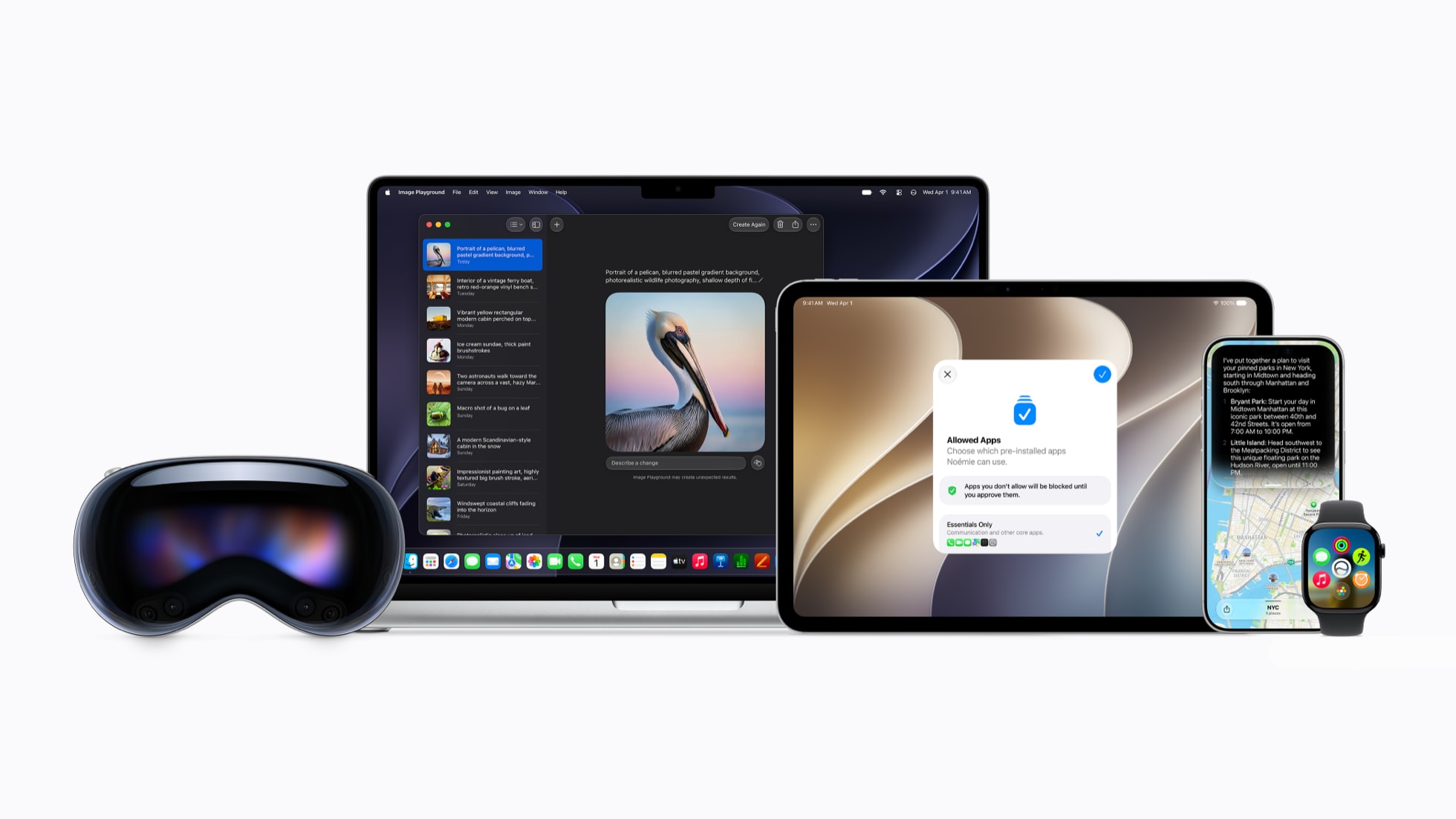
Photo: Apple, Apple Newsroom. Source: Apple Support, About Connectivity Assist, Apple Support, If you can't connect to Wi-Fi on your iPhone or iPad, Apple Support, Use private Wi-Fi addresses.