Apps keep waking after you leave them. Mail pulls new messages. Maps updates traffic. News checks headlines. That work shows up as Background Activity under Settings, Battery, and it burns cellular data when you are away from Wi-Fi.
Background App Refresh is the switch for that. Apple's battery page puts it under Settings, General, Background App Refresh. You can leave it on for Wi-Fi only, keep Wi-Fi and cellular, or turn the whole feature off. Labels below match Apple Support article 120745 and the Maximizing Performance battery guide, checked October 2026.
Open Background App Refresh in Settings, General
Open Settings. Tap General.
Tap Background App Refresh.
At the top, tap Background App Refresh again if you see a menu. Pick Wi-Fi, Wi-Fi & Cellular Data, or Off.
Wi-Fi only is the middle path most people want on a trip. Apps still refresh on a known network. They stop using cellular for that background work.
The same screen lists apps one by one. Each row has its own switch. Leave Mail and Messages on if you need them. Kill games, shopping apps, and news readers you never open.

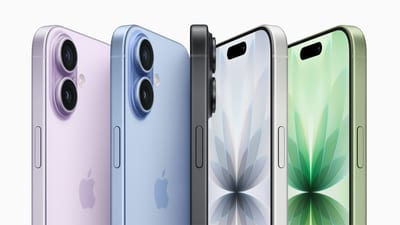
Photo: Apple
What Wi-Fi only changes
With Wi-Fi selected, background refresh waits for a Wi-Fi connection. On cellular alone, those apps stay quiet until you open them.
Push notifications can still arrive. Background App Refresh is not the Notifications switch. A message banner can land even when refresh for that app is off.
Low Power Mode cuts Background App Refresh for you. On iPhone 15 and later, that path is Settings, Battery, Power Mode, then Low Power Mode. On older models the Low Power Mode row sits under Settings, Battery. When the mode turns off after a charge past about 80%, refresh follows the General setting again.
For charging limits that slow battery aging, see the 80% Charge Limit tip. A phone that sits on a nightstand as a clock is covered in the StandBy tip.
Turn off refresh for one noisy app
Open Settings, Battery. Check App and System Activity Usage. Tap an app that lists heavy Background Activity.
Then go back to Settings, General, Background App Refresh. Find that app. Turn its switch off.
The app still opens when you tap it. It just stops waking on its own to fetch content. Weather may look a few minutes old until you launch it. That is the trade.
If Lock Screen noise is the real problem, quiet delivery is a different control. The Scheduled Summary tip bundles low-priority alerts for later.

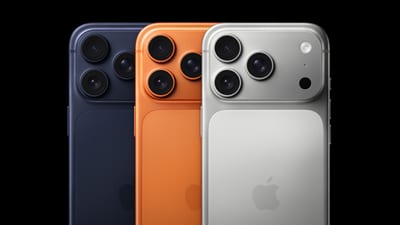
Photo: Apple
Common mistake: Off for everything
Someone flips Background App Refresh to Off at the top, then wonders why Mail sits empty until they open the app, or why a widget shows yesterday's number.
Off means every app on the list loses background refresh. Prefer Wi-Fi for the master control, then cut only the apps that show Background Activity on the Battery chart.
Another mix-up: blaming refresh for a drain that is really Location Services. An app set to Always under Privacy & Security, Location Services can burn power even with refresh off. Check that path for the same app name.
Screen habits sit elsewhere. The Screen Distance tip covers the Screen Time shield when the phone sits too close to your face.
Check the Battery chart after a day
Leave the Wi-Fi-only setting on for a normal day of use. Open Settings, Battery again that evening.
Compare Background Activity rows with yesterday. If one app still leads, kill its refresh switch and recheck tomorrow.
Public iOS 27 tip builds are still on the 24A446 train as of today's firmware note. The Background App Refresh path above matches current Apple wording on that train.
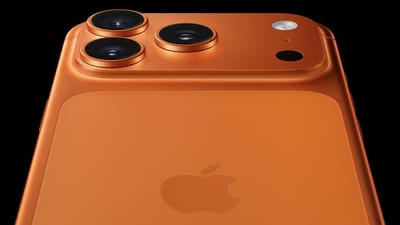
Photo: Apple Newsroom / iPhone 18 Pro store demos, Fifth Avenue, Jingan, BKC Mumbai
Source: Apple Support, If the battery in your iPhone or iPad drains too quickly (120745); Apple, Batteries, Maximizing Performance