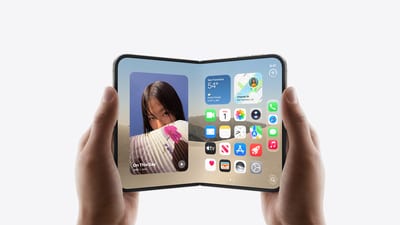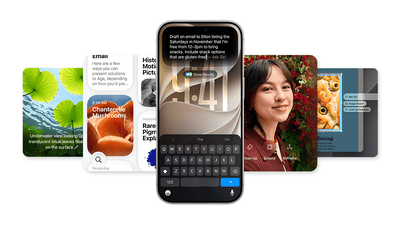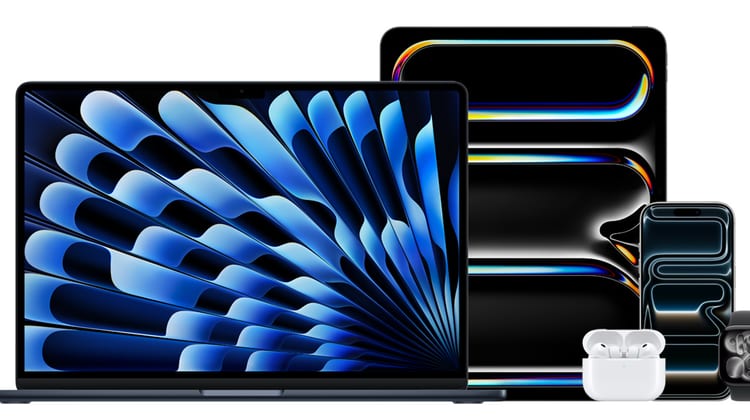
A new report points to a crowded early 2027, and none of it is official. Gurman's iPhone 18e, iPad and MacBook Neo timing pins an updated entry iPad, the iPhone 18e, a new MacBook Neo, the standard iPhone 18 and a MacBook Air refresh to the February to March iOS 27.4 cycle, with an OLED iPad Air, a new iPad Pro and the iPhone Air 2 spread across the first half of the year. Apple has confirmed none of it. If you want to trade in a device toward any of that, these 10 official Apple Trade In and support steps are live on Apple's site today.
1. Check the official Apple Trade In estimate first
Apple Trade In gives credit toward a new device or an Apple Gift Card, online or at an Apple Store. If the device has no trade-in value, Apple recycles it and any accessories you no longer use for free. The US store page lists estimates like iPhone $35 to $855 (iPhone 17 Pro Max up to $855), iPad $45 to $915 and Mac $45 to $2,560, all marked as estimates. The final amount depends on model, maker and condition, so treat the up-to numbers as a ceiling, not a promise.
2. Back up the iPhone or iPad while you still hold it
Apple's prep checklist puts backup first. For iCloud, connect to Wi-Fi, then Settings > [your name] > iCloud > iCloud Backup > Back Up Now; the date and time of the last backup shows right under the button. On a Mac, select the device in Finder and tick Encrypt local backup if you want Health and Activity data restored later. One trap in the checklist: deleting photos or contacts by hand while signed into iCloud removes them from every device and from Apple's servers.
3. Move data to the new device with Quick Start
Quick Start needs another iPhone or iPad on iOS 11 or iPadOS 13 or later, and it holds both devices until the move is done. Update both first, keep the old one unlocked on the home screen with Wi-Fi and Bluetooth on, then hold the new device close and follow the prompts. Choose download from iCloud to start using the new device sooner, or direct transfer to finish everything at once. Devices managed by Apple School Manager or Apple Business can't use Quick Start.
4. Finish any open repair in Parts and Service History
A part that shows Finish Repair must be completed before Apple will accept the trade-in. Repair Assistant runs from Settings > General > About > Parts & Service History > Restart & Finish Repair, and it needs Wi-Fi, a battery above 20 percent and the latest iOS. Captive and 802.1X networks are not supported. If someone else installed the part, it may sit under Activation Lock; Apple says locked parts can't be serviced under warranty or traded in.
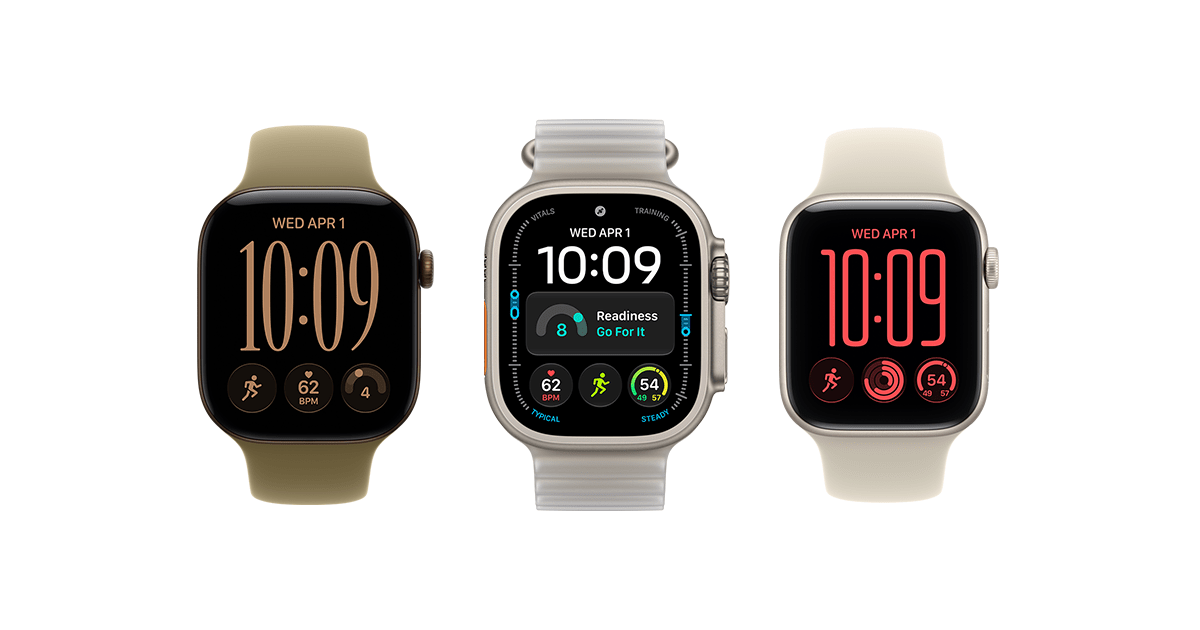
5. Unpair the Apple Watch before erasing the paired iPhone
Unpairing from the iPhone resets the watch and removes Activation Lock. In the Watch app, go to My Watch > All Watches, tap the info button next to the watch, then Unpair Apple Watch and confirm with your Apple Account password. Selling the watch too? Remove the cellular plan and cancel the subscription with your carrier. Erasing on the watch itself resets it but leaves Activation Lock on. The same pass applies to the watch settings we listed in 10 Apple Watch settings to check after the watchOS 27 update.
6. Cancel or transfer the AppleCare plan
AppleCare can follow the device or not, and the default depends on how you pay. Recurring plans billed by Apple end as soon as you cancel in Settings > General > AppleCare & Warranty. Monthly or yearly plans linked to your Apple Account can't be transferred to a new owner. Paid-in-full plans can sometimes transfer through My Support with the receipt and the new owner's details, but rules vary by country.
7. Move the eSIM or pull the physical SIM before shipping
Apple's trade-in prep page says to stop service on the old line first. With a physical SIM, take the card out. With an eSIM, either use eSIM Quick Transfer to move the number (both phones on iOS 18.4 or later, same Apple Account, Bluetooth on) or ask the carrier to suspend service. iOS 26 can transfer several numbers in one pass. Don't erase the old eSIM before the number is safe on the new phone.
8. Sign out and erase everything to clear Activation Lock
Apple's prep checklist gives the order: back up, unpair the Watch, handle AppleCare, sign out of iCloud and the App Store, then Settings > General > Transfer or Reset [device] > Erase All Content and Settings. Erasing turns off Find My and Activation Lock. It does not delete anything from iCloud. Going to an Apple Store? Bring your Apple Account password, and if passcode trouble shows up first, see iPhone Unavailable? Try Passcode Reset before you erase. A password change with Stolen Device Protection on can trigger a one-hour delay.

9. iPhone 18 Pro Max owners: run Prepare to Ship before mailing
The iPhone 18 Pro Max battery sits above 20 watt-hours, and most countries add shipping rules for single cells that size. Before you send it for repair, trade-in or return, open Settings > General > Transfer or Reset iPhone > Prepare to Ship and pick the reason. The phone then holds the battery under 20 Wh and caps charging at 80 percent for 14 days. Settings shows a red Ready to Ship badge when done; if the flow fails, don't mail it. Travel does not need this step.
10. Pack only the device in Apple's kit, and reset a Mac first
The kit from Apple's trade-in prep page has a box or mailer and a label. Nothing else goes inside: cases, chargers and bands are not returned. Check the Quote ID Number on the label against your confirmation mail, one device per kit, and get a receipt at the drop-off. Mac laptops need the same treatment: on Apple silicon or T2 with macOS Monterey or later, Erase All Content and Settings is enough before packing.
Photo: Apple
Source: Apple Trade In, Apple Support