Wi-Fi sits grayed out. Or the switch works, a blue checkmark appears, and Safari still says No Internet Connection. Apple Support article 111786, published October 5, 2026, walks the same order for iPhone and iPad. The steps below stay on that list. No extra menus invented for iOS 27.
Turn Wi-Fi on, join the network, check Airplane Mode
Open Settings. Tap Wi-Fi. Make sure Wi-Fi is on. Tap the network name to join. Look for a blue checkmark next to that network.
If you still cannot connect, go back to Settings and turn Airplane Mode off. Open Wi-Fi again. Turn Connectivity Assist off. Apple says if the Wi-Fi row looks dimmed or grayed out, restart the device first.
A working Wi-Fi link is the base for Continuity features. When local networking is blocked, the AirDrop not working on iOS 27 path often shows the same VPN or filter apps in the way. Sharing data from the phone is a separate queue: the Personal Hotspot not working fix.

Photo: Apple
Uninstall VPN and security software, then restart
If a VPN or security app is installed, uninstall it. Restart the iPhone. Test Wi-Fi again.
Apple’s note is plain. If removing that software fixes the join, but you still need the app, contact the VPN manager or the security vendor. Do not stop at toggling the VPN switch inside the app. Uninstall, restart, retest.
Confirm the router, range, and 5 GHz vs 2.4 GHz
Check whether other phones or laptops can join the same Wi-Fi. If they can, the router and ISP path are likely fine, and the fault sits on this iPhone.
Update the router firmware. Confirm the router supports your Apple product. Stay in range. If the router exposes separate bands, try the other frequency. Join 5 GHz instead of 2.4 GHz, or the reverse.
Unplug the router and the cable modem. Plug them back in. That refresh clears many short connection stalls.
If the network never appears in the list, Apple says it may be hidden, or it may not meet Apple’s router recommendations. If you do not manage the network, contact the ISP. After Wi-Fi returns, cut cellular drain with Background App Refresh set to Wi-Fi only if that tip fits your usage.

Photo: Apple
Reset Network Settings only after the steps above fail
Reset Network Settings clears home, work, and school Wi-Fi configs. Apple places it last. If a school or business configures the network, ask IT before you reset.
Open Settings. Tap General. Tap Transfer or Reset iPhone. Tap Reset. Tap Reset Network Settings. That wipe removes saved Wi-Fi networks and passwords, cellular settings, VPN settings, and APN settings.
After the reset, join Wi-Fi again. If the phone shows connected but still cannot reach the internet, contact the ISP. Features that need a clean network path, such as the iMessage or FaceTime Waiting for activation fix, should wait until this join works.
Try another location, or contact Apple
If you are on Wi-Fi but cannot get online, test the same network on other devices. If those devices also fail, there may be an ISP outage. Call the provider.
To see whether the fault is only your home network, try Wi-Fi somewhere else. If the iPhone cannot join any Wi-Fi network, contact Apple.
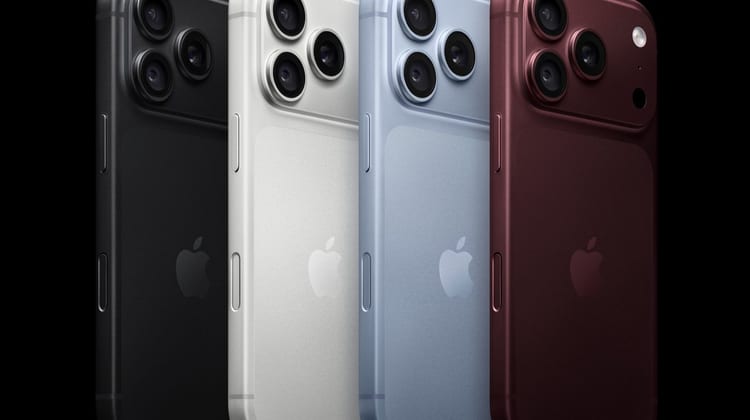
Photo: Apple Newsroom / iPhone 18 Pro color lineup; iOS 27 lifestyle; Apple The Exchange TRX, Kuala Lumpur
Source: Apple Support 111786, Oct. 5, 2026