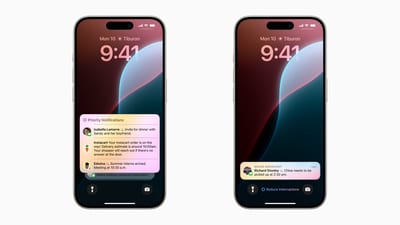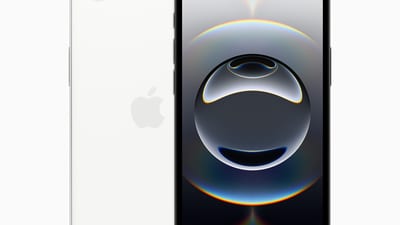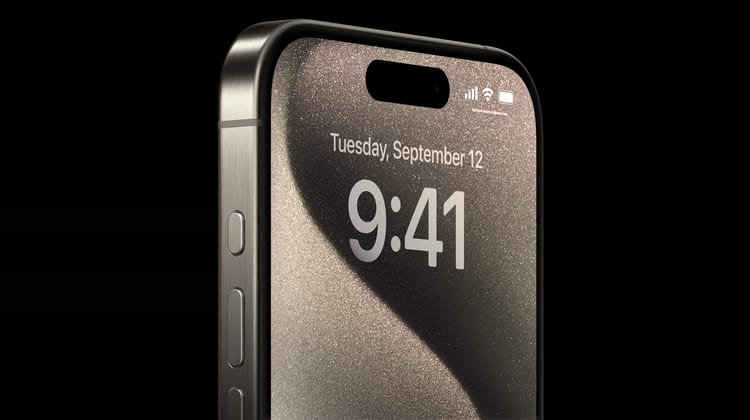
On supported iPhones the Ring/Silent switch is gone. The Action Button sits on the left edge above the volume keys. A long press runs one job you pick in Settings. Apple's Action Button guide lists the options and the setup mistake that leaves the button dead.
If your model still has a physical mute switch, Settings > Action Button will not appear. That menu only shows on phones that ship with the button.
Open Settings and swipe to an action
Go to Settings > Action Button. You see the left side of an iPhone and a row of icons. Swipe until the name under the dots matches what you want.
- Silent Mode: switch Ring and Silent for calls and alerts (default).
- Focus: turn a Focus on or off.
- Camera: open Camera.
- Flashlight: turn the light on or off.
- Voice Memo, Recognize Music, Translate, Magnifier: open those tools.
- Visual Intelligence: places and objects nearby on Apple Intelligence models.
- Controls, Shortcut or Accessibility: jump to a control, Shortcut or accessibility feature you choose next.
- No Action: the long press does nothing.
Press and hold to use it. For Silent Mode and Flashlight, a second long press turns the setting back off.
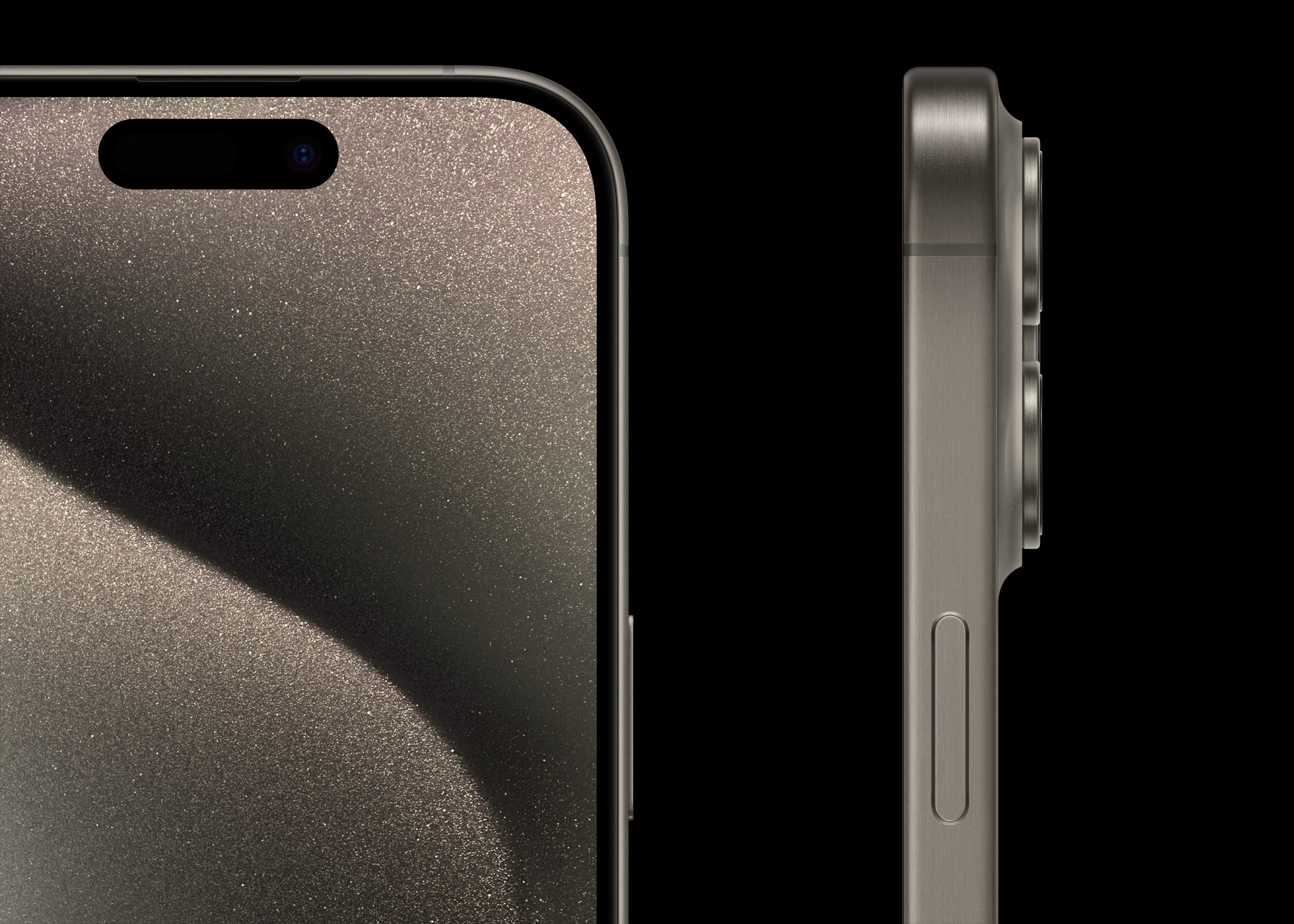
Photo: Apple. Action Button on the left edge
Controls, Shortcut and Accessibility need a second tap
This is the usual failure. You swipe to Controls, Shortcut or Accessibility and leave Settings. Later the long press does nothing.
Apple is clear on this: for those three actions you must tap the button under the icon and pick a specific control, Shortcut or accessibility feature. Until you do, the Action Button stays idle. For Shortcuts specifically, Apple's Shortcuts Action Button page shows the same pick step.
- Settings > Action Button.
- Swipe to Controls, Shortcut or Accessibility.
- Tap the small button under the action name.
- Choose one item, then leave Settings.
- Press and hold the Action Button to confirm it fires.
Accessibility here is a quick path to features you can also put on a triple-click. If you already use Magnifier or Zoom that way, see our Accessibility Shortcut tip. Prefer Magnifier from Camera Control instead? That path is separate in Camera Control settings.
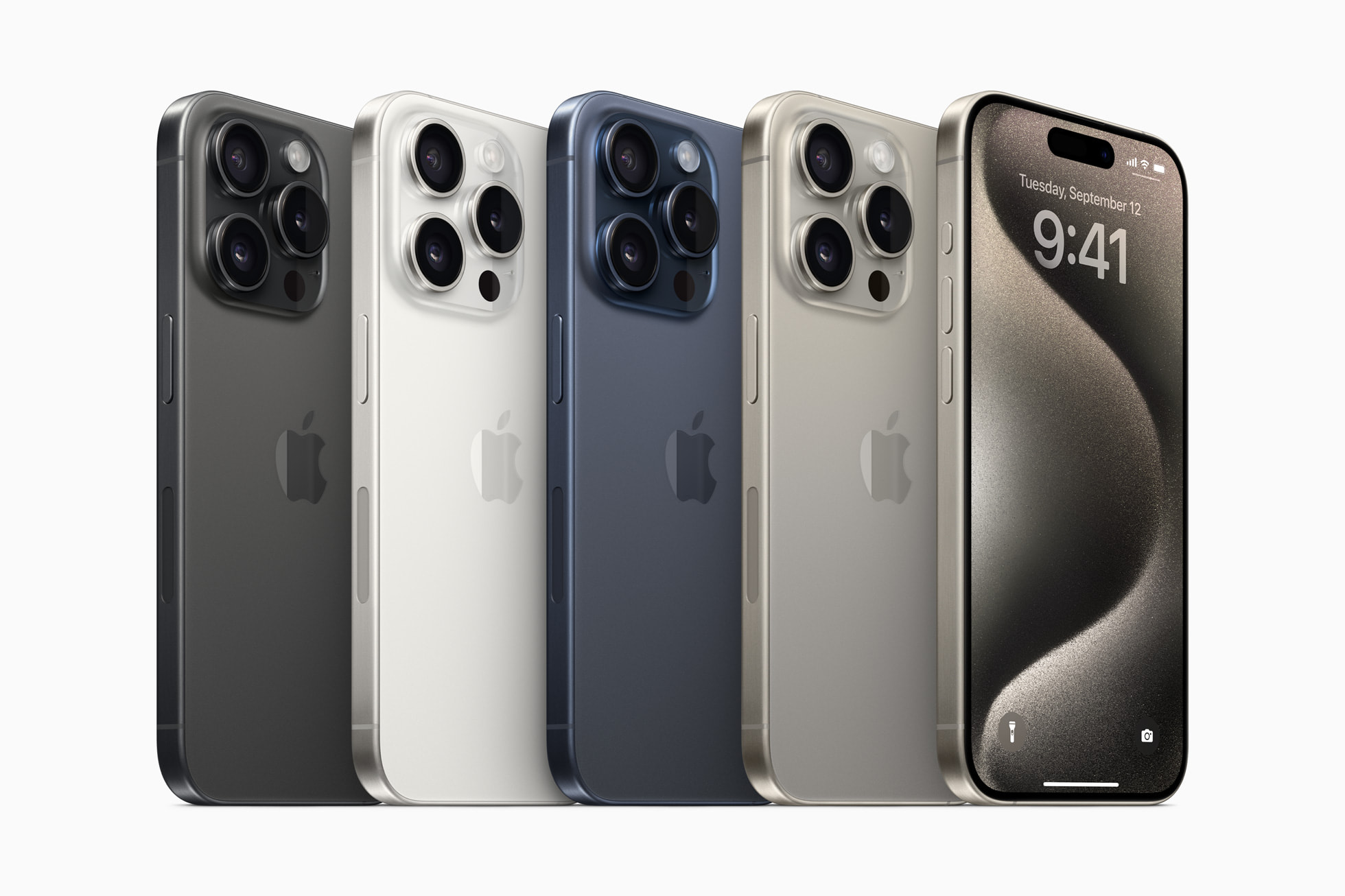
Photo: Apple. Action Button across Pro colors
Focus, Flashlight and Camera as daily picks
Focus on the Action Button suits one long press to silence notifications without opening Control Center. After you swipe to Focus, tap the options button and pick which Focus to toggle. Apple's Focus setup guide covers creating the mode first. For a schedule that turns Do Not Disturb on at night, use Focus automation and keep the button for daytime switches.
Flashlight helps if you often reach for the Lock Screen icon. Camera is faster with gloves or one hand. Silent Mode stays the safest default for meetings: one hold mutes rings, another restores them.
Change the assignment anytime. Return to Settings > Action Button, swipe to a new icon, and if the new choice is Controls, Shortcut or Accessibility, pick the sub-option again. No restart needed.
When the long press feels wrong
Thick cases can cover the button or make a short press feel like a hold. Try a firm press and hold for about a second until haptics fire. If nothing happens, open Settings > Action Button and check you did not leave Controls, Shortcut or Accessibility without a selection. Also confirm the menu exists: older models without the button will not show it.
Visual Intelligence needs an Apple Intelligence capable iPhone and a supported language. If that tile is missing, stick with Flashlight, Camera or Silent Mode. For tile layout elsewhere, customize Control Center separately. The Action Button only runs the one action you assign here.