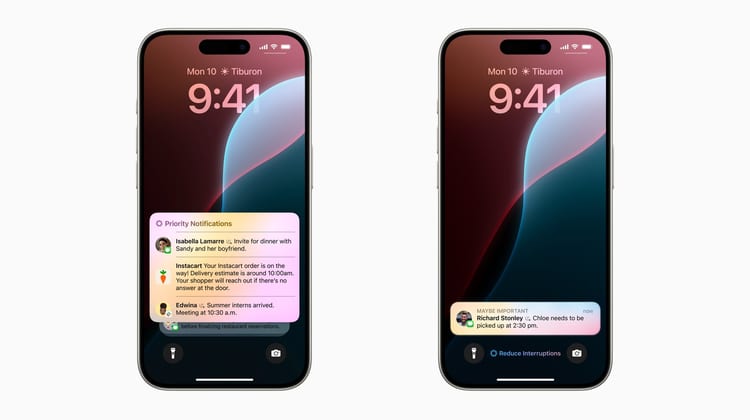
Notifications are a sore point on X this week. On October 19 developer Baye (@waylybaye) wrote that after iOS 27, most installed apps, Gmail and GitHub among them, stopped getting push notifications. A restart and a system update did not help. "An unusually quiet weekend," the post said. It got over 46,000 views. Another user the same day regretted the update and wanted the old dark-tinted notifications back.
Apple has not published anything about a push bug. But a lot of missing or noisy alerts come down to settings. Here are 10 to check on iPhone. Each one was checked against Apple's iPhone User Guide for iOS 27 in October 2026.
1. Count, Stack or List on the Lock Screen
Go to Settings > Notifications. At the top, pick Count, Stack or List. Count shows only a number. Stack groups by app. List shows each one.
You can also pinch the notifications on the Lock Screen to switch layout. Count is easy to set by accident this way, and then alerts look like they are gone.
2. Show Previews: When Unlocked
In Settings > Notifications, tap Show Previews. The choices are Always, When Unlocked and Never. When Unlocked hides message text and Mail content until Face ID or Touch ID unlocks the phone.
Each app can override this. Tap the app under Notification Style, then Show Previews.
3. Per app: Alerts, Badges and Time Sensitive
Tap an app under Notification Style. First check Allow Notifications is on. Under Alerts, choose Lock Screen, Notification Center and Banners. Badges puts the red count on the app icon.
If an app supports it, Time Sensitive Notifications lets its urgent alerts come through right away. Some apps also have a Customize Notifications row, or a link at the bottom to the app's own notification settings. Apple lists all of these on its Change notification settings page.
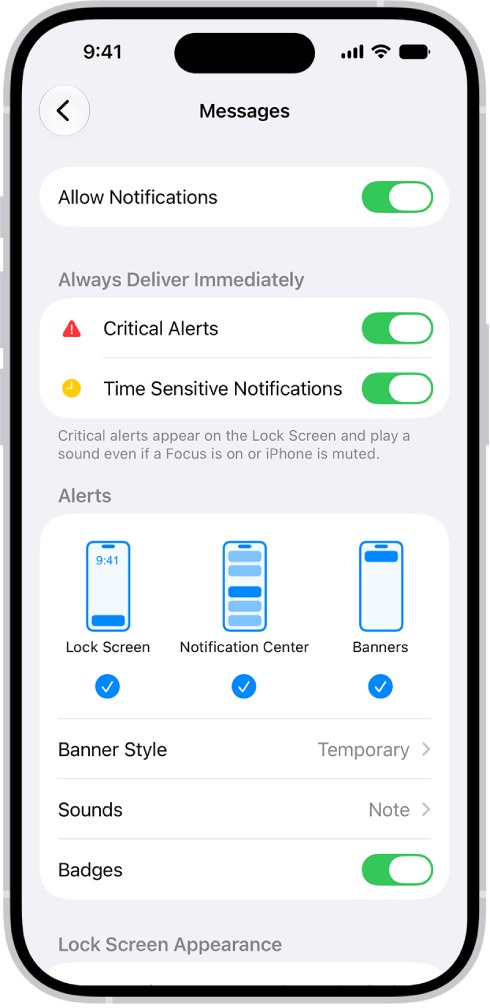
Photo: Apple
4. Scheduled Summary for apps that can wait
Settings > Notifications > Scheduled Summary. Turn it on and set the times. Then tap A to Z and pick the apps to include.
Shopping and news apps are good candidates. Messages from people are not. If an app's alerts only show up a few times a day, check whether it was moved into the summary. In the app's page, Notification Delivery shows Immediate Delivery or Scheduled Summary.
5. Summarize Notifications
This one needs Apple Intelligence. Apple says that means iPhone 15 Pro, iPhone 15 Pro Max, or an iPhone 16 model or later, on iOS 27, with a supported language.
Go to Settings > Notifications > Summarize Notifications and turn it on. Then tap Choose Notifications to Summarize and pick the apps. A busy group chat becomes one short line on the Lock Screen. Not everyone likes that, so pick the apps carefully.
6. Prioritize Notifications
Also Apple Intelligence. Settings > Notifications > Prioritize Notifications, then turn it on. iPhone decides which alerts matter more and puts them at the top of the stack.
If it gets one app wrong, fix it from the Lock Screen. Swipe left on a priority notification, tap Options, then Turn Off All notifications for that app, or Turn Off Prioritization for everything. Apple explains it on its Apple Intelligence notifications page.
7. Check for a mute you forgot
Swipe left on a notification and tap Options. You can mute an app for an hour or for a day. Muted alerts skip the Lock Screen, make no sound and show no banner. They still go into Notification Center.
To undo, find one in Notification Center, swipe left, tap Options, then Unmute. The same menu has Turn Off, which stops the app's notifications completely. That is worth checking first when one app goes silent. Apple's view and respond to notifications guide has the full list.
8. Focus: who and what can break through
A Focus holds back notifications. Settings > Focus, pick one, then set Allow Notifications From or Silence Notifications From for people and apps. Time Sensitive Notifications can be allowed here too.
With Apple Intelligence, Intelligent Breakthrough & Silencing lets important alerts interrupt you and silences the rest. People and apps you set by hand always follow your choice. Under Focus Status, Share Focus Status decides whether people in Messages see that you have notifications silenced. We covered more Messages options in 10 Messages settings to check after iOS 27.
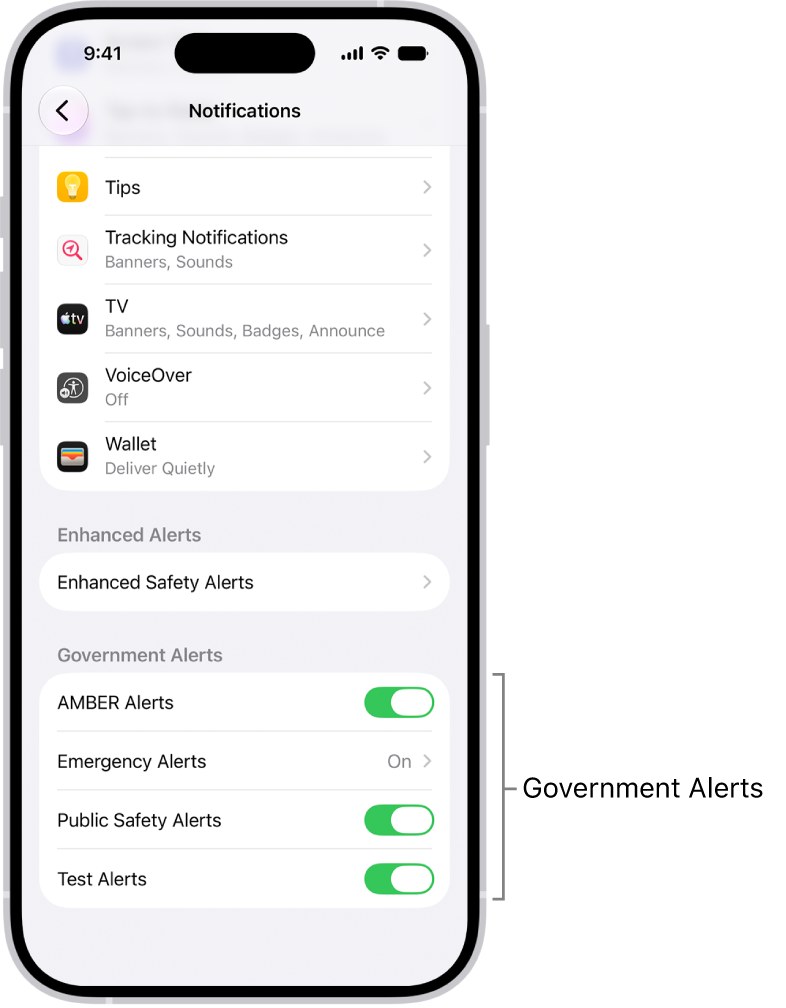
Photo: Apple
9. Flash for Alerts
For a loud room or a phone face down on the desk. Settings > Accessibility > Audio & Visual > Flash for Alerts. Choose LED Flash, Screen or Both.
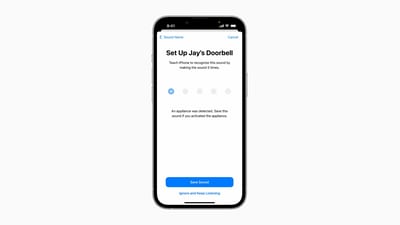
Flash While Unlocked and Flash in Silent Mode are separate switches. Turn on the second one if the phone is usually on silent. For more sound-based alerts, see our tip on Sound Recognition for a doorbell or an alarm.
10. Government Alerts and Always Play Sound
Scroll to the bottom of Settings > Notifications. Government Alerts depend on country and carrier. In the US the list has AMBER, Public Safety and Emergency Alerts, on by default. In Japan, iPhone can get Emergency Earthquake Alerts from the Japan Meteorological Agency.
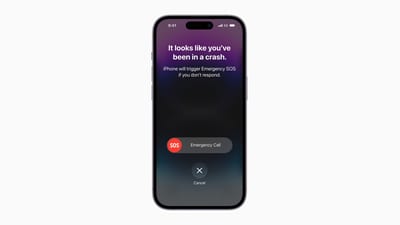
Tap Emergency Alerts to find Always Play Sound. With it on, an emergency alert makes a sound even in Silent mode. It pairs well with the Emergency SOS settings we checked last week.
Photo: Apple
Source: Apple iPhone User Guide (iOS 27), Apple Newsroom, X