The bars go away. In their place the status bar says SOS, or No Service, or it keeps Searching. Calls fail. iMessage falls back to Wi-Fi if there is any. It happens after a SIM swap, after landing abroad, sometimes for no clear reason.
Apple keeps one support page for this, "If you see SOS, No Service, or Searching on your iPhone or iPad", last published June 23, 2026. Steps below follow that page in order.
SOS only and No Service are not the same message
SOS or "SOS only" means iPhone lost your own carrier but another carrier's network is in range. Emergency calls still go through. Apple lists this for Australia, Canada and the United States. Check your Emergency SOS settings once, before you need them.
No Service or Searching is different. The phone has no cellular link at all. On an iPhone that runs iOS 18 or later, Apple also points to the Apple Support app, which can run extra diagnostics for this.
Airplane Mode for 15 seconds, then restart
Open Settings. Turn on Airplane Mode. Wait at least 15 seconds. Turn it off. If the network is there, the phone often registers again on this alone.
If not, restart the iPhone. No reset needed yet.
Then contact the carrier. Only the carrier can see the account. Ask if the account is active, if there is an outage in your area, and if the device is blocked or barred, or on the wrong data plan. For an imported iPhone, ask if local rules require IMEI registration.
Carrier settings and iOS in General > About
Update iOS first. If the update itself stalls, there is our software update fix for iOS 27.
Next is the carrier settings file. Connect to Wi-Fi. Go to Settings > General > About. If an update is waiting, an option to update carrier settings appears there. Per Apple's carrier settings update page, install takes less than one minute. With a new SIM or a new eSIM, you may need to download the new carrier's settings this way. No Wi-Fi at all? See our Wi-Fi connection fix first.
The line itself in Settings > Cellular
Dual SIM users should open Settings > Cellular and tap each line. If one is off, tap Turn On This Line. Then look at the status bar again.
If the line is not listed, the carrier has to set up the eSIM, or a physical SIM has to go in. With a physical card, remove it and put it back. Per Apple's SIM tray guide, iPhone 14 and later bought in the United States activate with eSIM only. No card to reseat. A damaged card, one that does not fit, or one moved from another device: ask the carrier for a new SIM.
Abroad, it is usually roaming. Settings > Cellular, turn on Cellular Data, then Cellular Data Options, then Data Roaming. On Dual SIM, tap the number first.
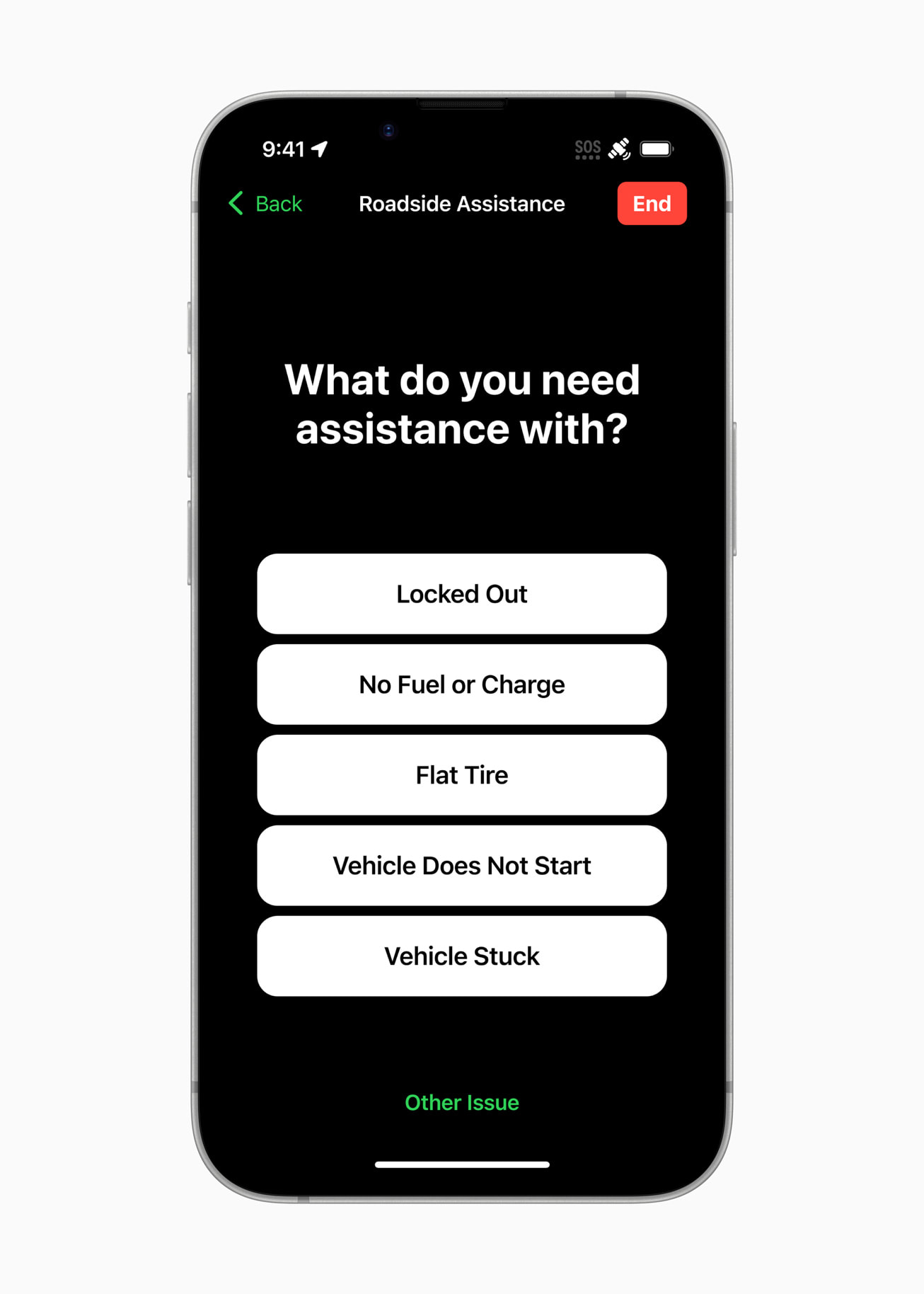
Cellular Issue alert and Apple Support app
Sometimes a red badge shows on the Settings icon. Tap the message. Apple's diagnostics page says a Cellular Issue alert means iPhone had trouble updating its cellular features, or there was a temporary service issue.
The check runs from the Apple Support app. Connect to Wi-Fi and get the latest version. Open it, tap Cellular service, then Run Diagnostics, Agree, and follow what it recommends. iOS 18 or later is required.
If the carrier says the account and network are fine, Apple says hardware could be the cause. That means a service appointment.
Photo: Apple
Source: Apple Support