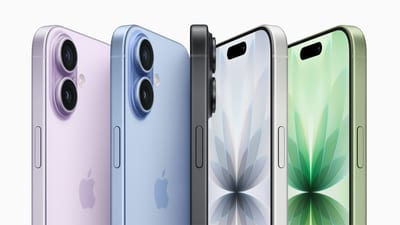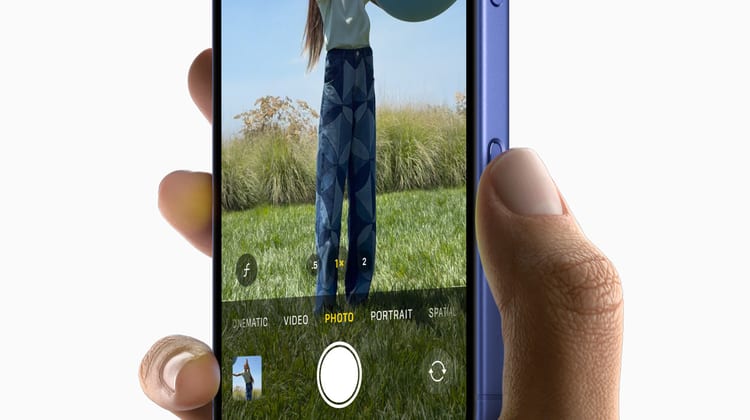
The side button next to the camera lenses is easy to ignore. Many people only use it to open Camera. On iOS 27 it can open Magnifier or a QR scanner instead, change how hard a light press feels, and lock focus while you reframe. Apple's Camera Control guide lists the paths.
Supported models include iPhone 16 and later with the dedicated control. Older phones without that button will not show these menus.
Pick what the button opens
Go to Settings > Camera > Camera Control. Apple's page on opening another app shows four choices:
- Camera : opens the Camera app (default).
- Code Scanner : opens a QR and barcode scanner.
- Magnifier : opens Magnifier for close-up text or small labels.
- None : the click does not launch an app.
If you scan menus in restaurants or read tiny print often, Magnifier on the button saves a trip through Control Center. Code Scanner is useful at events and package labels. Set None if the button keeps firing in a pocket or thick case.
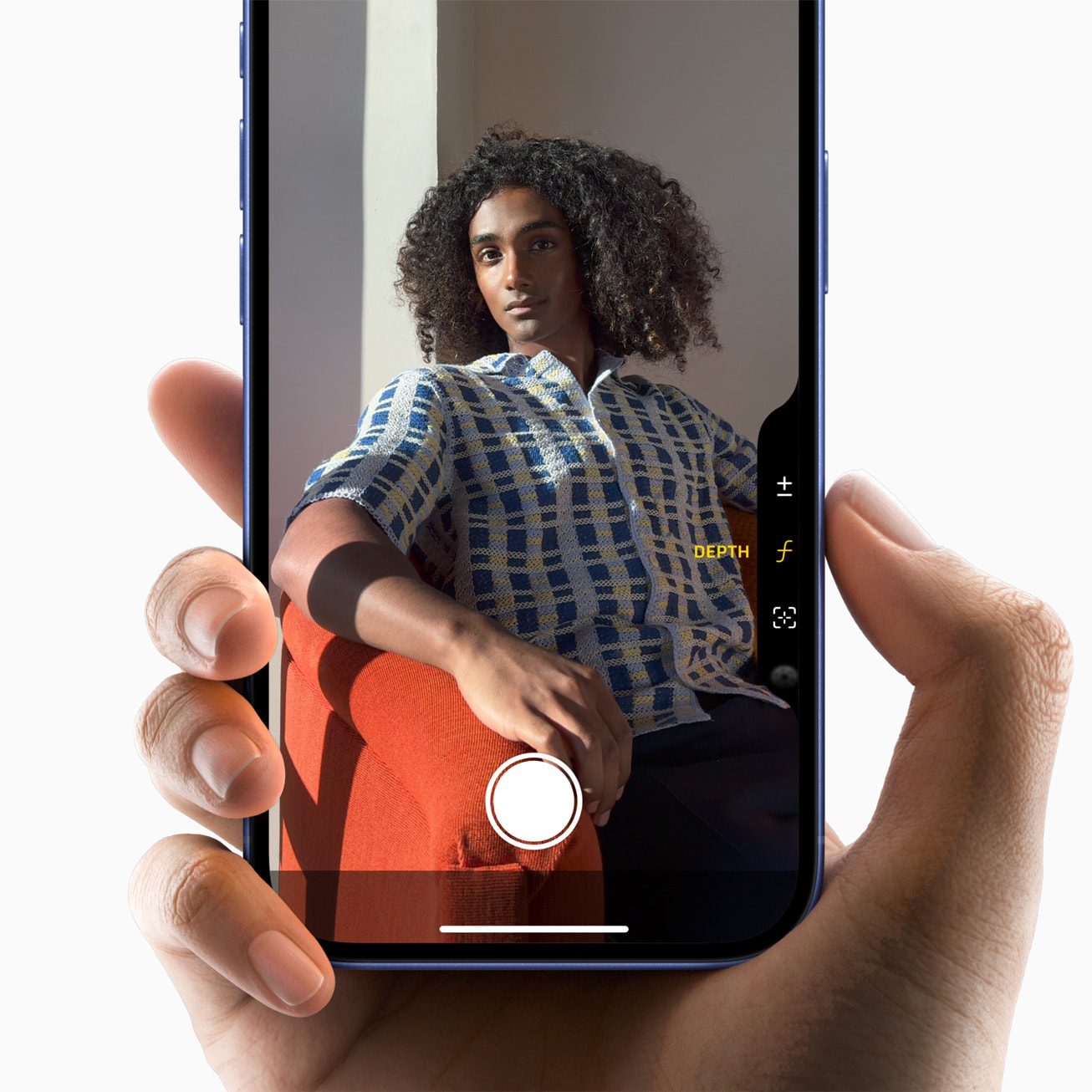
Photo: Apple. Depth control via Camera Control
Single click, double click, and the light press
On the same Camera Control screen, tap Single Click or Double Click. Single Click opens the chosen app with one press. Double Click needs two presses close together. That second option cuts accidental opens.
Inside Camera, a light press twice opens the settings overlay. Slide on the control to move through Exposure, Depth, Zoom, Cameras, Styles and Tone. Lightly press again to select one, then slide to adjust. Not every control shows in every mode.
Customize which items appear: Settings > Camera > Camera Control > Customize. Drag the list so Zoom or Exposure sits first if that is what you use most.
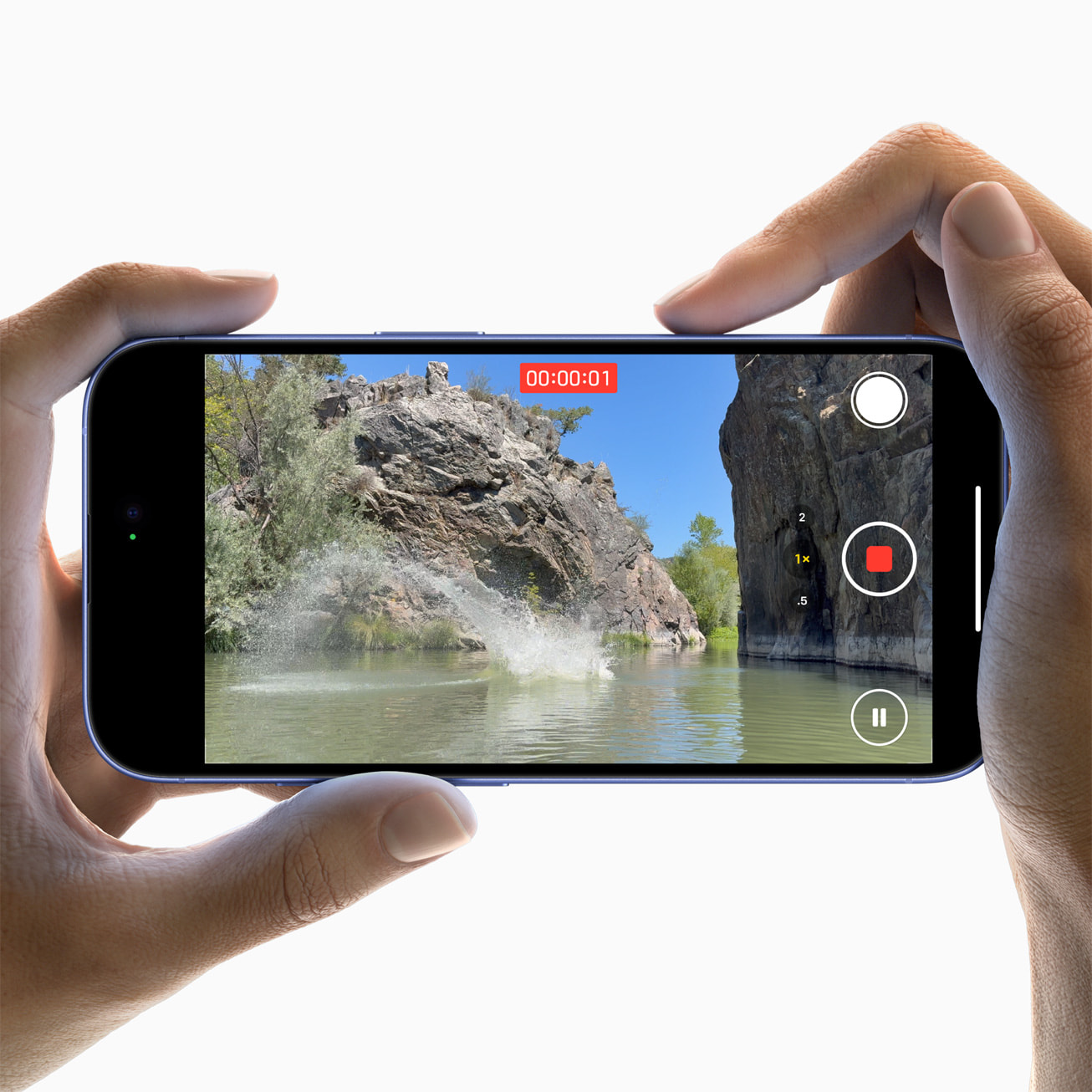
Photo: Apple. Video recording with Camera Control
Lock focus and exposure so the subject stays sharp
When you reframe after tapping a face, autofocus often jumps. The fix is Lock Focus and Exposure.
- Settings > Camera > Camera Control.
- Turn on Lock Focus and Exposure.
- Click Camera Control to open Camera.
- Lightly press and hold until AE/AF Lock appears above the frame.
- Keep your finger on the control, reframe, then click to shoot. Release to clear the lock.
If you lift early, the lock drops. That is the usual mistake. Hold through the shot, then let go.
When the light press feels wrong
Cases and different thumbs change the force needed. Apple's Accessibility Camera Control settings sit under Settings > Accessibility > Camera Control.
- Turn Camera Control off entirely if you never want the hardware to fire.
- Adjust Light-Press Force (firmer or softer).
- Change Double Light-Press Speed.
- Turn Light-Press or Swipe off if those gestures open menus by accident.
Practice the gesture on that screen before you leave Settings. A case that covers the sensor can make light press unreliable; try firmer force or remove the case for a quick test.
For broader Camera menus such as Grid, Preserve Settings and flash indicators, see our 10 Camera settings checklist. If Photo mode keeps resetting after you close the app, turn on Camera Preserve Settings. Prefer Magnifier from a triple-click instead of the side button? Set the Accessibility Shortcut for Zoom, Magnifier or Guided Access.