Wi-Fi. Flashlight. Low Power Mode. You swipe down for Control Center every day. The tiles still sit in Apple’s default order. Half of them you never tap.
On current iOS, you edit Control Center on the sheet itself. Not in a long Settings list like older versions. Apple documents it under Use and customize Control Center (iph59095ec58).
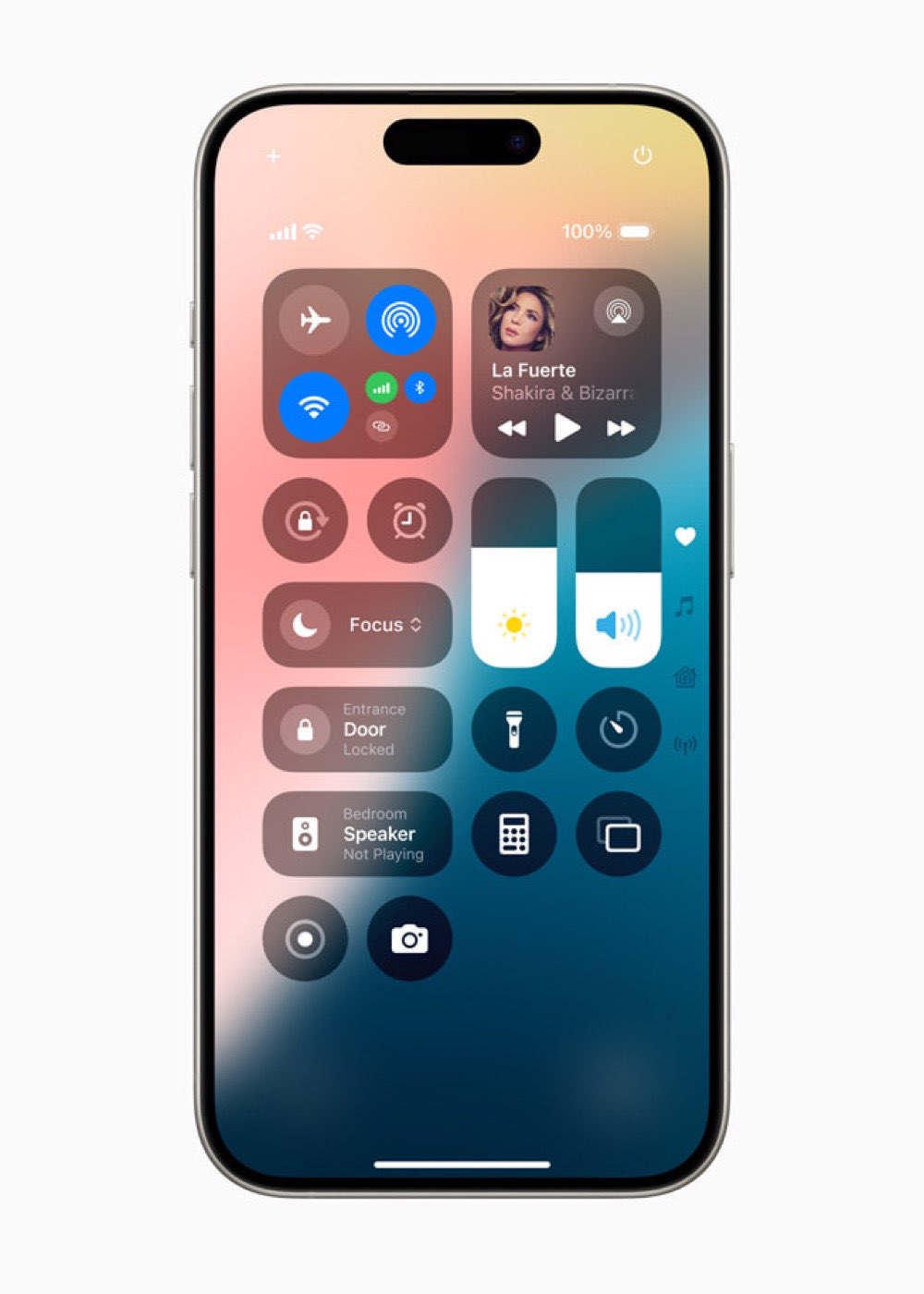
Face ID phones open it with a swipe down from the top-right corner. Home button phones swipe up from the bottom. Keep swiping down and you move through other groups: media, Home, connectivity, plus any pages you build.
Open edit mode and Add a Control
Open Control Center. Tap the plus button at the top left, or touch and hold an empty spot until the tiles jiggle. That is edit mode.
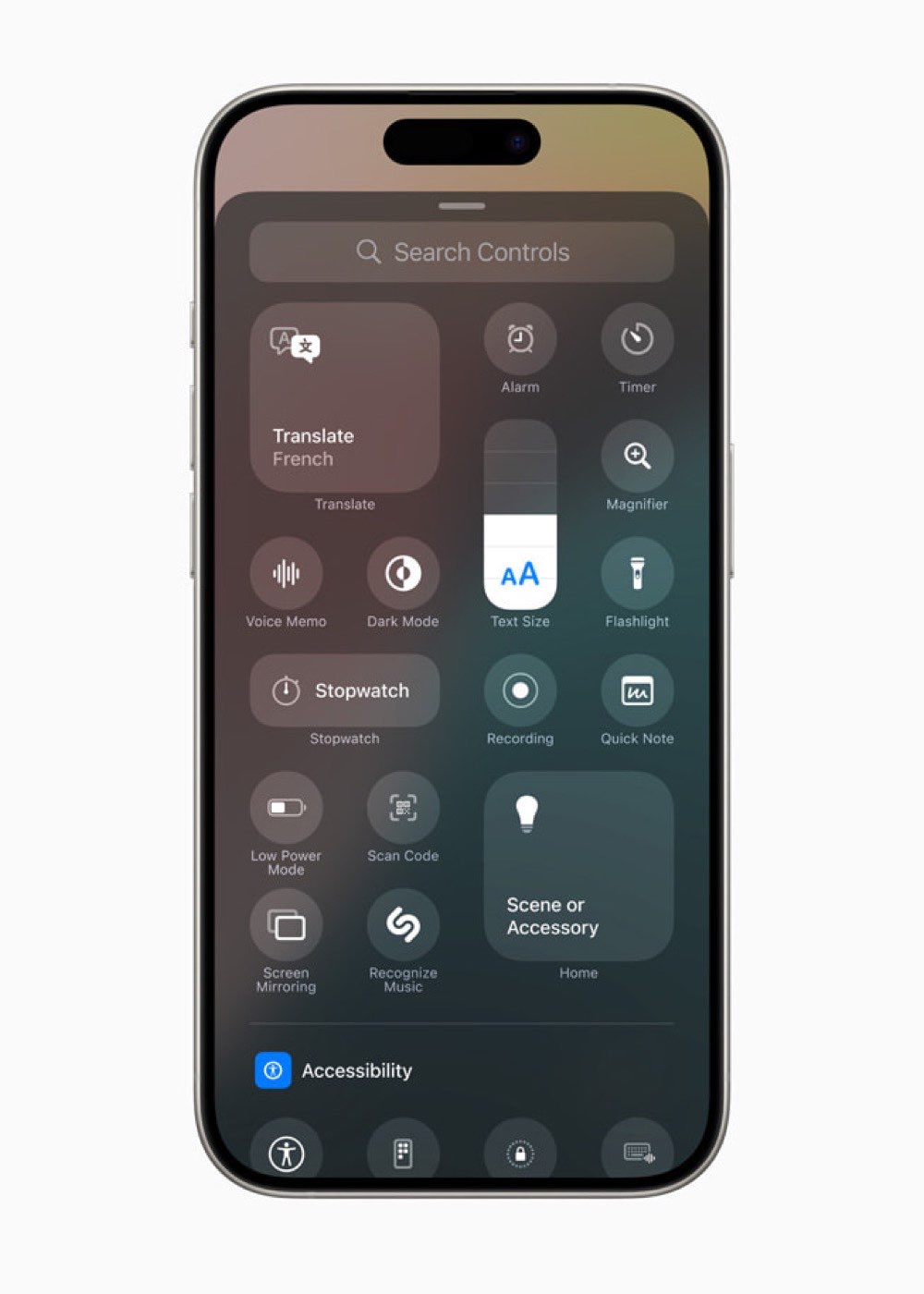
Tap Add a Control at the bottom. The controls gallery opens. Search or scroll. Tap a control to drop it onto the current page. Low Power Mode, Screen Recording, Calculator, a Focus tile, and many third-party app controls live here after you update those apps.
Drag a tile to a new spot. Drag the handle at the lower right to resize. Some controls grow from a small circle to a wider bar or a larger square. Tap the minus at the upper left of a tile to remove it.
What the Settings path still does
Go to Settings, then Control Center. You will not rebuild the whole layout there anymore. The key switch is Access Within Apps.
Leave Access Within Apps on if you want the swipe while a game or browser is open. Turn it off if that gesture keeps stealing taps in apps. Close Control Center with a swipe up from the bottom center on Face ID models, or press Home on older phones.
Wi-Fi and Bluetooth tiles in Control Center disconnect the current network or accessory. They do not fully power off the radios. Full off still sits in Settings > Wi-Fi and Settings > Bluetooth. That detail trips people who think Airplane Mode is the only way.
Pages, groups, and Lock Screen buttons
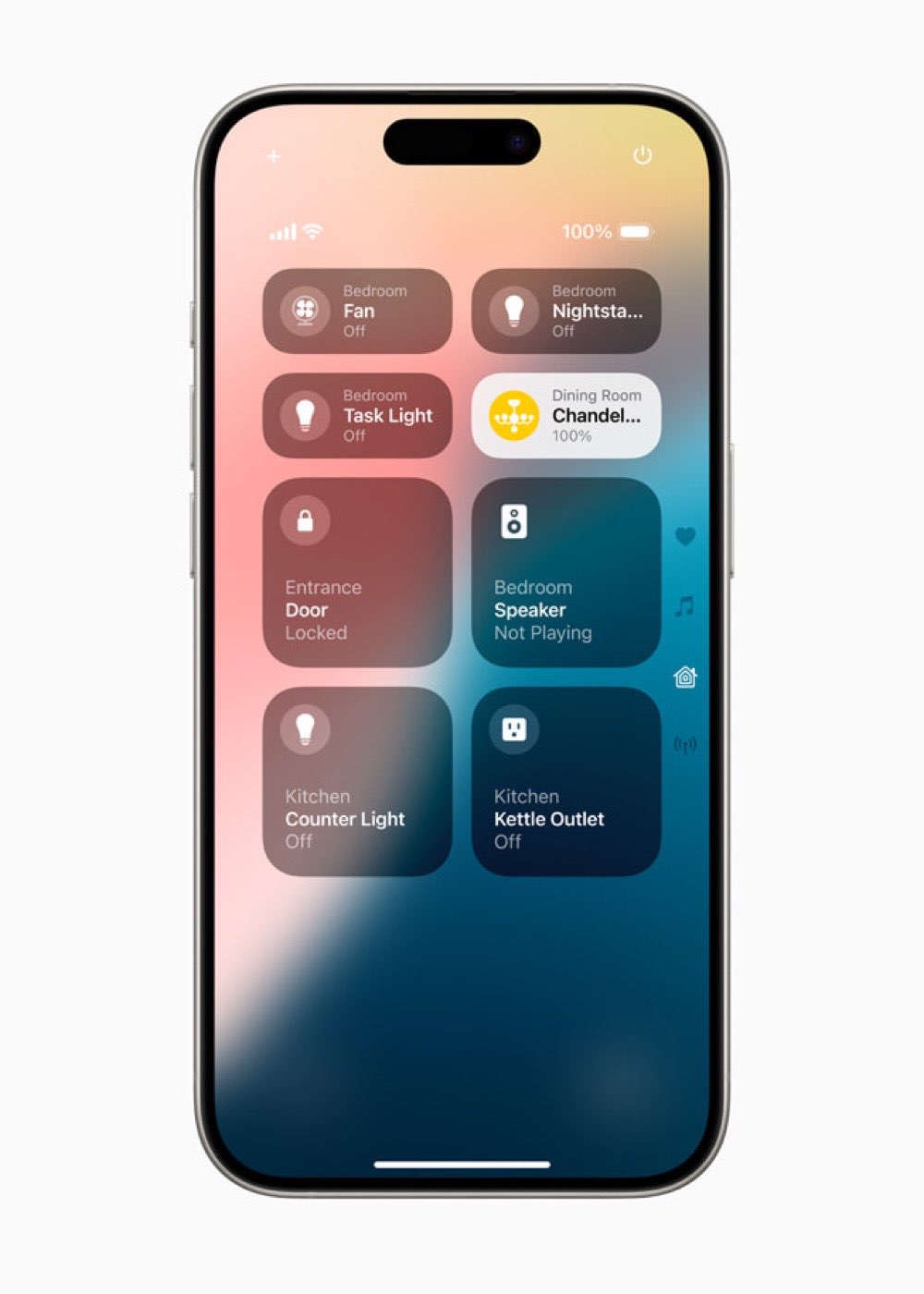
In edit mode, the small circles on the right edge mark pages. Tap the bottommost circle to start a new section, then Add a Control again. Or drag a control off the bottom of the page to force a new group. Empty pages disappear once you clear their tiles.
Lock Screen bottom buttons use the same gallery idea. Touch and hold the Lock Screen, tap Customize, then Lock Screen, and swap the left or right control. You can clear one if you never use Flashlight or Camera there. That change does not rewrite your Control Center pages.
If you already map Back Tap to Control Center, the open gesture and your custom tiles still match. Back Tap only opens the sheet. It does not pick which page appears first.
One common mistake
People hunt for the old Settings > Control Center > Include list. That list is gone on current iOS. If the gallery looks empty for an app control, update the app first. Then reopen Add a Control.
Another miss: stacking every tile on page one. Park daily toggles on the first page. Put Home or media on the next swipe. After you leave edit mode, touch and hold a tile for extras, like AirDrop options inside the connectivity cluster.
When the phone freezes and the swipe does nothing, use the force restart path. For spam texts that keep buzzing, see the Screen Unknown Senders tip.
Quick check after you finish
Leave edit mode. Close Control Center, then open it again. Confirm your new tile sits where you put it. Swipe to the next page if you built one. Flip Access Within Apps in Settings > Control Center only if apps keep catching the swipe.
Shipping iOS this week is still tracked in the Day 14 firmware note. Layout edits stay on the device after the update.
Photo: Apple Newsroom iOS Control Center / Control Gallery / Home controls
Source: Apple Support - Use and customize Control Center on iPhone (iph59095ec58)