Notifications keep landing when you need quiet. Work chat during dinner. Group texts during a meeting. Focus is Apple's switch for that. You can flip it in Control Center, or you can set a schedule so it turns on by itself.
The path sits under Settings, Focus. Labels below match Apple's iPhone User Guide for iOS 26 and iOS 27, checked October 2026. Sleep Focus is different. It follows the sleep schedule in Health, not a simple time row on the Focus screen.
Open Focus and tap Add Schedule
Open Settings. Tap Focus.
Tap the Focus you want, for example Do Not Disturb, Work, or Personal. If none of those fit, tap the Add button and create a custom one first.
On that Focus screen, look for Set a Schedule. Tap Add Schedule.
You get three trigger types. Time. Location. App. Pick one, set the details, then save. You can add more than one schedule to the same Focus.
To turn the same Focus on by hand, open Control Center, tap Focus, then tap the name. That Control Center layout is covered in the Control Center customize tip.
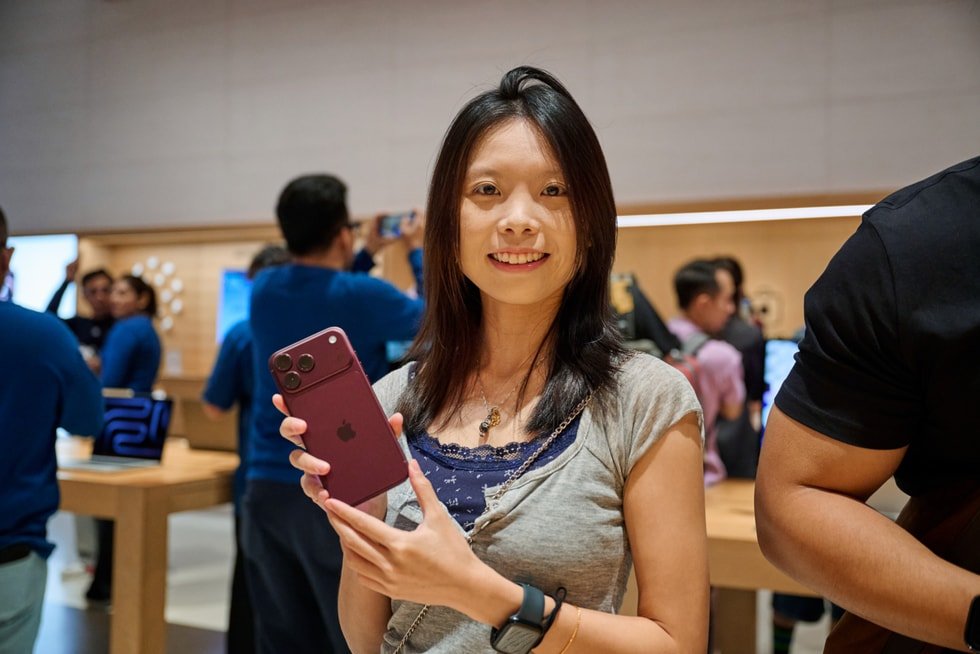
Photo: Apple
Time, location, or app triggers
A time schedule asks for start and end times, plus which days. A Work Focus from 9:00 to 17:00 on weekdays is the usual pattern.
A location schedule starts the Focus when you arrive at a place you pick on the map. Leave that place and the Focus ends. Useful for an office pin or a gym.
An app schedule turns the Focus on when you open a chosen app. Close the app and the Focus turns off. Good for a reading app or a workout timer.
Sleep Focus does not use Add Schedule the same way. Apple routes it through Health. Tap Open Sleep in Health on the Sleep Focus screen if you need to change bedtime and wake times.
Allow people and apps that still get through
A schedule alone silences a wide net. You still pick who and what can break through.
On the Focus screen, tap People. Choose Allow Notifications From or Silence Notifications From, then pick contacts. Repeated Calls can stay on if you want a second call from the same person to ring.
Tap Apps for the same choice with apps. Time Sensitive Notifications can stay allowed so banks and travel apps still cut through.
Focus Status, when on, tells people in Messages that you have notifications silenced. They can still notify you if something is urgent. Turn Focus Status off under the Focus if you do not want that label shown.
Quiet alerts that can wait belong elsewhere. The Scheduled Summary tip bundles low-priority banners for later instead of silencing a whole Focus.
Photo: Apple
Common mistake: two schedules fight each other
Someone sets Work for weekdays and Personal for evenings, then both try to own the same hour. Only one Focus is active at a time. Turning a new Focus on turns the previous one off.
Open Settings, Focus, tap each Focus, and read the schedule list. Delete or edit the overlap. If a Focus keeps turning on when you did not expect it, that list is the first place to look.
Another mix-up: blaming Focus for a dead Lock Screen when Screen Distance is the real cause. See the Screen Distance tip for that Screen Time shield.
Turn the Focus off when you need noise back
Touch and hold the Focus icon on the Lock Screen, or open Control Center and tap Focus. Tap the Focus that is on to turn it off.
The schedule stays on file. Tomorrow at the same time it can start again. Deleting the Focus is a different step. Settings, Focus, tap the Focus, scroll down, tap Delete Focus.
Background refresh and cellular drain are separate switches. If battery is the worry after a quiet Focus day, check the Background App Refresh tip.
Photo: Apple Newsroom / iPhone 18 Pro store demos, Covent Garden London and The Exchange TRX Kuala Lumpur
Source: Apple Support, Turn on or schedule a Focus on iPhone; Allow or silence notifications for a Focus on iPhone (iPhone User Guide, iOS 26)