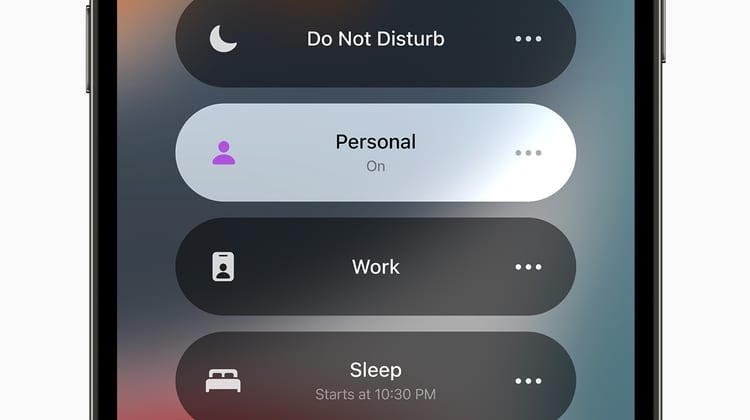
On X this week people still mix up plain Do Not Disturb with Sleep Focus. One reply said a dedicated Sleep Focus keeps alarms ringing when DND feels like it gets in the way. Focus filters and Allow lists came up too. Apple documents the menus. Here are 10 Focus settings to check on iOS 27 when alerts still punch through, or when the wrong ones stay quiet.
1. People allow list under the Focus
Open Settings > Focus. Pick Do Not Disturb, Sleep, Work or another profile. Tap People. Choose Allow Notifications From, then add contacts. Or use Silence Notifications From to block a short list.
Apple’s steps are in Allow or silence notifications for a Focus. An empty Allow list with the wrong mode is why family calls still vanish.
2. Apps allow list, and Time Sensitive
Same Focus screen, tap Apps. Allow Notifications From only the apps you need, or Silence a few loud ones. Turn on Time Sensitive Notifications if you still want delivery alerts and similar pings to arrive at once.
Shopping and games often sit in the Allow list from years ago. Trim them here, not only in the per-app Notifications page.
3. Allow Repeated Calls
Under People, look for Allow Repeated Calls. Apple says two or more calls from the same person within 3 minutes can ring through. Useful for a real emergency. Noisy if someone taps redial.
Leave it on for Sleep if you worry about missed crises. Turn it off for Work if back-to-back sales calls are the problem.
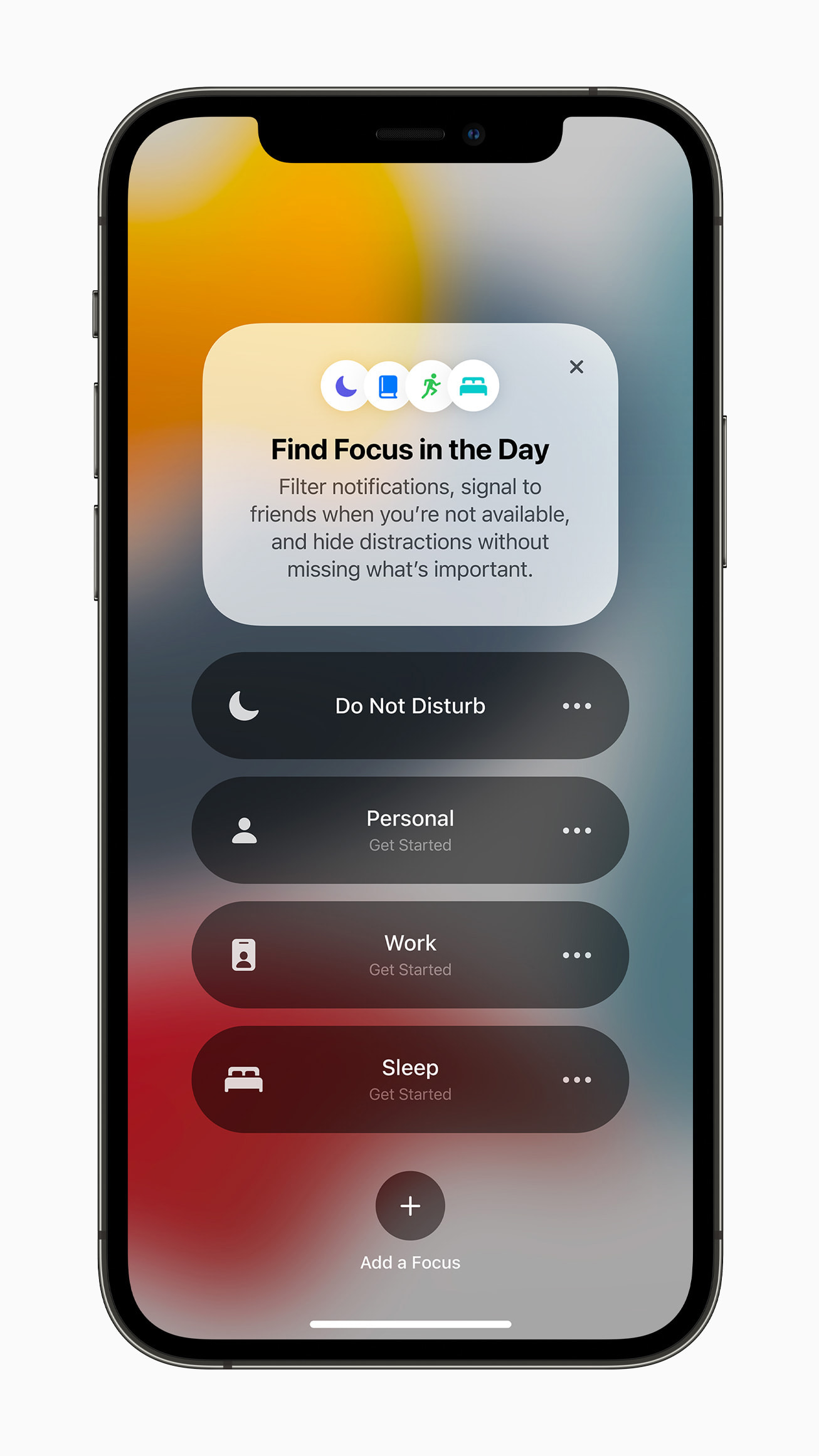
Photo: Apple
4. Focus Status in Messages
Settings > Focus > Focus Status. Share Focus Status tells people in Messages that notifications are silenced. It does not show the Focus name. Pick which profiles may share.
If you hate the “notify anyway” button staring at friends, turn sharing off for that profile. The Focus itself still silences the same apps.
5. Sleep Focus and the Health schedule
Sleep is not the same as a timed Do Not Disturb. Set bed and wake times in Health > Browse > Sleep. Wind Down can start 15 minutes to 3 hours before bedtime; Sleep Focus begins then.
Apple’s guide is Set up sleep in Health. Customize Sleep under Settings > Focus > Sleep for People, Apps and Lock Screen. Clock alarms you set by hand do not turn Sleep Focus on.
6. Add Schedule, location or app
Inside a Focus, tap Add Schedule. Pick a time range, a place, or an app that should flip the Focus on. Smart Activation can also use cues like location and app use.
Apple covers Control Center and schedules in Turn on or schedule a Focus. For a shorter walk-through we already ran schedule a Focus so Do Not Disturb turns on by itself.
7. Focus Filters for Mail, Calendar, Messages, Safari
Scroll to Focus Filters, tap Add Filter. Pick Mail accounts, calendars, Messages conversations or a Safari Tab Group that should show while the Focus is on. Filters stay on that device; they do not sync with Share Across Devices.
Work Focus with only the work inbox is the usual fix when personal mail keeps lighting up the badge. Steps sit in Apple’s Set up a Focus page.
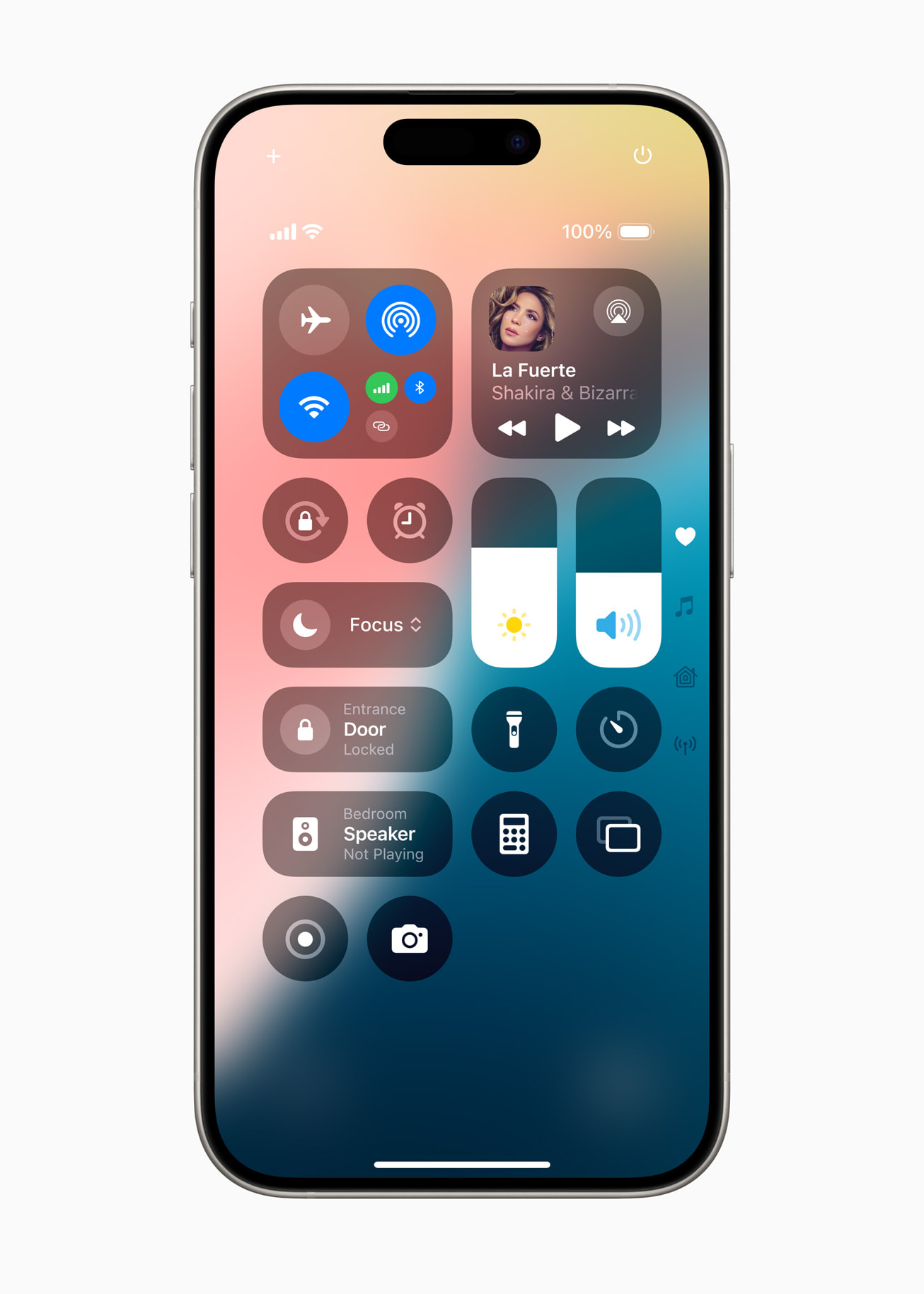
Photo: Apple
8. Options, Lock Screen and Home Screen
Tap Options on the Focus. You can show silenced notifications on the Lock Screen, dim the Lock Screen, or hide notification badges. Link a Lock Screen or Home Screen page so the Focus switches wallpaper and widgets when it turns on.
A dim Lock Screen at night is normal for Sleep. If you still see every banner, Options and the Apps list are the first two places to reopen.
9. Share Across Devices
At the top of Settings > Focus, Share Across Devices keeps the same Focus on iPhone, iPad and Mac signed into the same Apple Account. Turn it on if silencing one device should silence the rest.
Turn it off only when you want the phone quiet and the Mac loud. Focus Filters still stay local either way.
10. Control Center, Action Button, and alarms
Open Control Center, tap Focus, pick a profile. You can set an end time such as For 1 hour. On supported phones the Action Button can also toggle a Focus; we covered that path in today’s Action Button tip.
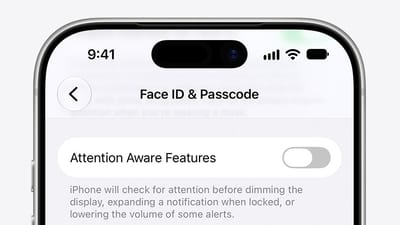
Focus does not mute Clock alarms. If mornings stay soft, check the Sleep wake alarm in Health and the sound on each Clock alarm. For missing banners outside Focus, see 10 notification settings on iOS 27. Quiet alarms with Face ID in play are a separate list in 10 Face ID and Attention Aware settings.
Photo: Apple
Source: Apple Support (iPhone User Guide, iOS 27), Apple Newsroom, X