A thread on X this week listed things M5 iPad Pro owners leave switched off. That model went on sale a year ago, from $999 for the 11-inch Wi-Fi version. Stage Manager was on the list. Another post, from a Procreate user, said brushes felt off after the iPadOS 27 update and pressure tweaks did not help.
So here are 10 iPad settings worth a look. Each path below was checked against Apple's iPad User Guide for iPadOS 27 in October 2026. Some need a supported model, an Apple Pencil, or a trackpad.
1. Choose Windowed Apps or Stage Manager
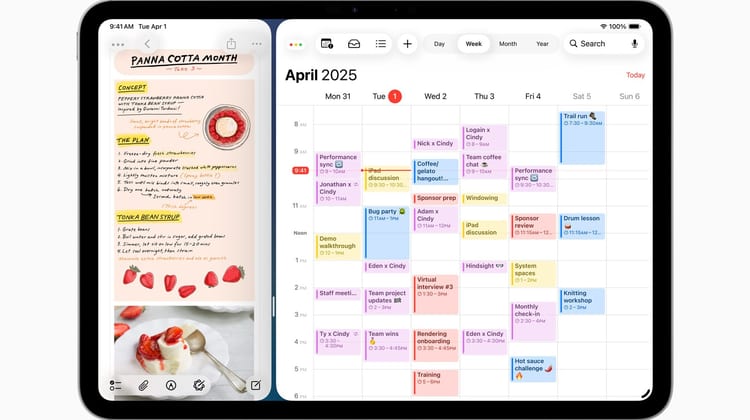
Open Settings, tap Multitasking & Gestures, then pick Windowed Apps or Stage Manager. Without one of them, iPad will not work in multiple windows.
With Windowed Apps, drag the handle in the bottom-right corner to resize. Drag from the top to move a window. Stage Manager instead keeps your recent apps in a list on the left side of the screen, and you can drag windows into the center to build a group for one project.
2. Hide the Stage Manager recent apps list
The list on the left uses screen space. Go back to Settings, Multitasking & Gestures, and clear the checkbox under Stage Manager to hide it.
It is still there when you want it. Swipe from the left edge and the list comes back. Apple also notes the list can hide itself when a window moves too close.
3. Use the tiling menu and Slide Over
Tap a window, then touch and hold the controls in its top-left corner. A menu of preset layouts appears. Pick one and the windows arrange themselves.
The same menu has Enter Slide Over. That window stays on top at the left or right edge, and you can drag it off screen and swipe it back later. For more layout choices, tap Window in the menu bar, then Move & Resize.
4. Open the menu bar
The menu bar only shows when Windowed Apps or Stage Manager is on. Tap the app name in the top-left corner of the status bar to open it. With a mouse or trackpad, just move the pointer over the name. Apple says the menu bar is where you reach an app's features and commands.
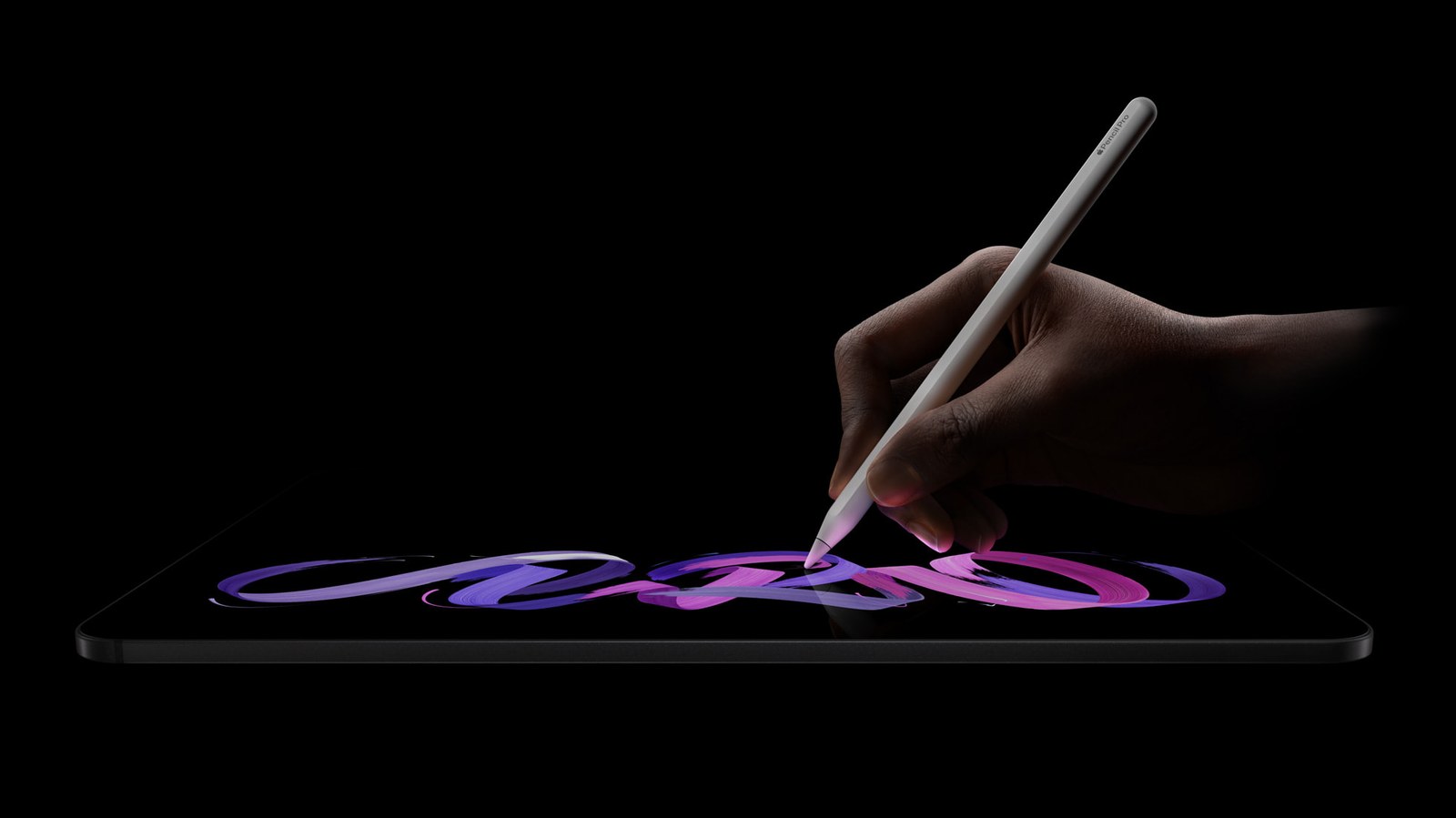
Photo: Apple
5. Turn on Scribble for Apple Pencil
Go to Settings, Apple Pencil, then turn on Scribble. Write in any text field and the handwriting becomes typed text. Apple says the conversion happens on the iPad itself.
Scratch out a word to delete it. Circle text to select it. If the Scribble toolbar sits in the way, tap its menu and turn on Auto-minimize.
6. Adjust Apple Pencil double tap and squeeze
Settings, Accessibility, Apple Pencil. Drag the slider to set how hard you squeeze, and turn on Extended Range for more firmness options. Double tap can be turned off, or set to a slower duration.
Double tap works with Apple Pencil (2nd generation) and Apple Pencil Pro on supported iPads. Squeeze is Apple Pencil Pro only. More Apple Pencil options are under Settings, Apple Pencil.
7. Show the battery percentage
By default, iPad shows a battery icon with no number. Go to Settings, Battery, then turn on Battery Percentage.
Control Center shows the percentage even when this switch is off. A Batteries widget on the Home Screen also lists AirPods and Apple Pencil levels.
8. Set the 80% charge limit
On supported models, open Settings, Battery, Battery Health, then turn on 80% Limit. iPad stops charging at 80%. Apple says this helps reduce battery wear if the iPad stays plugged in for long periods.
It will still charge to 100% now and then, to keep the percentage accurate. Need a full battery before a trip? Turn off 80% Limit and tap Allow Until Tomorrow. The limit comes back at 6:00 a.m. The same Battery Health screen lists capacity and cycle count on supported models.

Photo: Apple
9. Fix trackpad clicks and scrolling
With a Magic Keyboard or trackpad connected, go to Settings, General, then Trackpad, or Trackpad & Mouse. Tap to Click lets a light one-finger tap work as a click.
Two-Finger Secondary Click shows the Quick Actions menu for Home Screen icons or messages in a mailbox. Natural Scrolling and tracking speed are on the same screen. Pointer color, shape and size have their own page in Accessibility.
10. Set Auto-Lock, Liquid Glass and Display Zoom
Settings, Display & Brightness, Auto-Lock, then choose a time. If you cannot change it, Guided Access may be on. With Stage Manager on or an external display connected, the screen may stay awake longer than this setting.
Settings, Appearance, Liquid Glass has a slider for more tint or more clear. It cannot be changed while Reduced Transparency or Increased Contrast is on in Accessibility. On supported models, Appearance, Display Zoom, More Space fits more on screen. Charging habits on iPhone are in our iPhone battery settings list. Mac owners can check the macOS 27 settings Top 10, and yesterday's iPhone Camera settings list uses the same format.
Photo: Apple Newsroom / iPadOS 26 window tiling, iPad Pro with Apple Pencil Pro, iPad Pro (M5)
Source: Apple iPad User Guide for iPadOS 27 (Work with multiple windows; Organize windows with Stage Manager; Change the layout of windows; Use the menu bar; Enter text with Scribble; Change Apple Pencil double tap and squeeze settings; Show the battery percentage; Set a charge limit; Change trackpad settings; Keep the iPad display on longer; Adjust iPad display and text settings); Apple Newsroom, October 2025; posts on X