Some settings are needed for one minute, not all day. Zoom on a tiny web form. Magnifier for a menu in a dark restaurant. A child who wants to play one game on your phone. Digging through Settings each time is slow. Triple-click the side button instead, and the feature you picked turns on. Triple-click again, it turns off.
Apple calls this the Accessibility Shortcut. It is in iOS 27, and iPhones with a Home button have it too.
Settings > Accessibility > Accessibility Shortcut
Open Settings, tap Accessibility, then tap Accessibility Shortcut. Select the features you want.
Zoom is a good first pick. Apple's Zoom page gives the exact step: go to Settings > Accessibility > Accessibility Shortcut, then tap Zoom. After that a triple-click zooms the screen, no three-finger double-tap needed.
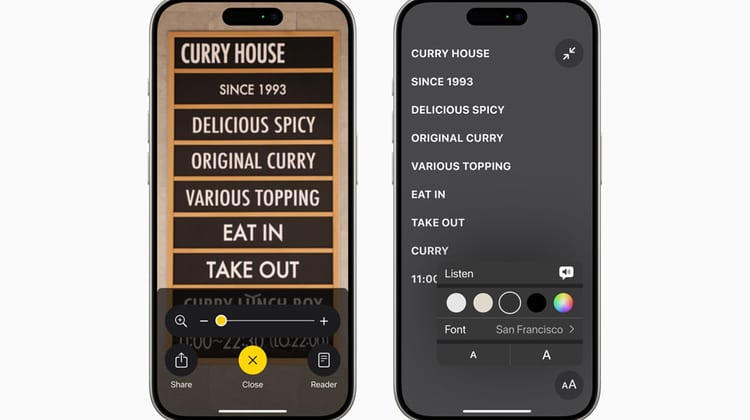
VoiceOver, AssistiveTouch and Guided Access can go on the list too. Apple's Magnifier guide also points to this shortcut as a quick way to open the Magnifier app.
One feature, or a short menu
On an iPhone with Face ID, triple-click the side button. On other models, the Home button.
The result depends on how many items you selected. With only one, Apple says the feature is turned on or off immediately. No menu. With two or more, a list comes up and you tap the one you want.
Things you use every hour fit better in Control Center. Our guide to adding controls and resizing Control Center tiles covers that, and Add a Control has accessibility, hearing, mobility and vision groups. The back of the phone is one more trigger. See how Back Tap runs a screenshot, Control Center or a shortcut.
Click Speed under Side Button
Triple-click does nothing? Your clicks may be too slow.
Go to Settings > Accessibility > Side Button. On a Touch ID iPhone it is Home Button. Click Speed has three choices, Default, Slow and Slowest, and it sets the speed needed for a double-click or triple-click. Pick Slow and try again. The same screen has Press and Hold to Speak, which is for Siri. Leave it if you only came for the triple-click.
Guided Access must be set up first
Guided Access locks iPhone to one app. Apple says some features, like Guided Access and Assistive Access, have to be set up before they work from the shortcut.
Path: Settings > Accessibility > Guided Access, turn it on. Tap Passcode Settings and set a Guided Access passcode, or turn on Face ID. Then open the app, triple-click, circle any parts of the screen to block, and tap Start. To end the session, triple-click and enter the passcode.
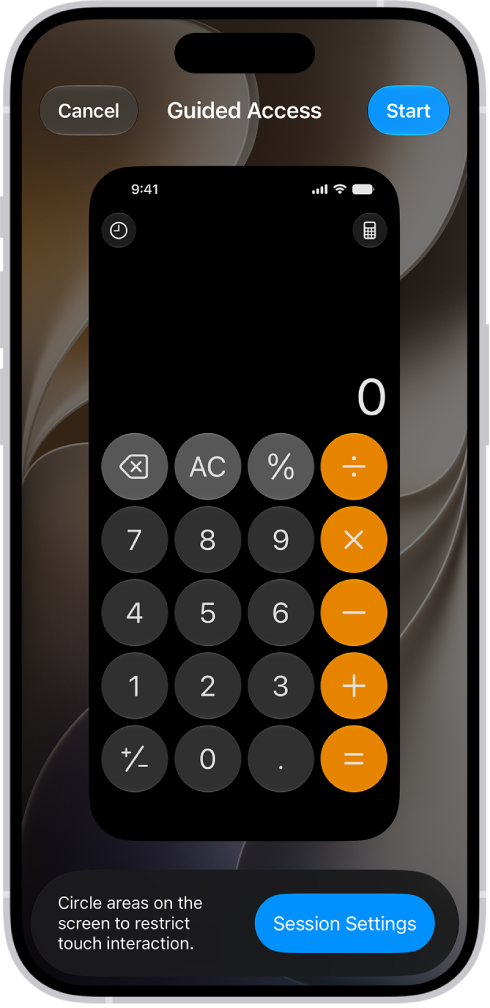
Photo: Apple Support
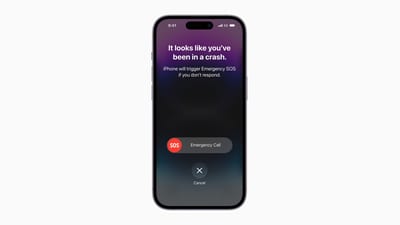
One warning from Apple. Crash Detection and Emergency Services are not available while Guided Access is on. Exit it before an emergency call. Last week's tip on Emergency SOS and Crash Detection settings has the rest.
Common mistake: VoiceOver as the only item
Someone puts VoiceOver on the shortcut and nothing else. One stray triple-click, and VoiceOver is on at once, no menu. Apple notes that VoiceOver changes the gestures you use to control iPhone. Touching the screen now speaks the item under your finger.
Nothing is broken. Triple-click the side button again and VoiceOver turns off. Or ask Siri to turn off VoiceOver. If you need it only now and then, add a second feature, so the menu comes first.
Photo: Apple
Source: Apple Support, iPhone User Guide (Quickly turn accessibility features on or off; Adjust settings for the side or Home button; Lock iPhone to one app with Guided Access; Zoom in on the iPhone screen; Turn on and practice VoiceOver; Magnifier), Apple Support article 111771, Apple Newsroom