Holding the iPhone a few inches from your face for a long stretch is easy to miss. Screen Distance watches for that and blocks the screen until you pull the phone back.
Apple put the switch in Screen Time. The TrueDepth camera, the same one Face ID uses, checks distance. The feature needs Face ID set up and iOS 17 or later. Labels below follow Apple Support page 105007 and the iPhone User Guide Screen Distance topic, checked October 2026.
Turn on Screen Distance in Screen Time
Open Settings. Tap Screen Time.
Tap Screen Distance. Turn Screen Distance on.
If you manage a child in Family Sharing, tap the child’s name first. On some builds the row sits under Content & Privacy Restrictions. You may need the Screen Time passcode before the switch appears.
Apple turns Screen Distance on by default for children under 13 in a Family Sharing group. The age cutoff varies by country or region. After a child updates their device, Apple can turn the switch back on across that child’s devices.
What the alert does
Keep the phone closer than about 12 inches for an extended period and Screen Distance covers the display. You cannot keep scrolling until the distance is fixed.
Move iPhone more than 12 inches from your face. Tap Continue when the button appears. That is the clear path Apple documents.
The check is not instant. Brief glances up close usually do not trigger it. Long reading or video at close range is what brings the shield.
For quieter Lock Screen habits that pair with Screen Time, see the Scheduled Summary tip. A charging phone that doubles as a night clock is covered in the StandBy tip.

Devices that support Screen Distance
Screen Distance needs a TrueDepth camera. That is Face ID hardware. Touch ID-only models do not get the row.
Set up Face ID first if the switch is missing. Settings, Face ID & Passcode. Then return to Screen Time and look for Screen Distance again.
On iPad the same TrueDepth rule applies under iPadOS 17 or later. Turning the switch on a Mac Screen Time pane only pushes it to signed-in iPhone or iPad. The Mac itself does not show the close-range alert.
If Face ID keeps failing before you even reach Screen Distance, start with the Face ID not working fix.
One common mistake
People hunt for Screen Distance under Display & Brightness or Accessibility. It is not there. The control lives under Settings > Screen Time.
Another mix-up is treating the alert like a Focus. Focus schedules silence notifications. Screen Distance only cares about how close the glass sits to your face. You can run both.
Parents sometimes turn the switch off on a child’s phone and wonder why it returns after an update. Apple’s note says a child device update can restore Screen Distance for that child’s Apple Account devices. Check the setting again after Software Update finishes.
Medical ID on the Lock Screen is a separate emergency setup. Steps for that sit in the Medical ID tip.
Quick check after you flip the switch
Leave Screen Time. Hold the phone closer than a foot while you read for several minutes. When the shield appears, move back past 12 inches and tap Continue.
If nothing happens, confirm Face ID is enrolled and Screen Distance still shows On. Then try again with the front camera unobstructed. A thick case lip or a screen protector that covers the TrueDepth cluster can confuse the distance read.
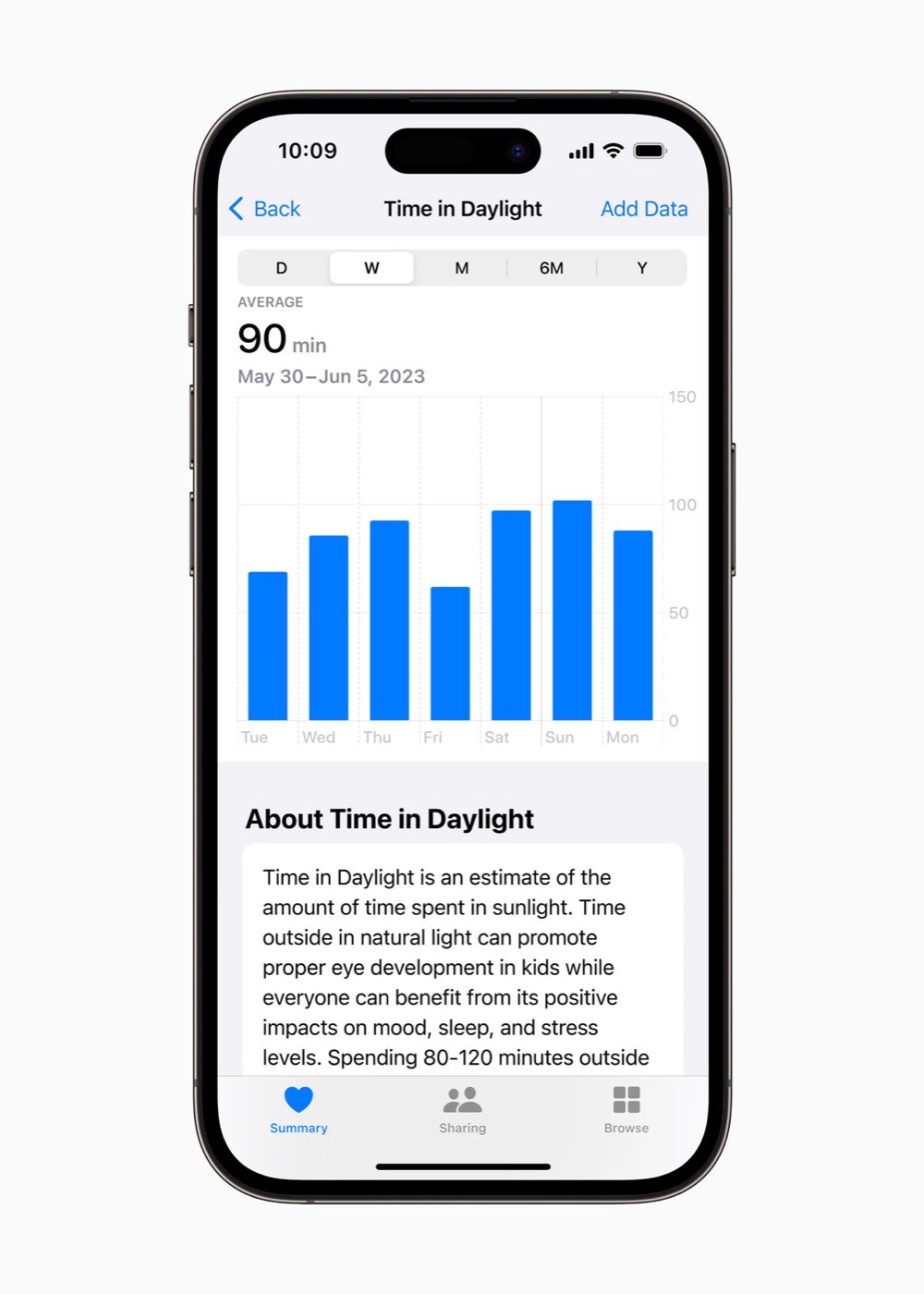
Photo: Apple Newsroom / Health insights, Time in Daylight, families digital habits guide
Source: Apple Support - What is Screen Distance? (105007); iPhone User Guide - Help protect your vision health with Screen Distance (ipha56b14d75)