
The Mac reaches the login window, then rejects the password. Or you forgot it after an update. Apple Support page 102633, updated September 22, 2026, covers both cases. Use the Mac user account password, not your Apple Account email or phone. Steps below stay on that document, plus the Recovery start guide for Apple silicon and Intel.
Restart, then type the Mac login password
Restart from the Apple menu if you can. If the screen gives no Restart control, press and hold the power button, or Touch ID on a laptop, for up to 10 seconds until the Mac turns off. Turn it on again.
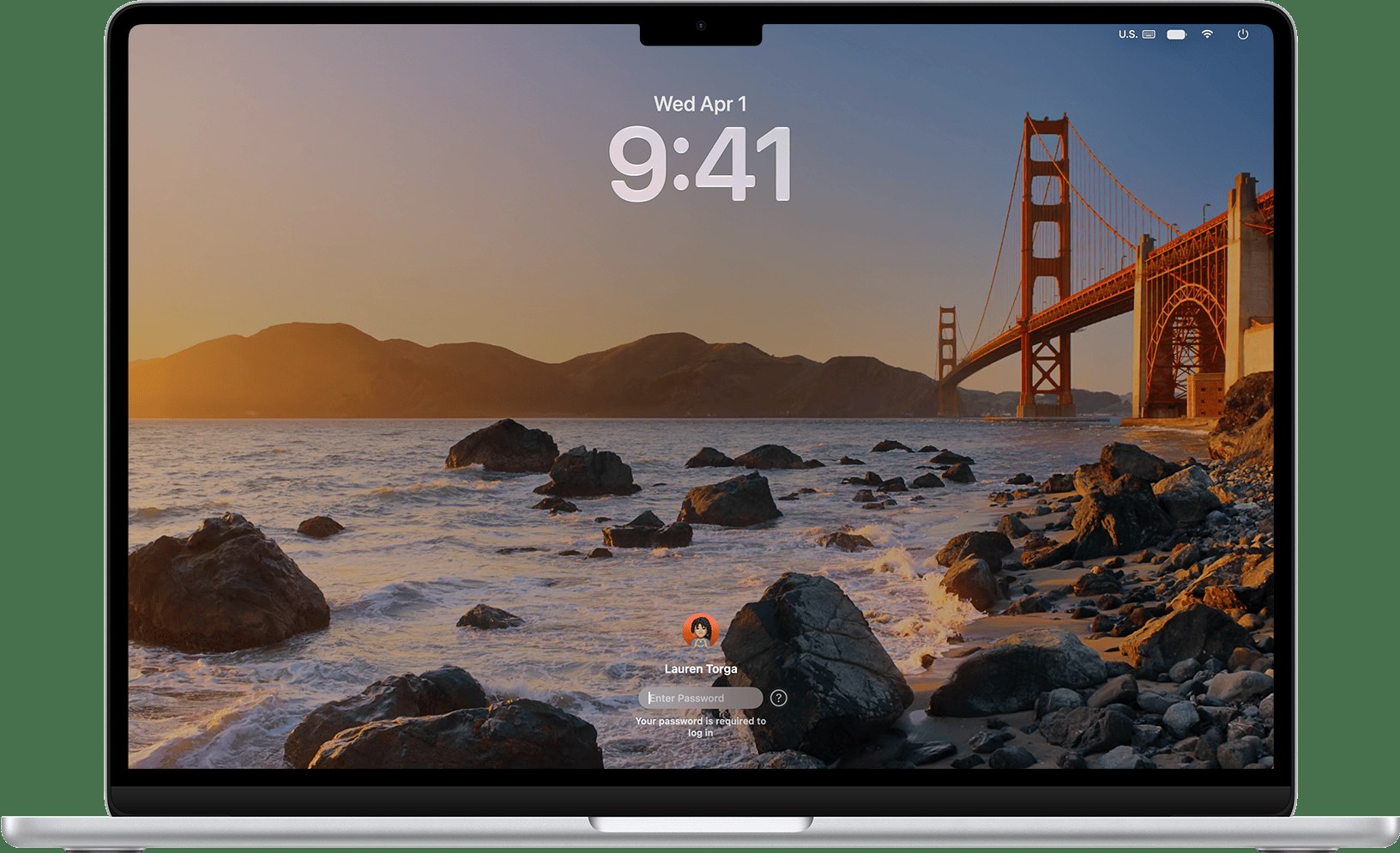
At the login window, enter the password for that user account. Watch Caps Lock. The field shows a Caps Lock symbol when it is on. Check the Input menu in the corner so the keyboard language matches how you set the password.
If the Mac never reaches the login window, blank screens and question marks are on Apple's separate startup page. Disk repair in Recovery is covered in our Disk Utility First Aid guide.
Reset options in the login window
Look for a question mark next to the password field. Click it. You may see a password hint, or a reset message such as Reset Password or Restart and show password reset options.
No question mark and no reset line? Enter a password up to three times, then check again. Apple says the reset message often appears after those attempts. If the account locks after repeated tries, wait for the stated time, restart, and try again. Still nothing? Go to Recovery.
When a reset message is there, click it and follow the prompts. Apple may ask for a FileVault recovery key, an Apple Account sign-in with a verification code, a volume such as Macintosh HD, or a temporary deactivate of the Mac. You may also be asked to create a new keychain. Then set a new login password, restart, and sign in with it.
Reset from macOS Recovery
If the login window never offers a reset path, start from Recovery.
On a Mac with Apple silicon, shut the Mac down first. Press and hold the power button until Loading startup options or the Options icon appears, then release. Click Options, then Continue. Select the startup disk if asked, then Next.
On an Intel Mac, turn the Mac on and immediately hold Command-R until an Apple logo or spinning globe appears.
When Recovery asks you to select a user you know the password for, click Forgot all passwords? Follow the onscreen flow. If you still cannot set a new password there, open Terminal from the Utilities menu, type resetpassword, and press Return. Choose I forgot my password or My password doesn't work when logging in, then finish the reset.
FileVault recovery key, or erase as last step
A FileVault recovery key is a 24-character code created when FileVault was turned on. Apple says it is not the same as an Apple Account recovery key. The letters I and S, and the digits 1 and 0, are not used in that key.
On macOS Tahoe 26 or later, the key may already sit in the Passwords app on another device signed into the same Apple Account with iCloud Passwords & Keychain on. Open Passwords, search for recovery key, open the matching Mac name, then reveal the key.
If no reset path works, Apple's last option is Erase Mac from Recovery Assistant, then reinstall macOS. That removes every user account and its data. A Time Machine backup made before the lockout is the usual way back, see our Time Machine backup failed fix if backups were already failing. Touch ID on the login window is separate from the password itself; our Touch ID Mac fix covers sensors that stop working after you are in again.
Source: Apple Support, "If you forgot your Mac login password" (102633), "How to start up from macOS Recovery" (102518), "If your Mac doesn't start up all the way" (102675)
Photo: Apple