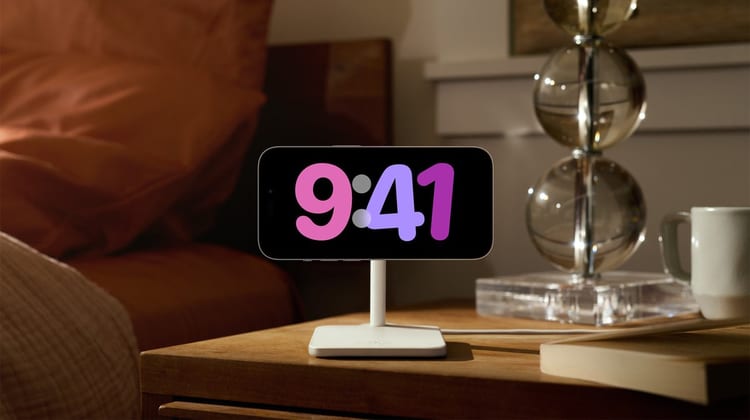
StandBy turns a charging iPhone on its side into a big clock. Apple added it in iOS 17. On iOS 27 it still has its own page in Settings. Many people have it switched on and never see it, because the phone lies flat on the nightstand, or the stand holds it the wrong way.
Settings > StandBy
Open the Settings app and tap StandBy. Make sure the StandBy switch is on. If it is off, nothing else on the page does anything.
After that the phone needs three conditions. It is connected to a charger. It is on its side, in landscape. And it stays still. Apple's iPhone User Guide for iOS 27 lists the steps in that order: connect to a charger, set it down on its side, keep it stationary, then press the side button.
When StandBy comes up, swipe left or right to move between widgets, photos and clocks. Swipe up or down to change the style inside each view. With MagSafe, StandBy remembers your preferred view in each place you charge. So the kitchen can show family photos, and the bedside can be an alarm clock.
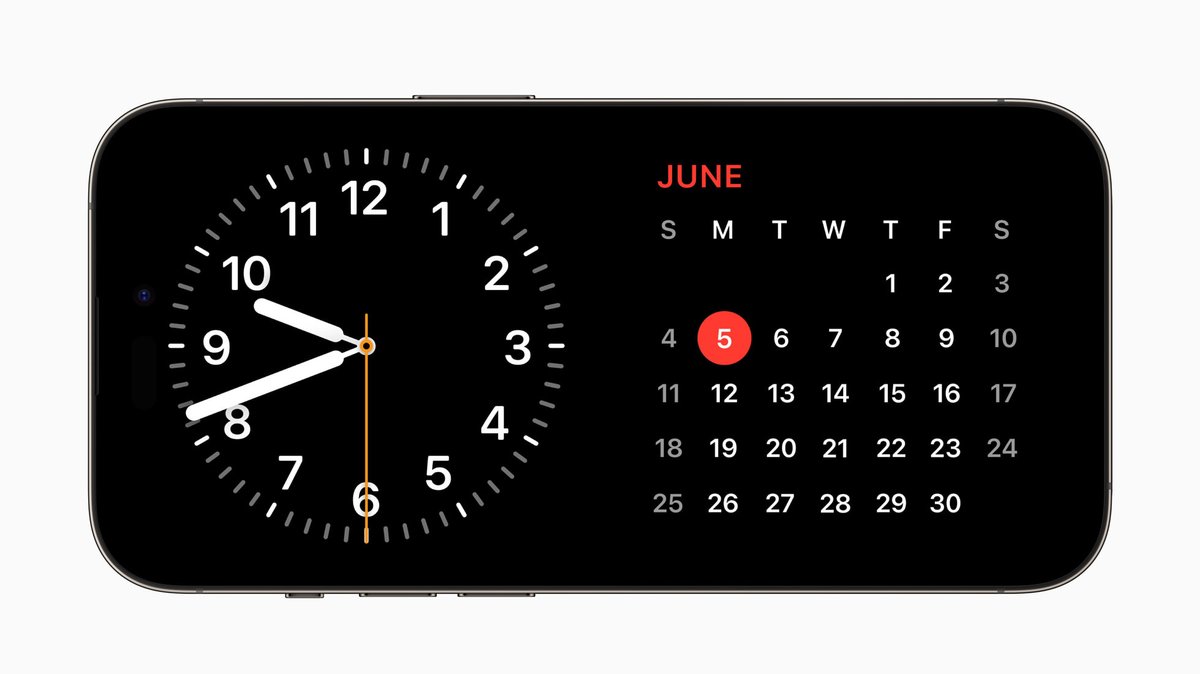
Photo: Apple
Display: Automatically, After 20 Seconds, Never
Inside Settings > StandBy, tap Display. Apple gives three choices.
- Automatically. The display turns off when iPhone is not in use and the room is dark.
- After 20 Seconds. The display turns off after 20 seconds.
- Never. The display stays on as long as StandBy is on.
Never suits a desk. For a bedroom, Automatically is usually the better pick. Night Mode is the other piece. With Night Mode on, the screen adapts to low light at night and clocks, photos and widgets take a red tint, so the room stays dark while you sleep.
Which iPhone models keep StandBy on
The Always-On display decides what happens when nobody touches the phone. Apple's list of models with Always-On display is iPhone 14 Pro and 14 Pro Max, iPhone 15 Pro and 15 Pro Max, iPhone 16 Pro and 16 Pro Max, iPhone 17, iPhone 17 Pro and 17 Pro Max, iPhone Air, and iPhone 18 Pro and 18 Pro Max. On these, StandBy stays on to show information.
Other models, for example iPhone 15 or iPhone 16e, let the screen go dark. Tap the screen, gently nudge the table, or ask Siri, and StandBy is back.
Always-On has its own off rules too. Apple's guide says it turns off when iPhone is face down, while Low Power Mode is on, while Sleep Focus is on, or at your usual bedtime. If you schedule Do Not Disturb so Focus turns on every night, a darker screen at that hour is expected behavior, not a broken setting.
Widgets, Live Activities and calls
The widget view supports Smart Stacks, which Apple says surface the right widgets at the right time. StandBy also shows Live Activities in full screen, plus Siri results, incoming calls and larger notifications. A timer or a workout is readable from across the room.
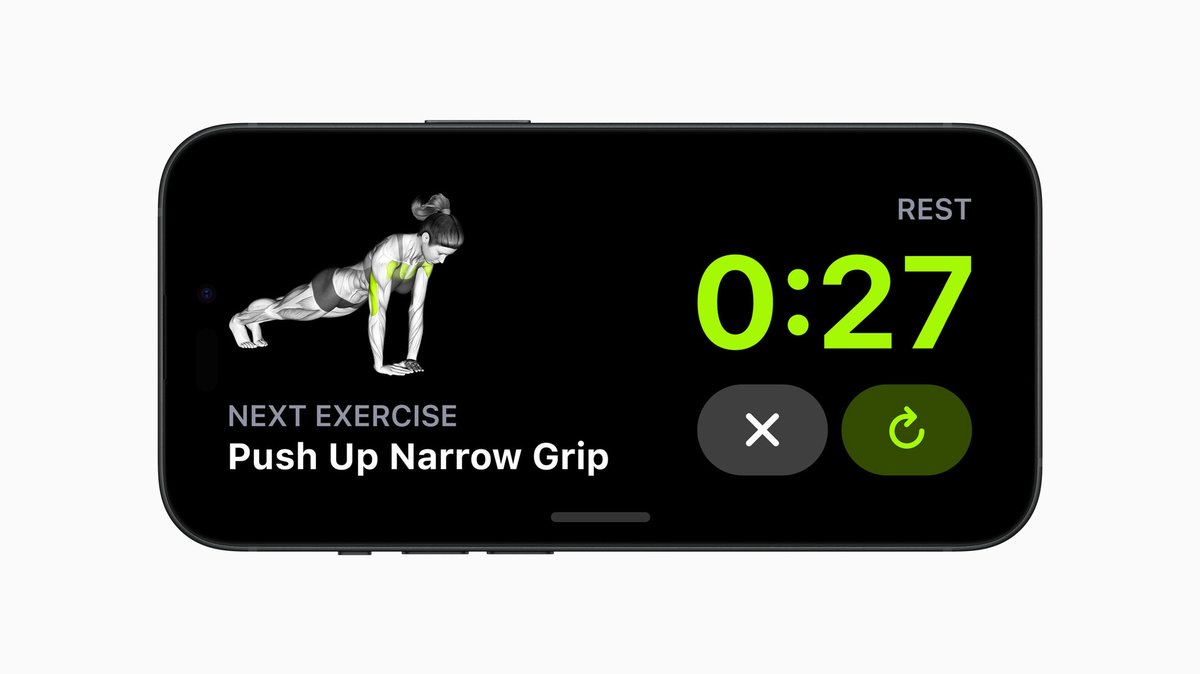
Photo: Apple
Common mistake: the phone is flat, or not charging
When StandBy does not show up, most of the time the phone is lying flat, or standing upright in portrait. StandBy only starts in landscape. A phone in your hand, or on a stand that wobbles, may not start it either, because Apple asks for the phone to stay stationary.
The second check is power. StandBy is a charging feature. A loose cable or a dead wall plug means no StandBy at all. Bedside charging every night is also where the 80% Charge Limit on iPhone 15 and later is worth a look.
This tip was checked against Apple's iOS 27 user guide. The current iOS 27 builds are in today's iOS 27.2 beta 3 and Xcode 27.1 RC report.
Photo: Apple Newsroom (iOS 17 StandBy images)
Source: Apple iPhone User Guide for iOS 27, "Use StandBy" and "Keep the iPhone display on longer"; Apple Newsroom