Before you book a repair, check the small things. A case edge over the sensor. A privacy screen protector. A mask that sits too high. Apple updated its Face ID help page on September 17, 2026. Below is its order for iPhone on iOS 27, plus the passcode prompts that are normal.
Update iOS, then check Face ID & Passcode
Apple's first step is the latest iOS, and a model that supports Face ID. If the update itself will not finish, see our fix for an iOS 27 update that won't install.
Next, go to Settings > Face ID & Passcode. Face ID must be set up there, and the features under Use Face ID For have to be on. Face ID unlocks the phone but not purchases? Check the iTunes & App Store switch. Safari logins need Password AutoFill. Third-party apps sit under Other Apps.
An app may not offer Face ID until you sign in to it by hand once. For apps you locked yourself, see how to lock or hide an app with Require Face ID.
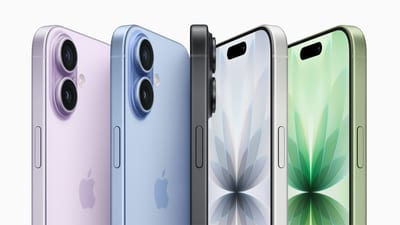
TrueDepth camera on iPhone 18 Pro sits at the top left
Clean off any smudge. Remove a case or screen protector that covers the top edge. On iPhone 18 Pro models the TrueDepth camera is at the top, toward the left corner. In landscape, check that a finger or palm is not over it.
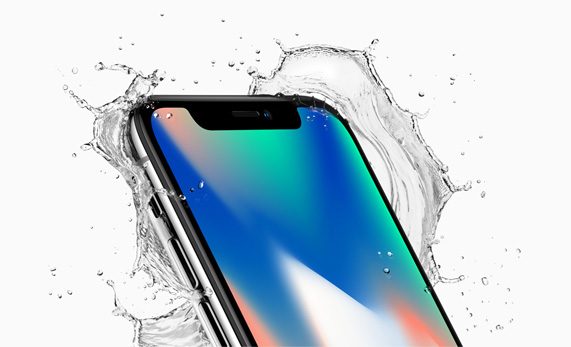
Photo: Apple. TrueDepth camera area on iPhone X, 2017
For the new iPhone 18 Pro camera Apple adds four things. Remove a privacy screen protector. In low light, take off glasses or adjust the mask if you wear both. Remove heavy makeup or a beauty mask. Avoid strong backlight from the sun.
Mask, glasses and distance
Your eyes, nose and mouth should be visible to the camera. By default Face ID does not work when mouth and nose are covered. Face ID with a Mask works on iPhone 12 and later, portrait only. Keep your eyes clear and hold the iPhone a bit higher and closer.
Many sunglasses work, but some lenses block the infrared light the camera uses. Mask mode is not designed for sunglasses at all. Trouble with clear or prescription glasses? Go to Settings > Face ID & Passcode > Set Up an Alternate Appearance and scan while wearing them.
Apple lists 10 to 20 inches as the range. iPhone 13 and later on iOS 16 or later unlock in landscape too. Older models need portrait.

Photo: Apple
Restart, then Reset Face ID
Restart the iPhone, type the passcode once, and try again. Screen frozen? Use the force restart steps.
Still failing, go to Settings > Face ID & Passcode, tap Reset Face ID, then Set Up Face ID. Scan in good light, iPhone in portrait, two circles. If you cannot move your head, tap Accessibility Options.
Passcode prompts that are normal, and when it needs service
Some passcode requests are by design, per the Apple Platform Security guide. After a restart. When it has not been unlocked for more than 48 hours. When the passcode has not been used for 156 hours and Face ID has not been used in four hours. After a remote lock or five failed Face ID attempts. Software updates and erasing the iPhone always need the passcode.
Service is next if setup keeps asking you to position your face in the frame and never continues. Some iPhones show "A problem was detected with the TrueDepth Camera. Face ID has been disabled." Update iOS first. If it stays, the TrueDepth lasers may be disabled for safety, and Animoji and Memoji can stop too. Apple says only a trained technician should repair this part.
Photo: Apple
Source: Apple Support (If Face ID isn't working, Use Face ID, If an alert says Face ID has been disabled), iPhone User Guide for iOS 27, Apple Platform Security