Quiet apps still ping all day. Shopping carts. News digests. Game invites. Scheduled Summary bundles those alerts and drops them at times you choose.
Apple keeps the switch in Settings, under Notifications. The User Guide labels it Scheduled Summary. It is not the same as Apple Intelligence Summarize Notifications, which shortens text on alerts that already arrived.
This tip covers the digest path only. Exact labels match Apple Support as of October 2026 on the Change notification settings page.
Turn on Scheduled Summary
Open Settings. Tap Notifications. Tap Scheduled Summary.
Turn on Scheduled Summary. Tap Continue if the setup sheet appears. Set at least one delivery time for the digest. Tap Add Summary if you want a second drop later in the day.
The summary lands as a grouped stack on the Lock Screen and in Notification Center at those times. Until then, apps you put in the summary stay quiet on the Lock Screen instead of firing one by one.
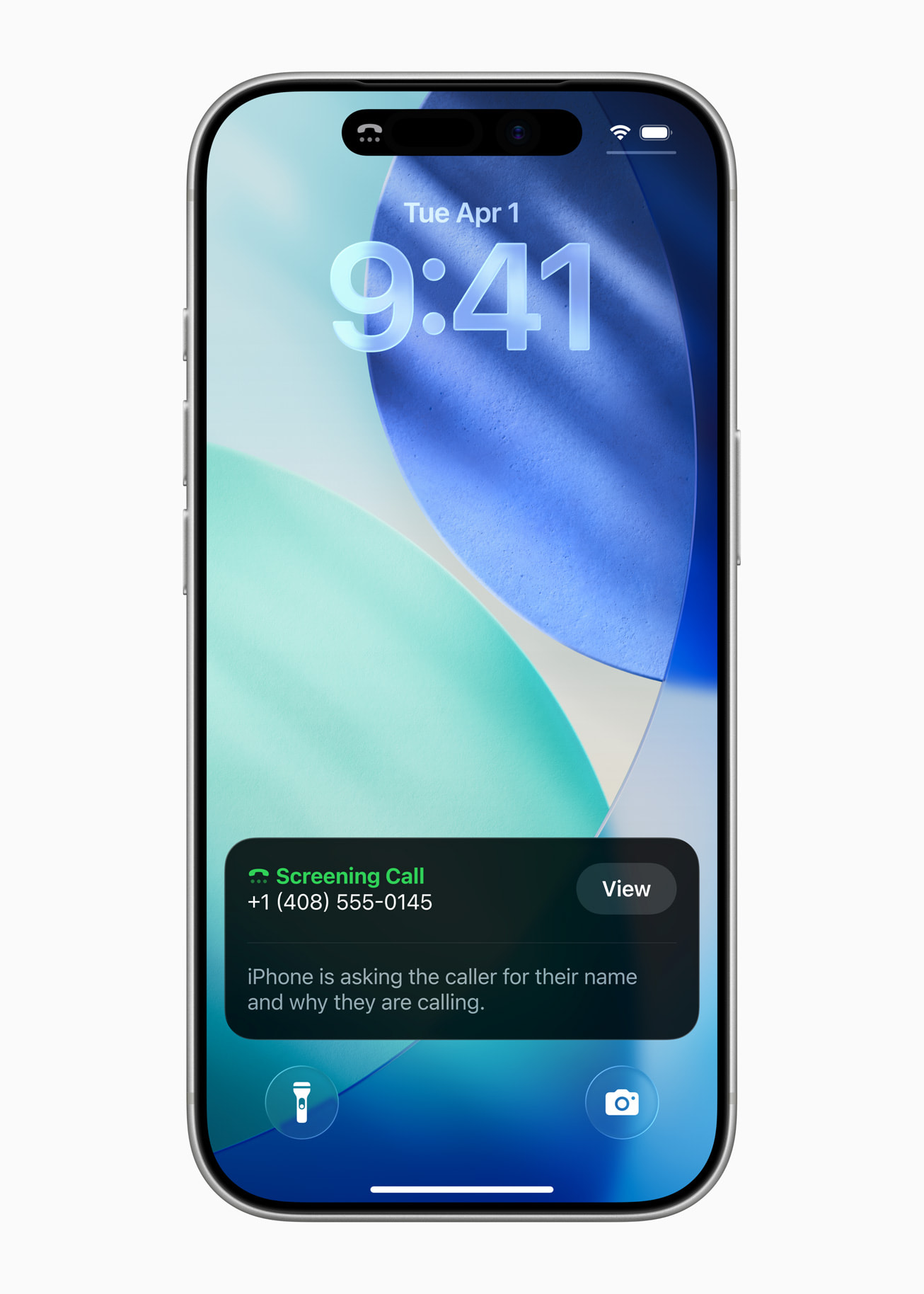
Photo: Apple
Choose which apps join the digest
Still inside Scheduled Summary, tap A to Z under Apps in Summary. Turn on each app you want held for the digest. Leave banking, two-factor codes, and family messages on Immediate Delivery.
You can also set delivery per app. Open Settings, tap Notifications, then tap the app under Notification Style. Under Notification Delivery, pick Immediate Delivery or Scheduled Summary. That same app screen can turn on Time Sensitive Notifications when the app supports it.
If an app never shows in the A to Z list, Allow Notifications is off for that app. Turn Allow Notifications on first, then return to Scheduled Summary.
For Lock Screen privacy habits that pair well with quieter alerts, see the Safari Private Browsing Face ID tip. Form inboxes stay cleaner with the Hide My Email tip.
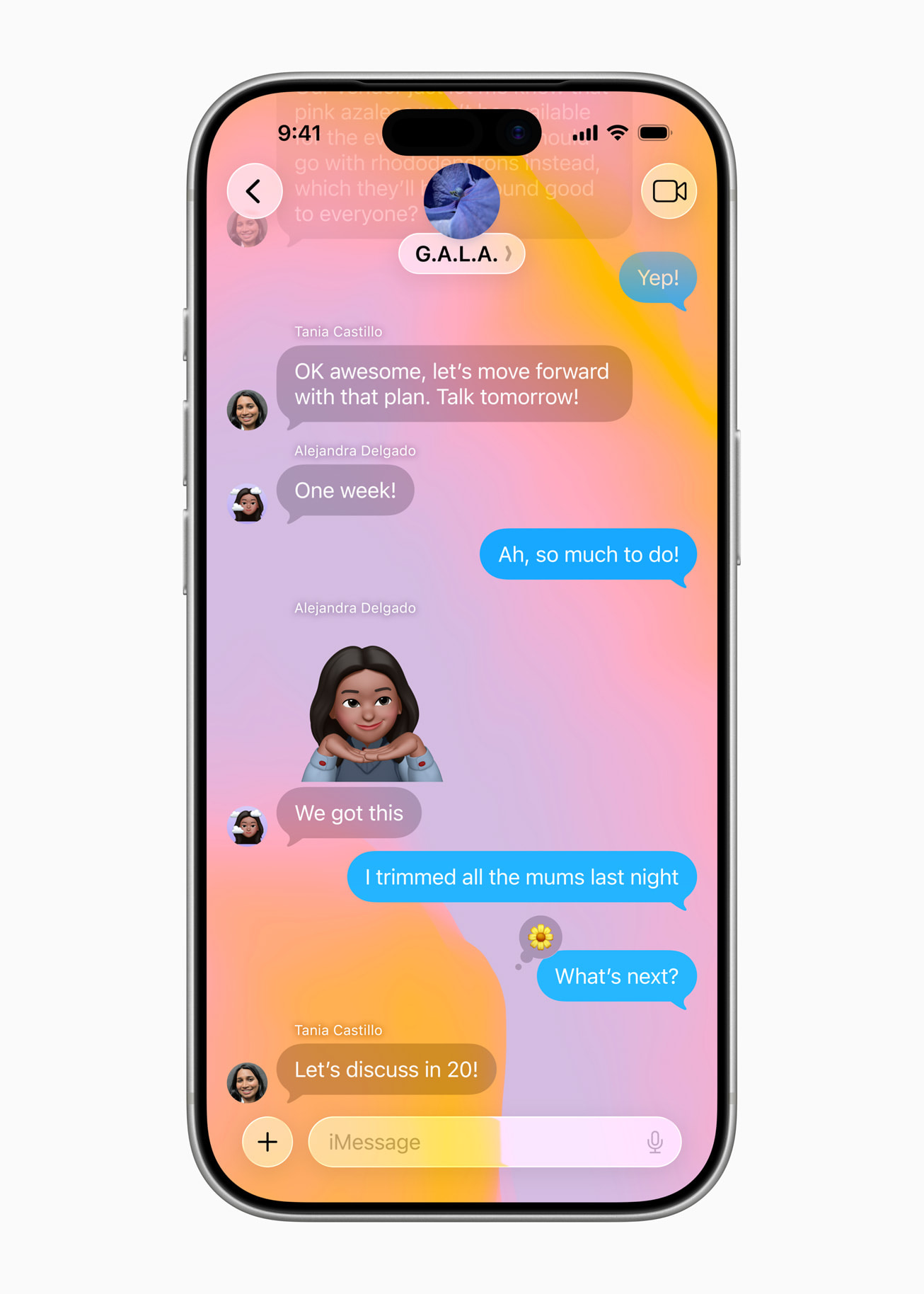
Photo: Apple
What Scheduled Summary does not mute
Focus still wins. When a Focus is on, iPhone can delay or silence alerts based on that Focus allow list. Scheduled Summary does not punch through a Focus that blocks the app.
Time Sensitive Notifications, when enabled for an app, are meant to break through quieter delivery. Do not assume the digest swallowed every urgent banner. Check the app’s Notifications page if a code or ride alert never showed on time.
Government alerts and other critical system alerts sit outside this digest. Leave those alone.
Quick actions that open Control Center or a Shortcut without touching Settings are covered in the Back Tap tip. Maps that keep working without signal sit in the Offline Maps tip.
One common mistake
People dump Messages, Phone, and Mail into the summary, then wonder why replies feel late. The digest is for low-priority noise. Keep chat and call apps on Immediate Delivery. Put store apps, games, and newsletter clients in Scheduled Summary.
Another mix-up is treating Scheduled Summary as a Focus. Focus schedules and allow lists are separate. You can run both. Review both if alerts feel missing.
After setup, wait for the next scheduled time or nudge a quiet app. Confirm the stack appears as one summary instead of a string of solo banners. If nothing arrives, reopen Settings > Notifications > Scheduled Summary and check that the app toggles and the clock times are still on.
Photo: Apple
Source: Apple Support - Change notification settings on iPhone (iph7c3d96bab); View and respond to notifications on iPhone (iph6534c01bc)