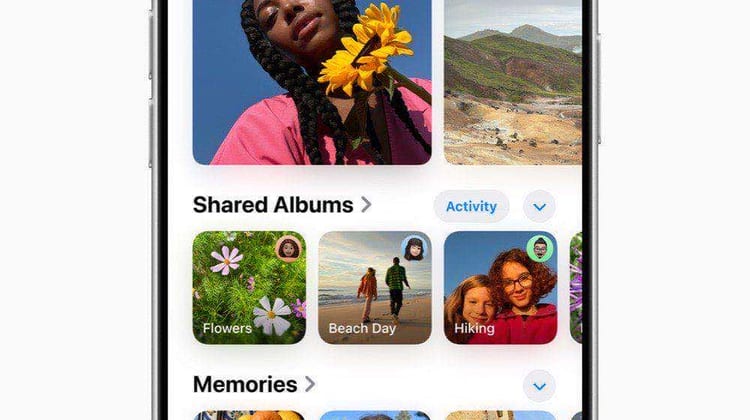
Hand someone your unlocked iPhone and the library still shows everything. Hide moves selected shots out of Library, albums, Search, and the Photos widget. They sit in the Hidden collection instead.
Apple documents the flow under support page 104987 and the iPhone User Guide topic iphb4defbde9, checked October 2026. The Settings switch that removes the album from view is separate from the hide action itself.
Hide a photo or video in Photos
Open the Photos app.
Find the shot in Library or in an album. Touch and hold the thumbnail. Tap Hide. Confirm Hide Photo or Hide Video when the sheet appears.
You can also open the photo, tap the More button (three dots), then tap Hide.
Hidden items leave the main grid. They do not show in other albums. They do not show in the Photos widget on the Home Screen or Lock Screen. If iCloud Photos is on, the same hide state syncs to your other Apple devices.
Camera habits sit next door. See the Camera Preserve Settings tip if mode and filter resets keep undoing your setup.
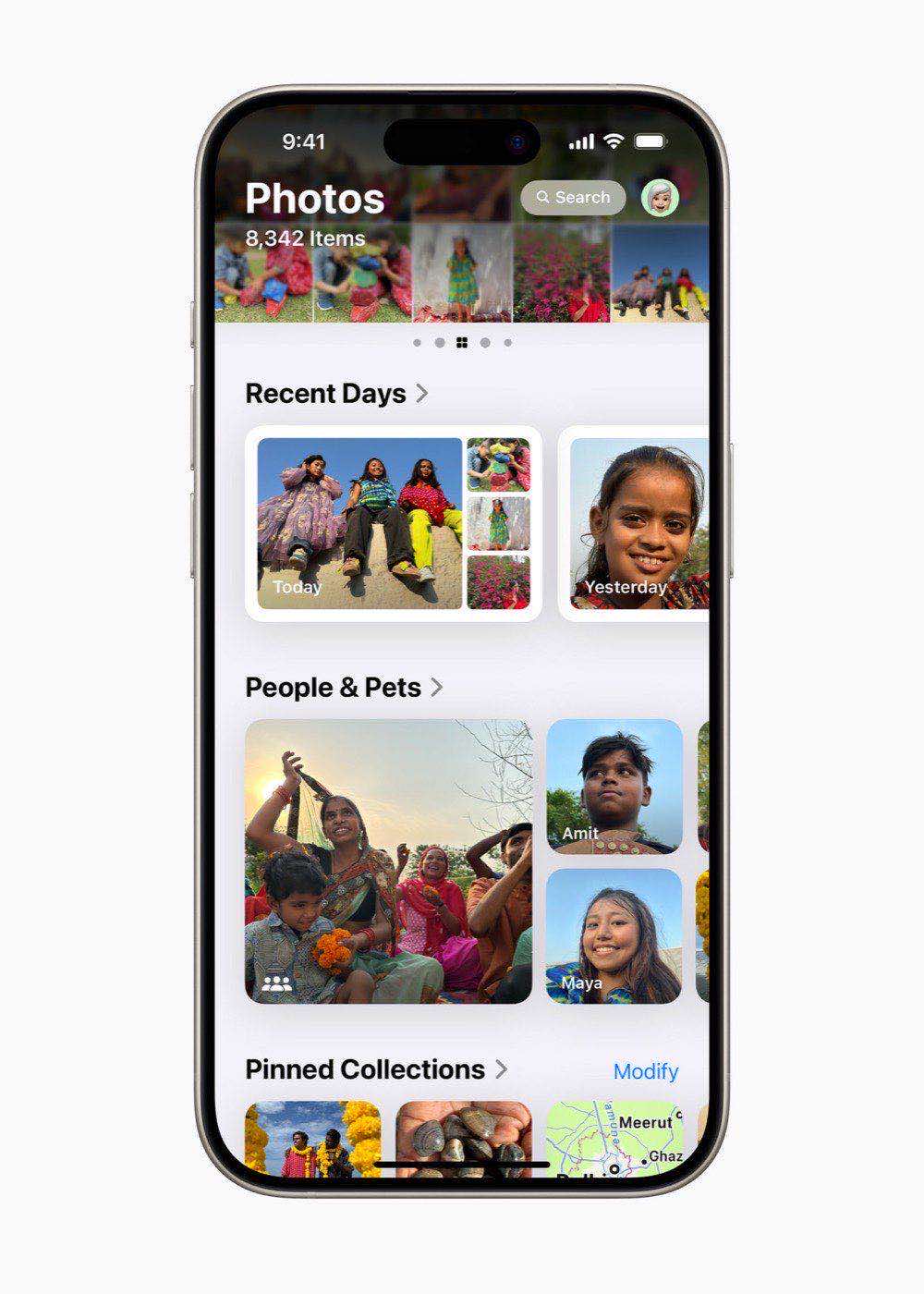
Open the Hidden collection with Face ID
Open Photos. Tap Collections.
Scroll to Utilities. Tap Hidden.
Tap View Album. Unlock with Face ID, Touch ID, or your passcode.
To bring a shot back, touch and hold it, then tap Unhide. Or select several, tap More, then Unhide.
On current iOS builds the Hidden and Recently Deleted collections stay locked by default. That lock is the difference between a casual peek and a Face ID gate.
Text still readable in a photo is a different tool. See the Live Text tip for copy and translate from a still image.
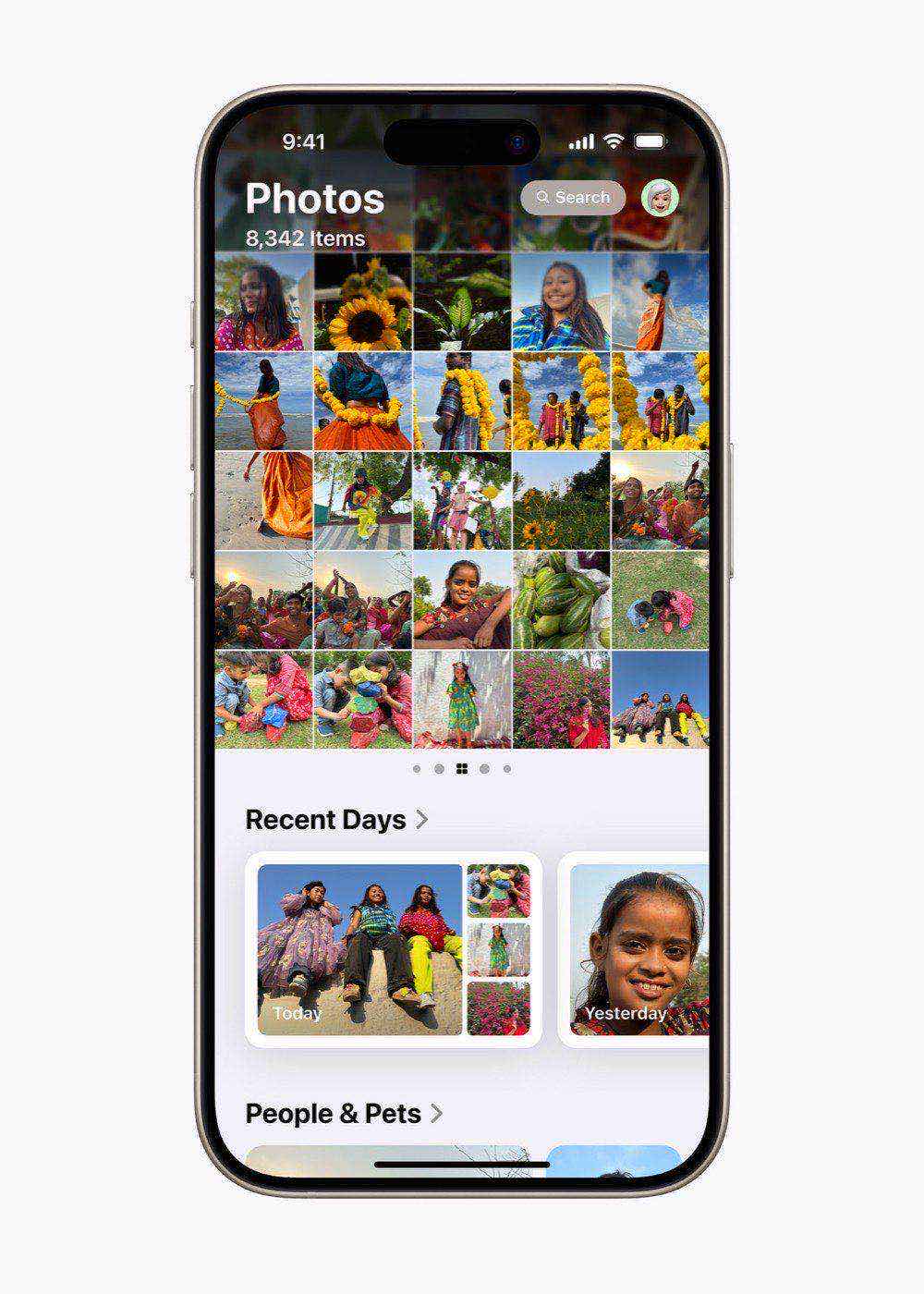
Turn off Show Hidden Album in Settings
Hiding photos is not enough if the Hidden row stays visible under Utilities. Anyone who knows the album name can try Face ID or ask for the passcode.
Open Settings. Tap Apps. Tap Photos.
Turn off Show Hidden Album.
The Hidden collection disappears from Photos. Your hidden shots stay in the library, just not listed. Turn Show Hidden Album back on when you need the row again, then unlock as usual.
Path note: older iOS builds used Settings, Photos without the Apps step. On iOS 18 and later, and on current 2026 builds, Apps comes first.
Keep the lock on Hidden and Recently Deleted
Open Settings, Apps, Photos again.
Leave Use Face ID, Use Touch ID, or Use Passcode on for the Hidden and Recently Deleted collections. Turning that off removes the unlock step when you open those rows.
Recently Deleted still holds deleted shots for about 30 days before permanent removal. Treat that folder like Hidden. Do not unlock it for convenience on a shared phone.
Broader privacy toggles sit outside Photos. The iPhone security settings checklist covers account and lock screen levers after recent spyware reports.
One common mistake
People look for a Hide switch under Settings, Privacy & Security. It is not there. Hide lives in the Photos app. The only Settings row for this tip is Show Hidden Album under Settings, Apps, Photos.
Another miss is deleting instead of hiding. Delete sends the item to Recently Deleted. Hide keeps it in your library, out of the main views, behind Face ID when the album is shown.
If shots seem missing after a hide, turn Show Hidden Album on, open Collections, Utilities, Hidden, then unlock. Do not assume iCloud wiped them.
Focus schedules are a separate quieting tool when you hand the phone over for a short time. See how to schedule a Focus if you want Do Not Disturb on a clock, not only a hide for photos.