Medical ID is a short health card that lives in the Health app. It can list allergies, medical conditions, medications, blood type and emergency contacts. A first responder can open it from the Lock Screen without your passcode. Many people fill it in once and never check the last two switches. Those switches decide if anyone can actually see it.
The steps below follow Apple's iPhone User Guide for iOS 27. The Health app is getting a new design in the iOS 27.2 beta, so a few labels may move later. We wrote about that delay in our note on the iOS 27 Health redesign.
Create the Medical ID in Health
Open the Health app. Tap your picture, then tap Medical ID. Tap Get Started if it is new, or Edit if one is already there.
Fill in what you want a stranger to know. Allergies and medications are the useful ones in a hurry.
Under Emergency Contacts, tap Add Emergency Contact, then add your contacts. Tap Done when finished.
There is a faster way back in later. Touch and hold the Health app icon on the Home Screen, then choose Medical ID.
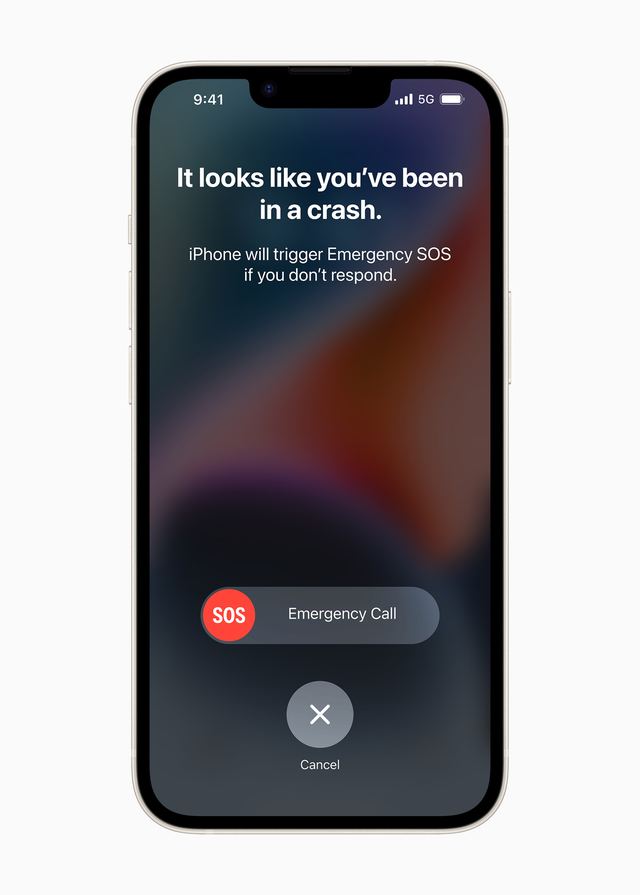
Photo: Apple
Show When Locked and Emergency Call
This is the part people skip. In Medical ID, tap Edit and scroll to the bottom. Two switches sit there.
Show When Locked puts the Medical ID on the Lock Screen of iPhone and Apple Watch. A responder swipes up, or presses the Home button on older models, taps Emergency on the passcode screen, then taps Medical ID.
Emergency Call lets iPhone share the Medical ID automatically during an emergency call. Apple says this part works in the U.S. and Canada only.
The common mistake is simple. Someone writes a full Medical ID, leaves Show When Locked off, and the card stays behind Face ID. Turn both switches on, then lock the phone and check the Emergency screen yourself.
Locking down the phone does not block this card. Even with Stolen Device Protection asking for Face ID away from home, the Lock Screen Medical ID opens from the Emergency button, by design.
Emergency contacts get a text after the call
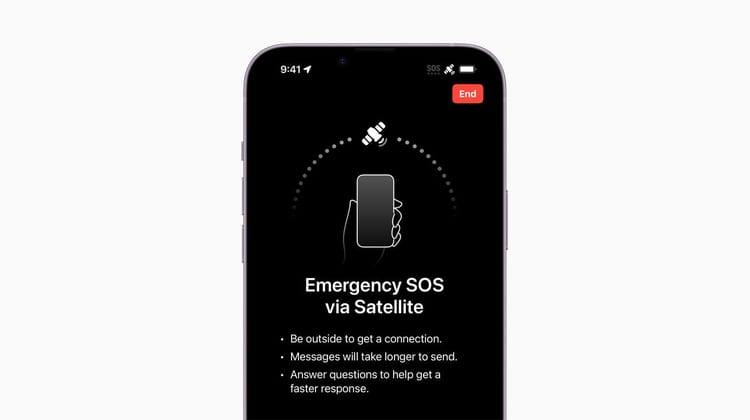
Emergency contacts are not only a list for responders. After an emergency call ends, iPhone sends those contacts a text message unless you cancel it. The text includes your current location if iPhone has one. For a period after you enter SOS mode, contacts also get updates when your location changes.
For a normal walk home, that is too much. Check In in Messages is the lighter tool for that.
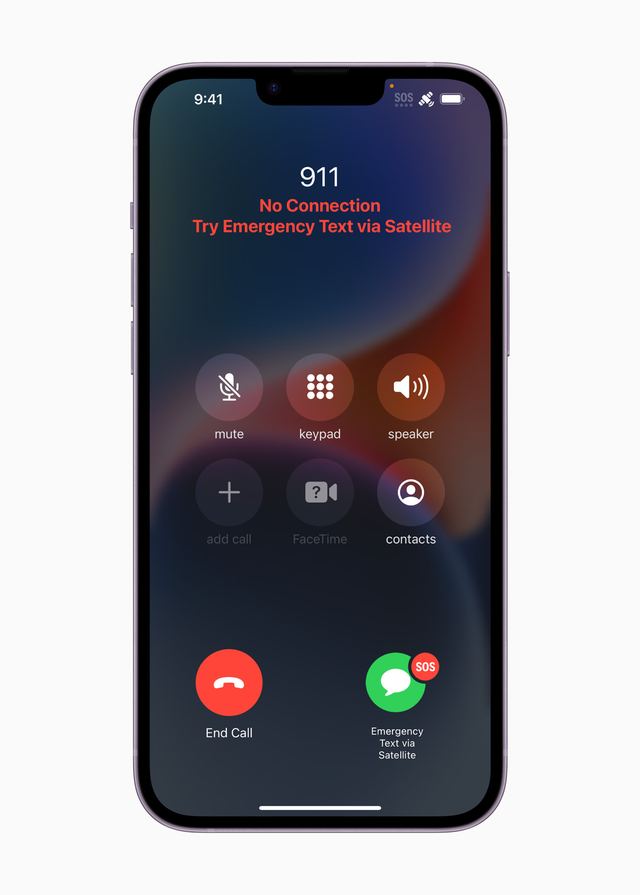
Photo: Apple
Settings > Emergency SOS
Go to Settings > Emergency SOS. There are two ways to start a call here.
- Call with Hold and Release: press and hold the side button and either volume button until the sliders appear and the countdown ends, then let go.
- Call with 5 Presses: press the side button quickly five times to start the countdown.
In India the default is different. You press the side button three times.
Apple's guide also says one thing to remember if you trigger a call by accident. Don't hang up. Wait for the responder to answer and tell them you don't need help.
One more detail from the same page. After an emergency call, iPhone briefly turns off features that block or silence calls, so emergency services can call back. Apple lists Do Not Disturb, Screen Time and Silence Unknown Callers. You don't need to change those yourself.
Photo: Apple Newsroom (Emergency SOS via satellite, Crash Detection on iPhone 14)
Source: Apple iPhone User Guide for iOS 27, "Set up and view your Medical ID" and "Use SOS to contact emergency services on your iPhone"