Walmart removed Apple Pay from its U.S. iPhone app and website in late November 2026. MacRumors reported the change on November 24 and said some users may still see the option, possibly an A/B test. 9to5Mac found Apple Pay missing from both Payment method and Other ways to pay at checkout. Walmart has not said why, and Apple has posted no Newsroom or Support statement naming Walmart. Stores still take tap to pay. The 10 items below are the Apple Pay and Wallet settings worth reviewing this week, each checked against an official Apple page and its published limits.
1. See where Apple Pay still works in stores, apps, and on the web
The Apple Pay page lists three surfaces: stores showing the contactless payment mark, apps and websites showing the Apple Pay mark, and eligible transit. That store list still includes Walmart registers. The gap is the Walmart iPhone app and website, where our earlier report on the Walmart app change covers the timeline. Nothing from Apple names Walmart either way.
2. Set up Apple Pay by adding a card in the Wallet app
Apple's Set up Apple Pay page, published July 6, 2026, lists the requirements: a compatible device on the latest iOS, iPadOS, watchOS, macOS or visionOS, a card from a supported issuer, an Apple Account, and Face ID, Touch ID, Optic ID or a passcode. In Wallet, tap Add Card, then Cards Found For You or Debit or Credit Card, and hold the physical card near the iPhone or tap Enter Card Details Manually. Some banks want extra verification or their own app first. Sign out of iCloud or remove the passcode, and the cards on that device are removed; if a card will not add at all, the add-card fix for Apple Wallet lists the usual checks.
3. Pay in stores with iPhone or Apple Watch
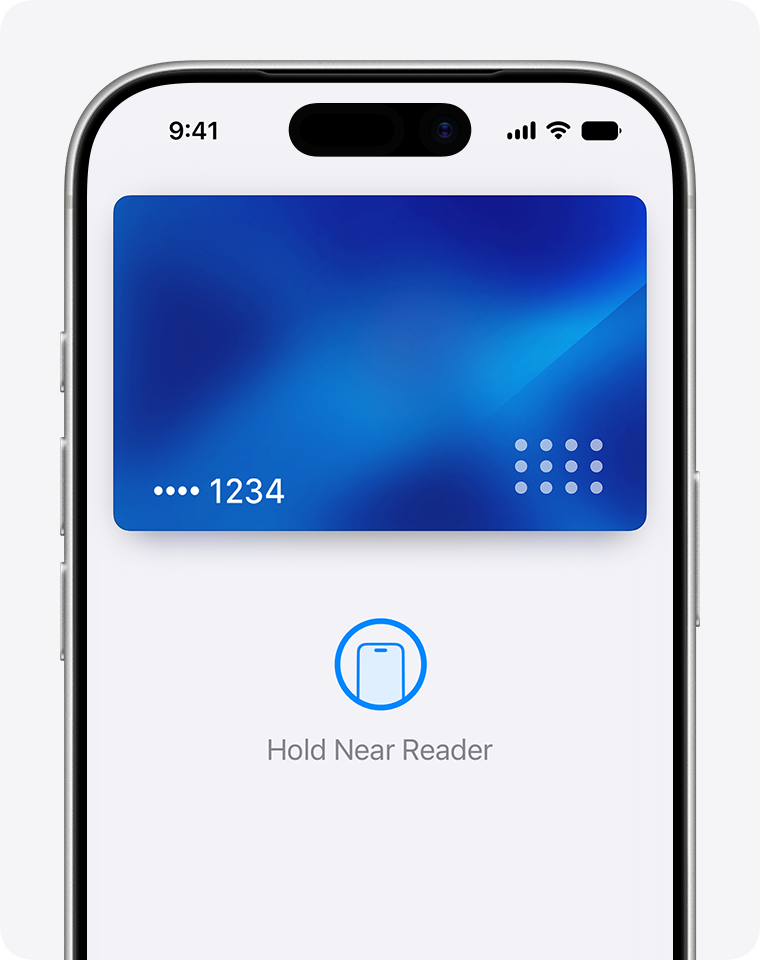
Apple's Make purchases using Apple Pay page, published October 23, 2026, covers stores, restaurants, gas stations and taxis showing the contactless mark. With the default card, double-click the side button, confirm with Face ID, Touch ID or passcode if asked, then hold the top of the iPhone near the reader until Done and a checkmark appear. Apple Watch works the same way: double-click the side button, hold the watch near the reader, and a tap plus a beep confirm the payment. Tap the default card first to switch cards, and note some stores also take Tap to Share at the counter; loyalty, gym and library cards ride in the same Wallet, as in adding a loyalty, gym or library card to Apple Wallet.
4. Use Apple Pay in apps and in Safari
The same Apple page covers apps and Safari on the web. Tap the Apple Pay button or choose it as the payment method. Change Payment Method or Other Cards & Pay Later Options switches the card. Confirm with a double-click of the side button on iPhone and iPad, Optic ID on Vision Pro, or Touch ID on a Mac with Touch ID; a Mac without Touch ID confirms on a paired iPhone or Apple Watch signed in to the same Apple Account. One limit is easy to miss: in mainland China, web Apple Pay runs only in Safari on a compatible iPhone or iPad.
5. Pay in other browsers by scanning a code with iPhone or iPad
Pick Apple Pay in a third-party browser on a Mac, PC or other device and the screen shows a code instead of a wallet sheet. Scan it with the iPhone or iPad camera, fill in billing and shipping if asked, and confirm with the double-click. Apple's countries and regions page, published October 27, 2026, sets the bar: the browser must support WebSocket, the iPhone or iPad must run iOS 18 or iPadOS 18 or later, and only participating merchants offer the code path. Mainland China has no third-party-browser Apple Pay at all.
6. Change your default Apple Pay card or remove a card
Apple's change-or-remove page, published September 14, 2026, notes the first card added to Wallet becomes that device's default card. To change it on iPhone, long-press the card in Wallet and drag it to the front; at checkout, Change Payment Method, then Info, then Set as Default Card does the same job. Apple Watch keeps its own default in the Watch app under My Watch > Wallet & Apple Pay > Apple Pay Defaults. To remove a card on iPhone: tap it in Wallet, More > Card Details > Remove Card, and the earlier Wallet settings checklist covers the rest of the device list.
7. Use Express Mode for transit, passes, and keys
Express Mode, documented November 18, 2025, lets compatible cards, passes and keys tap through without waking the device or confirming with Face ID, Touch ID or a passcode. Adding an eligible transit card turns it on by default. One transit card per network can hold Express Mode, plus one payment card for readers that do not take the transit card. On iPhone, set it in Wallet > card > More > Card Details > Express Transit Settings or Express Mode. Power reserve keeps some Express Mode cards working up to about five hours after the iPhone needs charging, but not when the iPhone is off.
8. Pay with installments using Apple Pay Pay Later
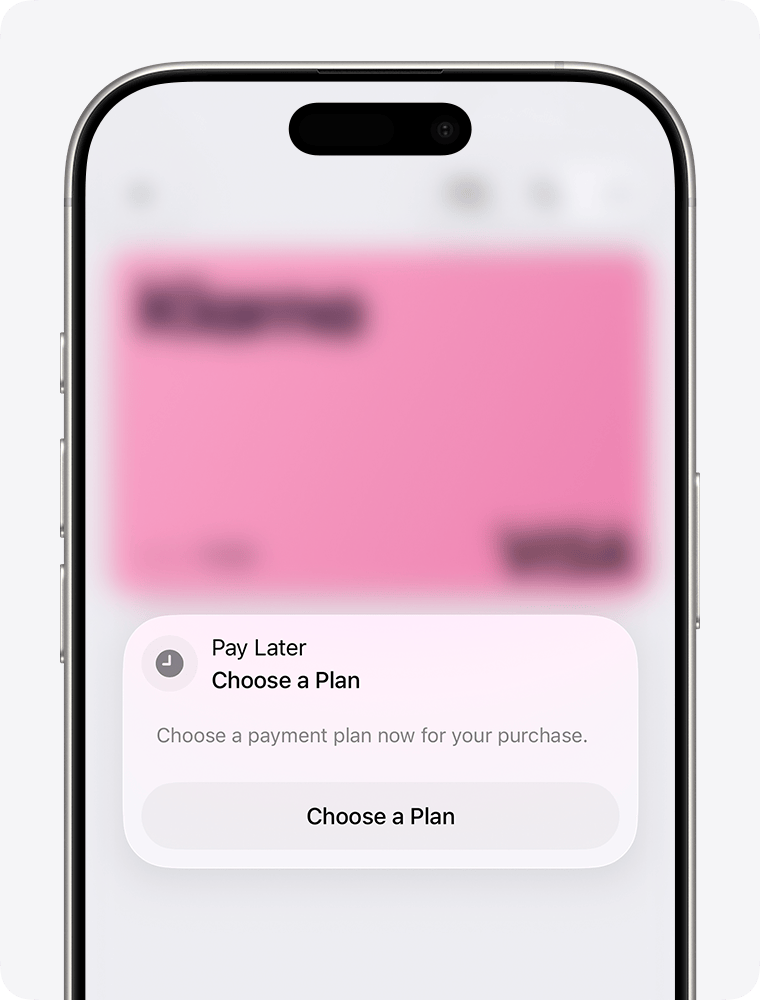
Apple's Pay with installments page, published September 14, 2026, sets the bar: web and in-app purchases need an iPhone or iPad on iOS 18 or iPadOS 18 or later, in-store purchases need an iPhone on iOS 26 or later, and plans come from the card issuer or an installment provider with its own approval. Apple does not lend the money, and not every card or market qualifies. Online, tap Apple Pay, open Payment Options > Pay Later, pick a plan, then Agree & Continue. In-store, double-click the side button, tap the card, then Pay Later > Choose a Plan, or finish the purchase first and use Set Up After Purchase from the Wallet notification.
9. Track Apple Pay orders and purchases in Wallet
Apple's Track orders page, published September 14, 2026, covers three paths. Some Apple Pay purchases track automatically on iOS 16, iPadOS 16, macOS 13 or later. Others need the Track with Apple Wallet button on the order screen, an iOS 17, iPadOS 17 or macOS Sonoma feature. Mail tracking is narrower still: an Apple Intelligence device on iOS 26 or later, with Order Tracking on in Settings > Wallet & Apple Pay. Wallet > Orders shows status, delivery estimates and tracking links, but not every order has tracking, and Wallet only shows what the merchant provides.
10. Suspend Apple Pay with Find My if your iPhone is lost
Apple's Apple Pay security overview, published April 27, 2026, explains the setup: the issuer creates a Device Account Number, encrypted and kept in the device's Secure Element apart from the operating system. Apple says the number never reaches its servers, is not backed up to iCloud, and raw card numbers are not stored. If the iPhone goes missing, Lost Mode in Find My pauses Apple Pay on that device without canceling the card, and the ability to pay returns after recovery. A remote erase also removes the payment capability.
Photo: Apple. Sources: Apple Support 102626, 108398, 118219, 105123, 120477, 105065, 101554, 102775; MacRumors; 9to5Mac.