Yes. iOS 27 lets you turn a plastic loyalty card, a gym membership, or a library card into an Apple Wallet pass even when the merchant offers no Add to Apple Wallet button. Two routes exist: type the details into a template inside the Wallet app, or photograph the barcode and let the iPhone import it. The steps below come from Apple support documents published or updated through September 2026.
Create a pass manually in Wallet on iOS 27
This route works on any iPhone running iOS 27. No Apple Intelligence needed.
- Open the Wallet app. Tap the Add Card (+) button, then tap Create a Pass.
- Tap Create Pass Manually and choose a template: standard, membership, or event. Apple says the standard template fits insurance cards, gift cards, or anything that is not a membership or an event.
- Edit the fields. You can add your name, membership status, membership duration, location, and more. Change the background color if you like, then tap the Checkmark to add the pass to Wallet.
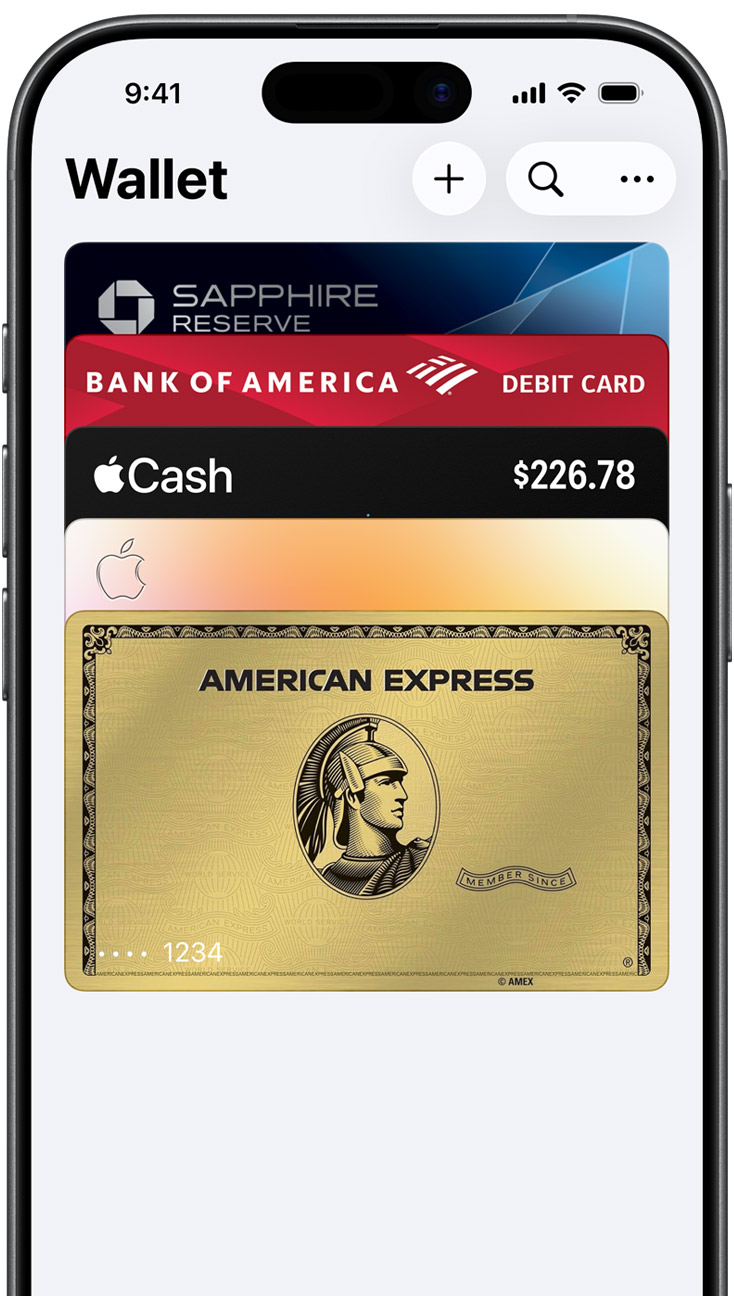
One detail that saves confusion: the new pass does not join your payment cards at the front of the app. Apple says it appears in the stack of passes and tickets below the payment cards. If you only glance at the top of Wallet, the add looks like it failed. It did not. While you are in there, the 10 Apple Wallet and Apple Pay settings worth checking after iOS 27 are a useful second stop.
Scan a barcode with Camera, Photos, or a screenshot
On iPhones with Apple Intelligence, letting the phone read the code is faster than typing fields. Apple's requirements are exact: an iPhone 15 Pro or later compatible with Apple Intelligence, the latest version of iOS, and Visual intelligence turned on. The support article states the requirement but does not name a Settings toggle for it. Visual intelligence itself opens from Camera Control (click and hold), the Action button, the Lock Screen control, Control Center, or the Camera app with a tap on Siri.
From there, three scan paths do the same job. In the Camera app, photograph an existing physical pass that has a barcode or QR code, a membership card for example, then tap Add Pass to Wallet. In the Photos app, select any photo of a code, tap the Info button or swipe up, and tap Add Pass to Wallet when the code is detected, then edit or add fields. A screenshot works too: take one of a barcode or QR code and the Add Pass to Wallet button appears.
Apple's iPhone User Guide adds one small tip. After the pass is created, tap View Original Photo to see the image the pass came from.
Cult of Mac, in a November 7, 2026 walkthrough, also describes a flow that starts inside Wallet itself: Add Card (+), Create a Pass, Continue, then photograph the card or pick an existing photo or screenshot and review the recognized details. That wording came from Cult of Mac's own test rather than from Apple's support steps, so treat it as reported, not documented.
Magnetic stripes and rotating codes fail
Two kinds of card will not become usable passes. A card with only a magnetic stripe has no code to read. Cult of Mac notes those do not work, and Apple's own documentation only describes barcode and QR code passes. The sharper trap is the rotating code. Apple warns that some barcodes and QR codes rotate, change periodically, and expire. Photograph the live code on a concert ticket and the saved pass will not scan later. A gym membership number printed as a fixed barcode is the kind of card that survives.
Keep the pass category straight as well. Create a Pass makes a scannable copy of a code you already have. It is not the same as an issuer-signed pass delivered through Add to Apple Wallet in a merchant app, email, or web page, and Apple does not promise every merchant will accept a homemade pass. Issuers that do deliver live tickets properly exist, like the Manchester Bee Card move to Apple Wallet tickets in the UK. And none of this touches payment cards: adding a debit or credit card is a separate flow inside Add Card, and if that one fails, the Apple Pay fix for cards that will not add is the right guide.
Show the pass at the register, then edit it later
Apple's pass guide is short. If a Wallet notification appears when you arrive, tap it and authenticate. Otherwise double-click the side button on Face ID iPhones, or the Home button on Touch ID models, authenticate, tap the pass if it is not already on top, then scan or present it. A pass added on iPhone is added automatically to the Wallet app on a paired Apple Watch.
To change the pass later, tap it in Wallet, tap More (…), then tap Edit Pass. Background and color, added or removed fields, and the details themselves all live there.
Start with the photo route if your iPhone qualifies, and fall back to Create Pass Manually for cards whose code you cannot photograph cleanly. Check the stack below your payment cards before assuming the add failed.
Photo: Apple (apple.com/wallet). Source: Apple Support HT127821, iPhone User Guide, Apple Support HT111112, Cult of Mac.