The audio button on the right side of the Messages text field sits right where a thumb lands. Hit it by mistake and a voice recording starts. iOS 27 can take the button out of the text field, or lock it to one function so it stops changing jobs. 9to5Mac highlighted the fix again on November 24, months after the feature shipped, because people keep hitting the button. One Settings row fixes it.
The Show in Text Field row, step by step
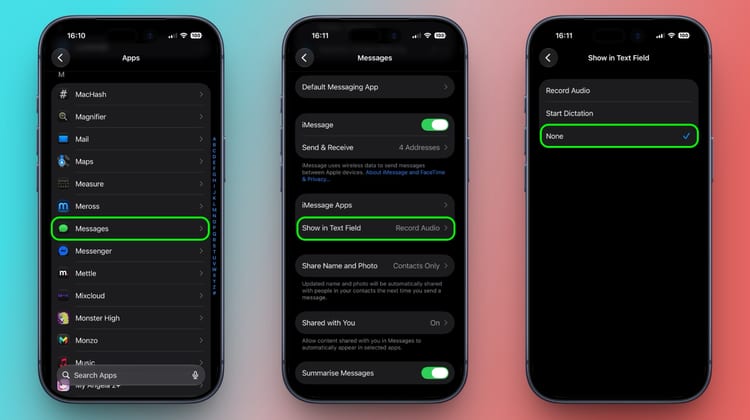
Open Settings. Tap Apps at the bottom of the list, then Messages. Tap Show in Text Field and you get three choices: Record Audio, Start Dictation, None. 9to5Mac and MacRumors both describe the row with those names. Apple's iPhone User Guide pages do not name this row, so the wording above comes from those two outlets.
What None removes and what still works
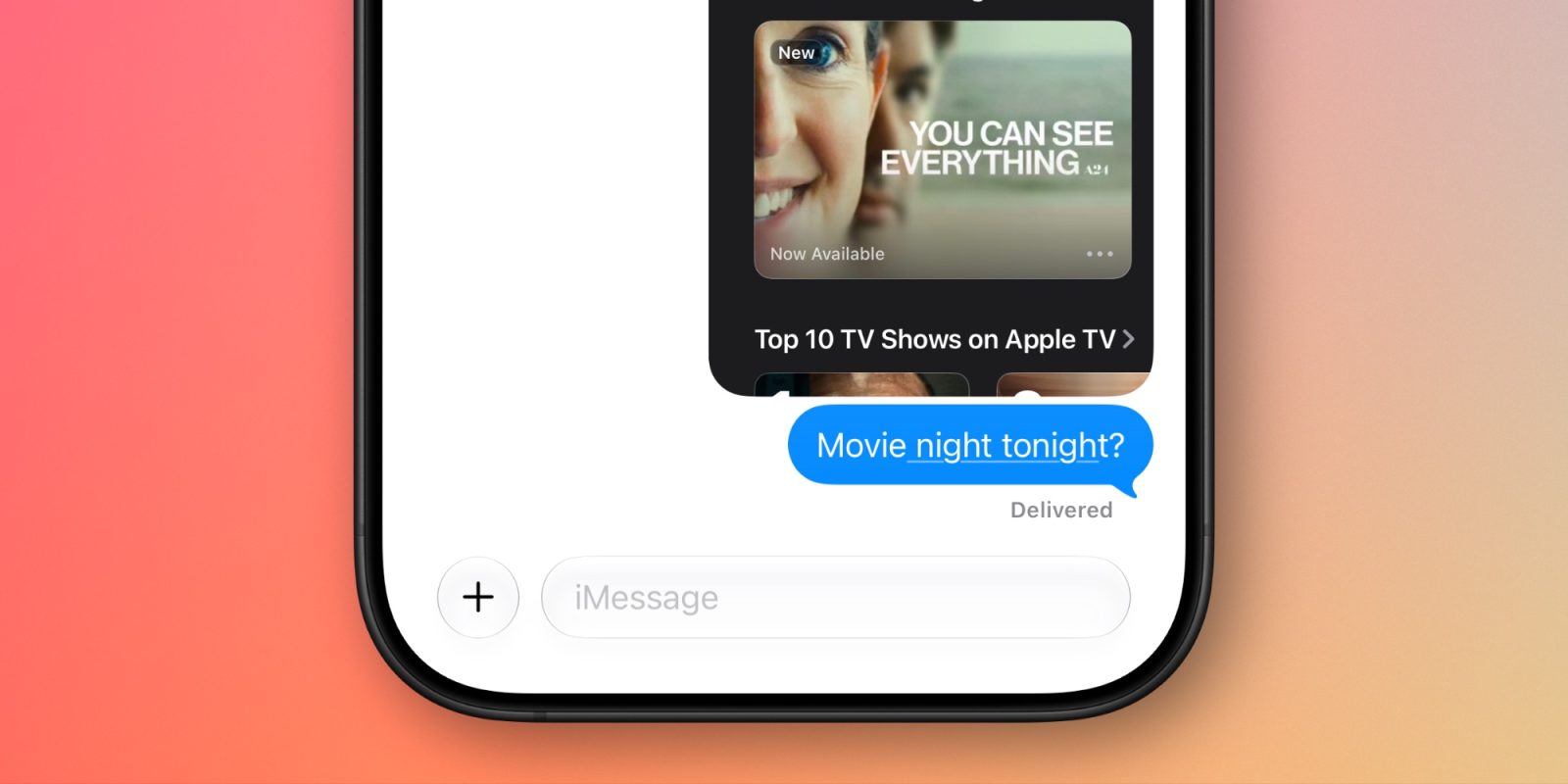
None takes the button out of the text field. Pick it if the only thing the button does for you is start recordings you never meant to send.
Sending audio does not go away. Tap the + button to the left of the text field, choose Audio, and speak. Apple's guide to audio messages documents the same flow: record, review, send, or cancel. One detail from that page is worth knowing. An audio message is deleted from your iPhone two minutes after you send or listen to it, unless you tap Keep. To keep every message, go to Settings > Apps > Messages > Expire (under Audio Messages) and choose Never.
Dictation stays on the keyboard microphone
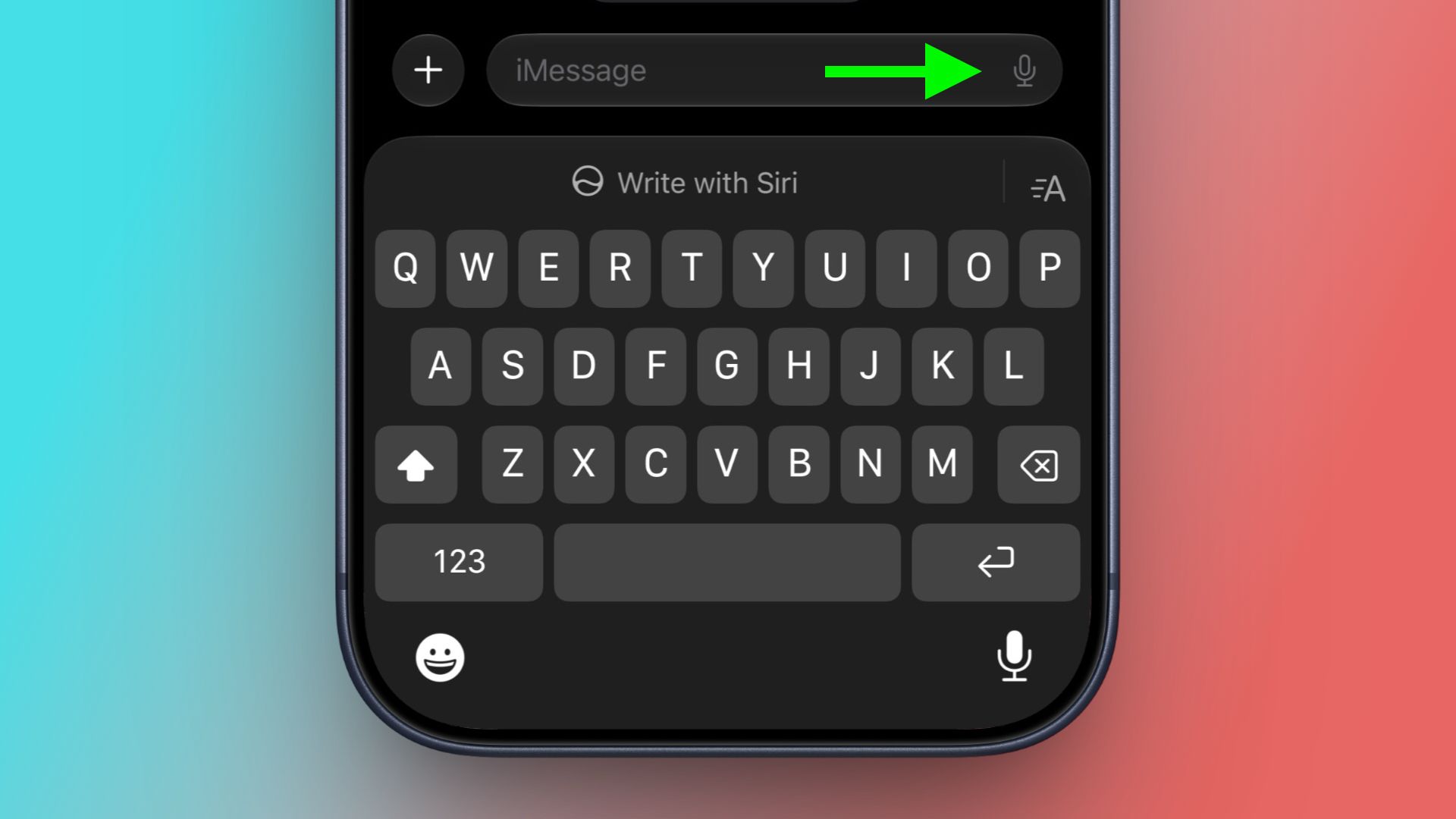
If it is dictation you keep needing, the microphone key at the bottom right of the keyboard still does that, with or without the text-field button. If the key is missing, go to Settings > General > Keyboard and turn on Enable Dictation, per Apple's dictation guide. To stop dictating, tap the key again, say "Stop dictation," or stay silent for 30 seconds.
Lock the Messages audio button with Record Audio or Start Dictation
Some people want the button and are tired of it changing jobs. Before iOS 27 the button flipped between recording and dictation by itself. Now Record Audio pins it to voice messages, and Start Dictation pins it to dictation. The 9to5Mac writer locked one function and kept the button. Accidental taps are common enough that the same piece names Justin Bieber among people who have hit the wrong thing.
The setting shipped with iOS 27, not with a 27.3 beta
Show in Text Field arrived with iOS 27 in September 2026. No beta install is needed. Apple's About iOS 27 Updates page, published November 9, 2026, still lists iOS 27.2.1 as the latest public update as of November 25, 2026 and has no iOS 27.3 section. We first wrote about this row in our September tip on the Messages audio button you keep hitting.
If the button keeps betraying you, choose None and forget it. For the rest of the post-update cleanup, see 10 iPhone Messages settings to check after updating to iOS 27, and how Smart Reply works in Messages and Mail on iOS 27.
Photo: MacRumors (Settings flow, text field and keyboard) / 9to5Mac (Messages conversation). Source: 9to5Mac, Apple iPhone User Guide, Apple Support.