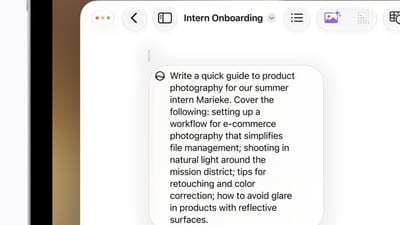
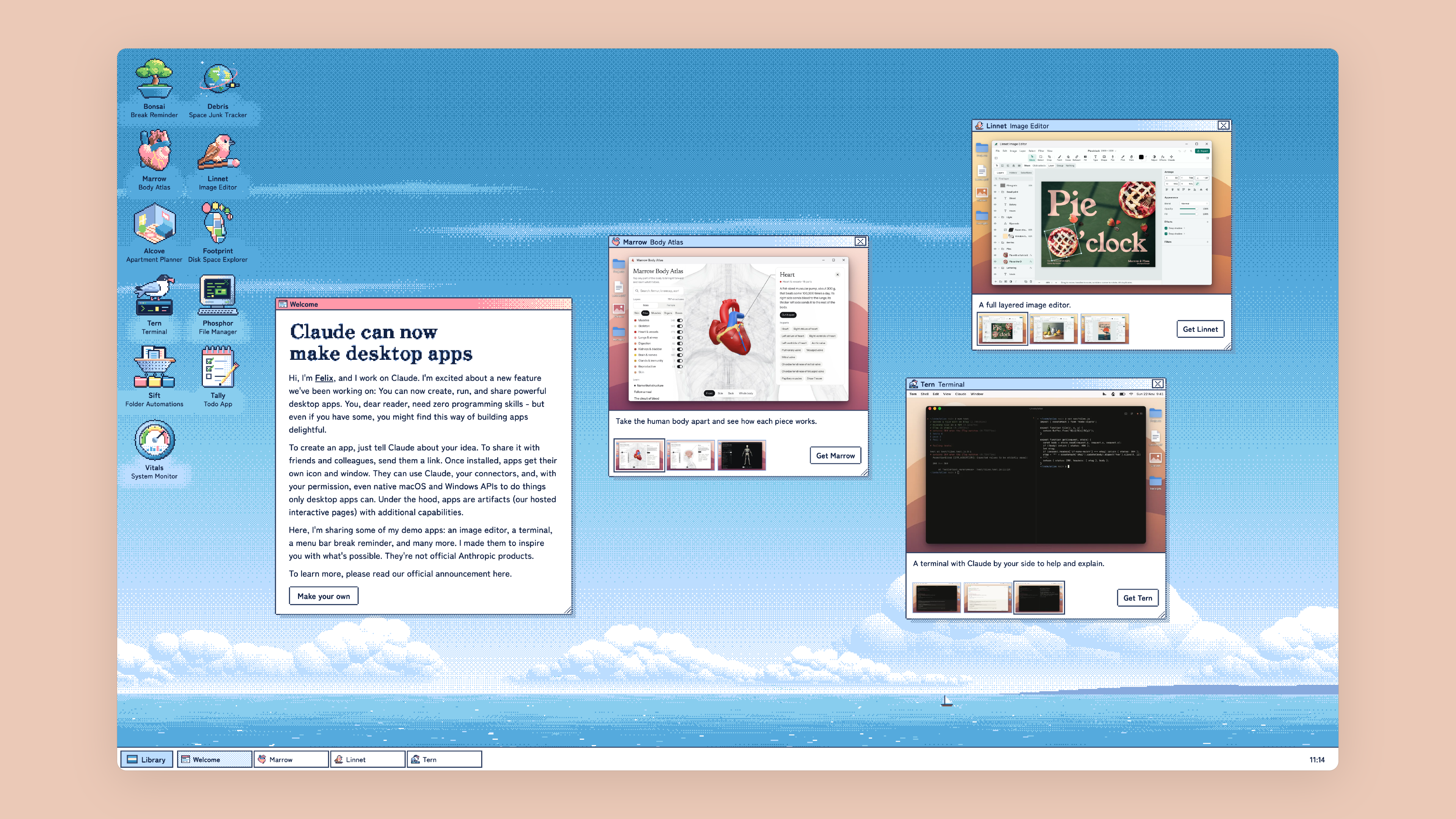
Anthropic opened a beta on November 24, 2026 that turns a Claude artifact into a Mac desktop app. It is called "Install as app". It needs Claude for Mac 6.28899.0 or later, and it gives the artifact its own window and icon. The official Anthropic article states it plainly: you can use Claude artifacts to create, run, and share desktop apps. 9to5Mac covered it the same day. The steps below use Claude Help Center labels exactly as published.
Not the browser's "Add to Dock", "Add browser shortcut", or "Add to Home Screen". The Help Center says those only add a shortcut and do not have the desktop features described here.
Install as app needs Claude Desktop 6.28899.0 or later
The version floor is 6.28899.0, on Claude for Mac or Windows. The beta ships to Free, Pro, Max, Ultra, Team, and Enterprise plans. On macOS, update from Claude > Check for Updates. If "Install as app" is missing from an artifact's menu, an outdated desktop app is the first suspect. The second: a plan owner may have it off. Enterprise starts with it off, in Organization settings > Artifacts. Team has it on by default, but full access to the computer stays off until an admin enables it.
Claude Desktop needs macOS 13 (Ventura) or higher, and installs from the official downloads page. If it is not set up yet, follow our Claude Desktop install walkthrough for Apple silicon and Intel Macs. Linux, web, and mobile do not get installed apps.
How to install a Claude artifact as a Mac app
The Help Center lists four steps. Open the artifact in the main Claude Desktop window. Open the artifact's title menu, or right-click the artifact. Select "Install as app". Select "Install" to confirm. The same command sits under Share, and Claude asks for confirmation on every path.
The installed app is still the same artifact. Edit it in the chat and the app changes too. Nothing to package or sign, no API key. It runs on your Claude account. Developers shipping real apps still use Apple's Xcode plugin for Claude Code.

The app opens from the Claude Apps folder
On macOS, open an installed app from the Claude Apps folder inside the Applications folder in your home folder. Spotlight finds it too, and so does the Apps launcher. To keep one in the Dock, right-click its icon and select Options > Keep in Dock. Inside Claude Desktop, File > Apps lists every installed app.
An app with a menu bar item keeps running after you close its window. Quit it from the Dock or press Cmd+Q. To uninstall: File > Apps, select the app, select "Uninstall". The app moves to the Trash and its permissions go away. The artifact stays.
Permissions, and the full access warning
Each app asks before it uses a system feature. You answer Allow or Don't allow. The named ones: Notifications, Keyboard shortcuts, Float over other windows, and a Menu bar item on macOS. An "Allow" covers one version of the app. After any update, including your own edits, Claude asks again.
Full access to this computer is the top tier, and the official warning is blunt. An app with full access can run any program and read, change, or delete your files. Only allow it if you trust everyone who wrote the app. Anthropic does not review apps before you install them.
The limits: online and signed in, usage counts, unsupported artifacts
AppleInsider flagged the line buried at the bottom of the page. You need to be online and signed in to Claude Desktop to open an app. These apps do not replace offline Mac software.
Building an app, and every request it makes to Claude, count toward your plan's usage limits. Some artifacts cannot be installed at all: Docs, Slides, or Sheets templates, legacy artifacts, and live artifacts from Claude Cowork. HIPAA-ready organizations cannot use the feature.
For a tool you already keep as an artifact in a daily chat, one install is a low-risk try. For offline work, ordinary Mac software is still the answer.
Photo: Anthropic, Claude Help Center
Source: Claude Help Center, Anthropic, 9to5Mac, AppleInsider