A database holding roughly two billion login credentials sat on the open internet, with no password protection and no encryption. Security researcher Jeremiah Fowler found it. About 400,000 of its documents were folders built for individual victims, detailed enough, Fowler told Wired, to "own that person." The dump is not from Apple, but it is a good reason to check compromised passwords on iPhone and change anything the Passwords app flags.
What the open database held
Fowler's discovery, reported by 9to5Mac's Ben Lovejoy on November 24, 2026, covered credentials for a huge range of services, plus thousands of Tor .onion addresses. The victim folders came from what Fowler called "more advanced malware": subfolders for applications, cookies, edge, important files, and operating systems, plus text files labeled system, clipboard, brute force, and passwords.
Nobody has said where the data started; it looks aggregated from multiple breaches. Fowler asked the hosting company to take the database down, and how many people saw it first is unknown.
How to check compromised passwords on iPhone
Apple's iPhone guide documents the exact path. As of 2026-11-25, on the iOS 27.2.1 public tip:
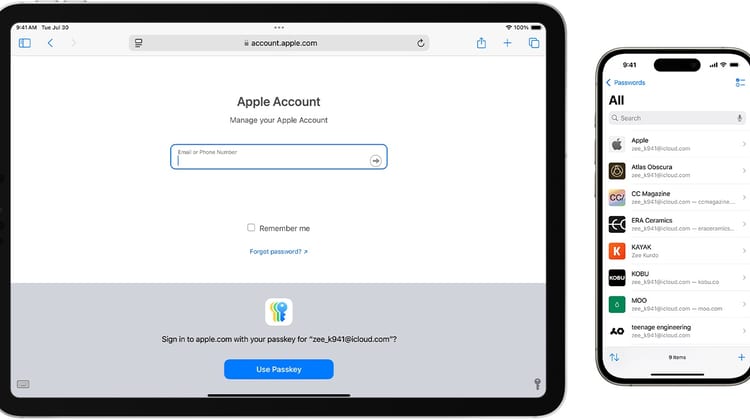
- Open the Passwords app and tap Security. You may need to tap a control to see your categories. An account with a weak or compromised password shows a message explaining the problem.
- Tap the account, tap the Password field, then Copy Password, so you can paste it when the site asks for your old password.
- Tap Change Password and change it on the website or in the app. If the site offers a passkey or a Sign in with Apple upgrade, take it. If not, let iPhone generate a strong password.
Detection is a separate switch: Settings > Apps > Passwords, then turn Detect Compromised Passwords on or off. Apple says iPhone "can securely monitor your passwords and alert you if they appear in known data leaks." The Passwords support document lists these leak alerts next to easily guessed and reused passwords. The app has shipped since iOS 18, iPadOS 18, macOS Sequoia, and visionOS 2.
The same check on a Mac, and the accounts you cannot fix
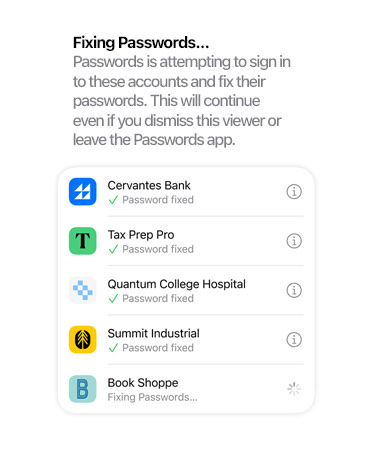
On a Mac, open Passwords, click Security in the sidebar, click a listed account, copy the password from the dots in the Password field if asked, then click Change Password. The monitoring switch is in Passwords > Settings, labeled "Receive alerts if any of your passwords appear in known data leaks." The Mac Passwords guide has the full steps.
Two cleanup options are easy to miss. For a service you cannot change right now, open the account and tap Hide. For one that is gone entirely, open Passwords > All and swipe left on the account to remove it from iPhone and iCloud Keychain.
What a clean Security list does not prove
Password Monitoring compares your saved AutoFill passwords against a curated list of known leaks. A clean Security tab means nothing in your saved set matched that list. It does not prove a given login was absent from this database or any other dump, and Apple has not said whether Fowler's find is in the curated list. Silence is not an all-clear.
Nothing in the report indicates Apple, iCloud, or the Passwords app was the source. Apple's recovery steps for a compromised Apple Account apply only when the official signs show up: an unrecognized sign-in alert, a two-factor code you did not request, a password that suddenly stops working, or a device locked by someone else. Apple's document on compromised accounts lists what to do then.
Move two-factor codes off SMS where you can
9to5Mac's advice after the report: one unique password per site, and authenticator-app codes instead of text messages, because SIM-swap attacks intercept SMS. The Passwords app can "set up and store automatic verification codes" so two-factor works "without relying on SMS messages or additional apps." Open Passwords, select All, pick the account, and under Security choose Set Up Verification Code. To delete used codes automatically, turn on Delete After Use under Verification Codes in Settings > General > AutoFill & Passwords.
Short on time? Start with email, because it resets your other accounts, then banking and the Apple Account. Related on this site: share a Wi-Fi password with a tap, fix a Mac login password that is rejected or forgotten, and the AI voice phishing that pushed people for Apple phone passwords in August.
Photo: Apple. Sources: 9to5Mac; Apple Support.