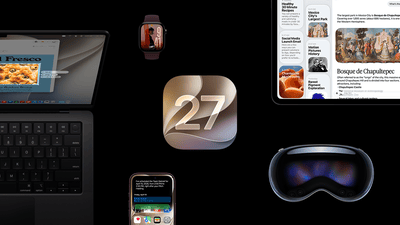
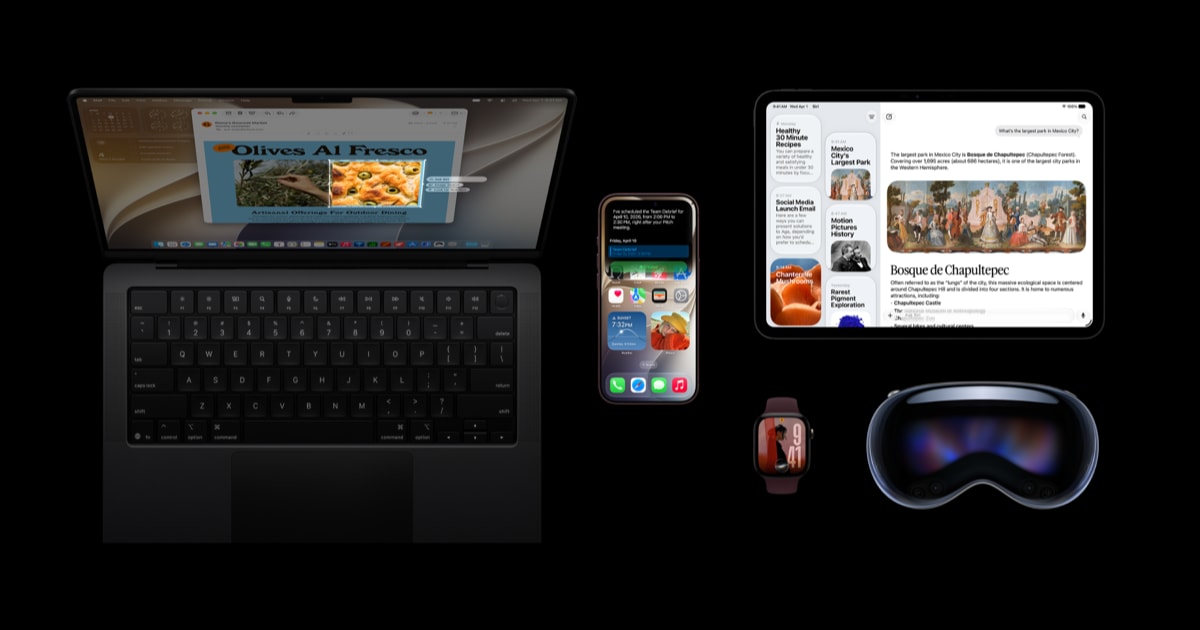
On a Mac running macOS 27 Golden Gate you can create a Calendar event with just a description. Type “Party Feb 6” and Calendar fills the date and title. Apple lists this ability under next-generation Apple Intelligence, and the steps below come from Apple's own Calendar guide and support pages, checked on 2026-11-21. One thing first: what Apple documents for Mac is not the same list of tricks 9to5Mac showed on the iPhone this week. Keep those apart and the feature is simple.
Describe a calendar event in the Calendar app
Apple's Calendar guide calls the path “Create an event using natural language.” Three steps, all in the Calendar user guide for macOS 27:
- Open the Calendar app on your Mac.
- Click the Create Quick Event button in the toolbar. That is the label on Apple's own guide image. The live toolbar may show only an icon, so look for the button that creates a quick event, not a generic plus.
- Enter a description of your event. Apple's examples: “Party Feb 6,” “Soccer Game on Saturday from 11am-1pm,” “Vacation in Bahamas Mon-Fri.”
Where the “Apple Intelligence” name comes in: Apple's next-generation Apple Intelligence support page lists “Describe a calendar event in natural language” among the features that arrive with the 27.0 software releases, on iPhone, iPad, and Mac. The Calendar guide itself never says Apple Intelligence in these steps. Both pages are Apple's, and together they say the same thing: one description in, one event out.
Change the description and Calendar adjusts the details
Editing works the same way. Apple's stay organized on Mac page puts it plainly: you can add and edit calendar events with a description. “You can change a lunch meeting to a coffee chat, and the event details are updated in Calendar.” No extra Settings toggle is documented for this. Change the words, and the event follows.
A contrast worth keeping in view. 9to5Mac's Nov 20 hands-on covers iOS 27 only. The writer found natural-language entry that auto-fills recognized fields but supports fewer data points than Fantastical, and showed Siri AI batch-adding a child's sports schedule or moving “today's lunch to next Wednesday.” Those are one writer's iPhone observations. Apple's Mac pages do not promise batch schedule imports, and the iOS 27.3 calendar design update is still ahead, not shipped.
Siri and Spotlight also add events, but they are not this feature
Two older official paths sit next to the description box. Ask Siri something like “Set up lunch on Thursday with Rachel, Guillermo, and Nisha.” Or click the Spotlight icon in the menu bar, enter a name and time such as “Movie tonight at 7pm,” then click Add on the suggested calendar event. Both are documented in the same Calendar guide.
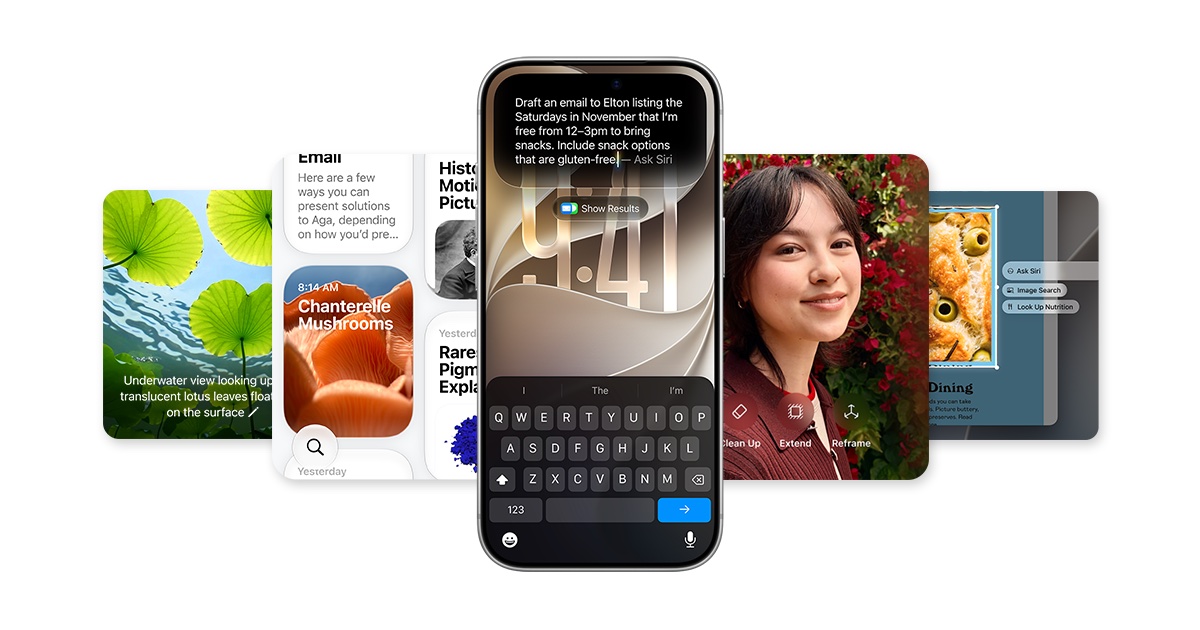
Siri AI is a separate matter. Its app actions include creating calendar events, but the Create Quick Event flow does not ask you to turn Siri AI on first. If you want the assistant itself, the official path is System Settings > Siri > Try Siri AI (Beta), which we covered in our Mac Siri AI setup tip. One hard limit from Apple: Siri AI will not currently work if your Apple Account region is mainland China.
What your Mac needs before the description box works
Requirements as Apple lists them, current on 2026-11-21. Eligible Macs are MacBook Neo (A18 Pro) and Mac models with M1 or later. Device language and Siri language must be set to the same supported language; Apple's list covers 16 languages including English, Chinese (Simplified and Traditional), Japanese, and Korean. Model storage runs up to 14 GB on M3-and-later Macs with at least 12GB of unified memory, up to 8 GB on other eligible Macs. Check the Apple Intelligence model storage in System Settings if disk space is tight.
China mainland has its own gate. Apple says the features will not currently work on supported devices purchased in China mainland. For devices bought elsewhere, they will not currently work if you are in China mainland and your Apple Account country or region is also China mainland. Usage limits apply to some server-side Apple Intelligence features, and Apple does not list any calendar-specific quota. If the description box is missing on an M1 Mac, check the language setting first. That is the failure Apple's own pages point to.
Open Calendar and type one of Apple's three examples before you trust it with a real meeting. If the filled details are wrong, edit the description, not the fields. The full list of what shipped with the 27.0 updates is on our Apple Intelligence feature list.
Photo: Apple. Source: Apple Support 121115, Apple Calendar guide, 9to5Mac.