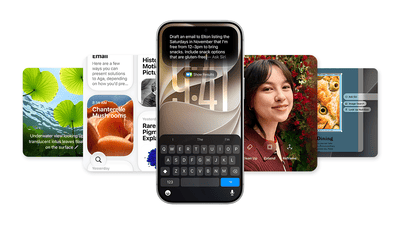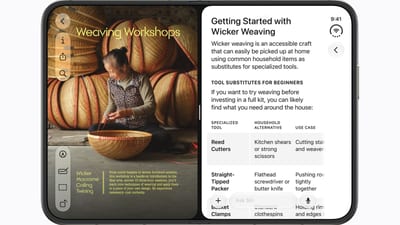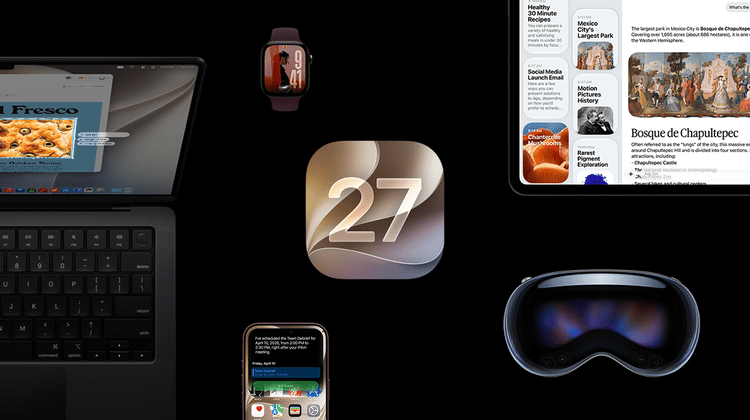
A softer navigation bar fade for Liquid Glass is coming, but not here yet. Code researcher pdfu (@itspdfu) found the effect in iOS 27.3 developer beta 2, hidden behind an internal flag named UIKit/clear_glass_soft_pocket. It is off by default. MacRumors and 9to5Mac checked the same build and reached the same conclusion: there is no Settings switch for it today.
So this list covers only what Apple documents now. Every path below is from the Apple iPhone User Guide and related support pages, checked November 18, 2026.
1. Adjust the Liquid Glass tint in Settings > Appearance
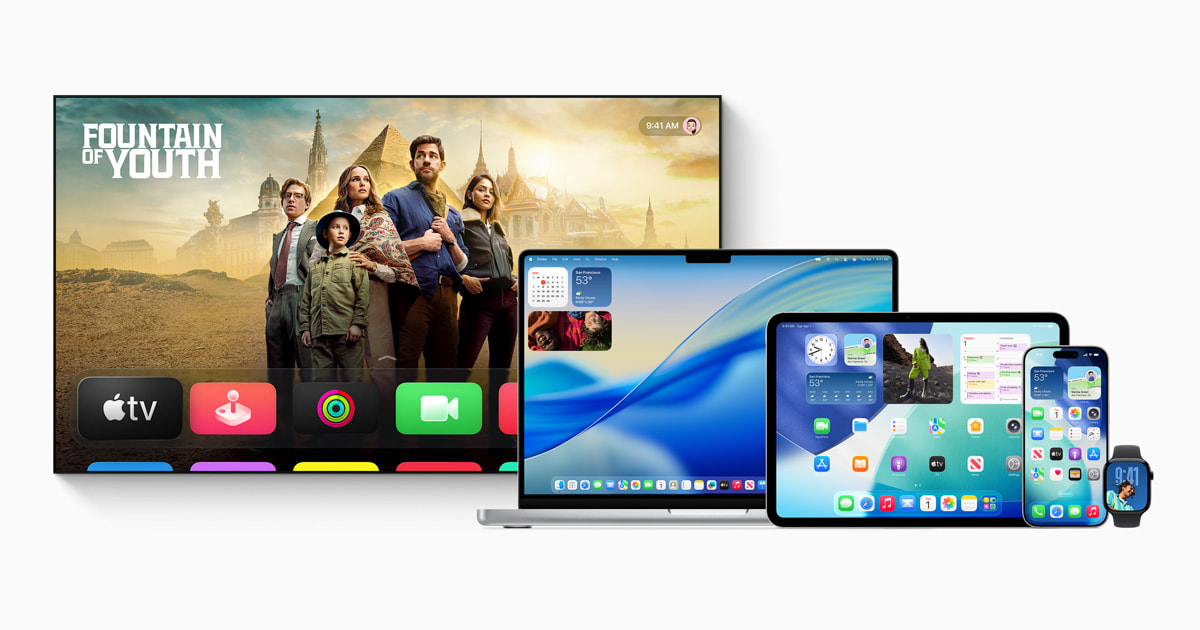
Open the Settings app, tap Appearance, then tap Liquid Glass. Drag the slider to the right to increase the tint of Liquid Glass. Drag it left to make Liquid Glass more clear. One catch: if Reduce Transparency or Increase Contrast is on in Accessibility settings, you need to turn them off before the slider works.
2. Turn on Reduce Transparency to make glass backgrounds solid
Some backgrounds appear transparent or blurred by default. Go to Settings > Accessibility > Display & Text Size and turn on Reduce Transparency. Transparent backgrounds become opaque with a solid color. The trade: with this on, the Liquid Glass slider from item 1 is locked again.
3. Turn on Increase Contrast in Display & Text Size
Increase Contrast strengthens the contrast between elements, like apps and background colors. Path: Settings > Accessibility > Display & Text Size, then turn on Increase Contrast. Same trade as Reduce Transparency. Turn it off when you want to go back to the tint slider.
4. Turn on Reduce Motion to limit Liquid Glass morphing
Reduce Motion sits at Settings > Accessibility > Motion. Apple's onscreen motion page says it plainly: when Reduce Motion is off, you see more motion, like the fluid morphing effects of Liquid Glass. Turn it on if the morphing distracts you. Vehicle Motion Cues and the auto-play toggles live on the same screen. Those are not Liquid Glass switches.
5. Change iPhone text size under Appearance
Text size moved to Appearance in current iOS. Go to Settings > Appearance > Text Size, then drag the slider. Small text is harder to read over translucent glass, so this is the first fix to try. For more range, the guide points to Settings > Accessibility > Display & Text Size. We covered the larger-text options in an earlier iOS text size tip.
6. Turn on Bold Text
Bold Text is on the same Appearance screen. Go to Settings > Appearance and turn on Bold Text. Labels on translucent bars and widgets get easier to read. It changes weight only. Your tint setting stays where you left it.
7. Magnify the iPhone screen with Display Zoom
Display Zoom enlarges the entire interface, not only body text. Go to Settings > Appearance > Display Zoom, tap Larger Text, then tap Use Zoomed. Buttons and navigation areas grow too. If it still reads small, Apple's page suggests Settings > Accessibility > Display & Text Size next.
8. Turn on Dark Mode or set it to a schedule
Dark Mode gives the whole iPhone experience a dark color scheme. Open Control Center, touch and hold the brightness control, then tap the Dark Mode icon. Or go to Settings > Display & Brightness and select Dark. To automate it, turn on Automatic on that screen and pick Sunset to Sunrise or a Custom Schedule. This is its own screen, not the Liquid Glass slider. Safari got its own Adaptive Dark Mode in iOS 27.3, covered in our Safari how-to.
9. Turn on Reduce Bright Effects
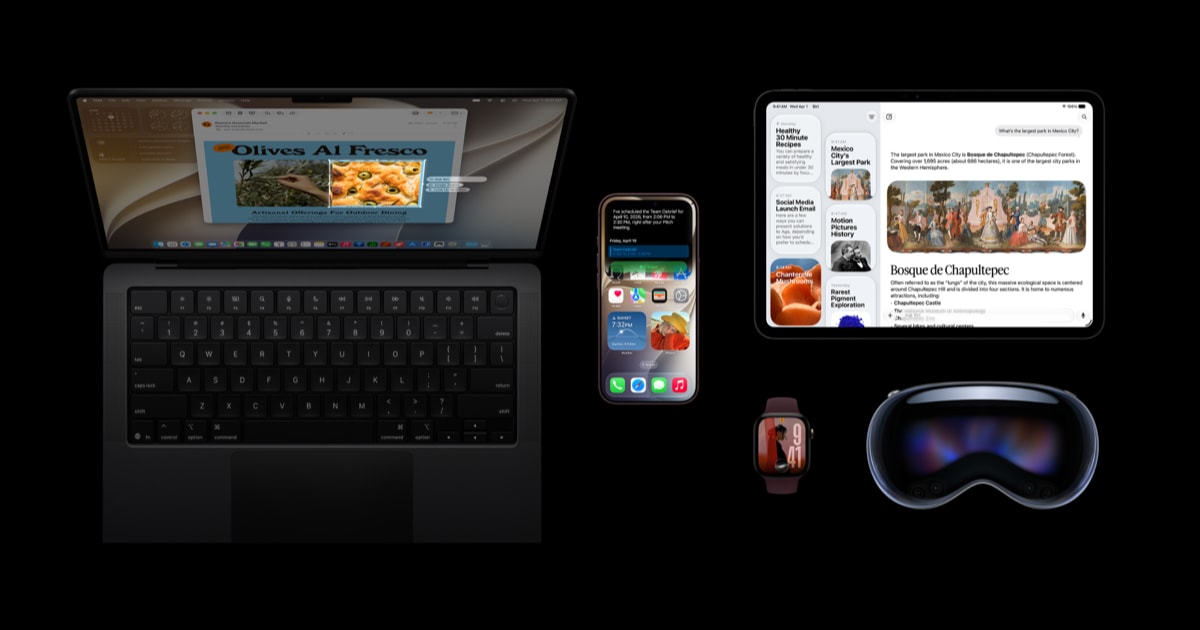
Reduce Bright Effects tones down highlighting and flashing when you interact with elements like the keyboard. Path: Settings > Accessibility > Display & Text Size, then turn on Reduce Bright Effects. Do not confuse it with Reduce Transparency. Different switch, different job.
10. Turn on Reduce White Point to tone down bright colors
Reduce White Point lowers the intensity of bright colors. It is in Settings > Accessibility > Display & Text Size, next to Color Filters. If the glass interface feels glaring at night, this is the switch Apple documents for that. It is not Night Shift. Night Shift lives at Settings > Display & Brightness > Night Shift and shifts colors toward the warmer end of the spectrum. Apple also notes Night Shift automatically removes inverted colors and color filter effects, except grayscale.
Start with the tint slider. Add the accessibility switches only if reading is still hard after that. If the softer navigation bar fade ships in a later iOS 27.3 build, these are still the settings you control today.
Photo: Apple. Source: Adjust iPhone display and text settings, Change display colors, Customize onscreen motion, Adjust the screen brightness and color, and iOS 27.3 beta 2 report (@itspdfu, MacRumors, 9to5Mac).