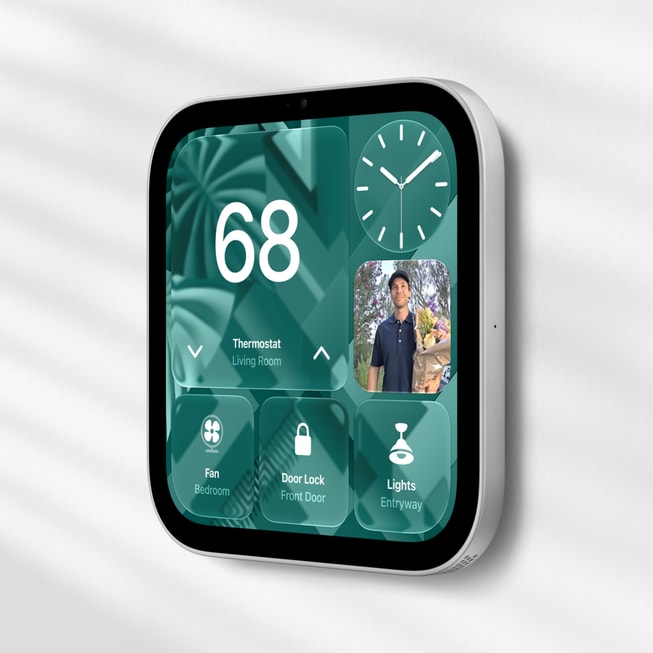
Every HomeView that ships on November 13 starts life on old software. The factory firmware is HomeView software 26.5, and MacRumors reports the setup flow then prompts for version 27.2 before it will finish. If that first update hangs, the fix is about power, pairing, and patience. Work through the checks below in order.
HomeView setup begins with a 26.5 to 27.2 software update
AppleDB's firmware listing, spotted by Aaron, marks the factory build as 23W714. That is roughly six months behind the 27.2 software Apple is shipping alongside the device, so a large day-one download is normal. Apple has not published a HomeView-specific update support page yet, and no documented way to skip 27.2 exists. Plan for the update: stable Wi-Fi, a working power adapter, and enough time to let the download and prepare steps run.
For the wider launch picture, see our earlier report on HomeView shipping with six-month-old software 26.5 and the 27.2 software line across HomePod mini 2, HomeView and Apple TV 4K.
Finish setup from an iPhone or iPad already on iOS 27.2
Apple's store FAQ is direct: HomeView requires an iPhone with iOS 27.2 or later, or an iPad with iPadOS 27.2 or later. The Newsroom footnote adds that setup and multiuser support need a compatible iPhone or iPad running the latest software. If the phone in your hand is behind, update it first. Otherwise pairing can fail before the HomeView update even starts.

Check power first: 30W USB-C on tabletop, 20W on Wall Mounted
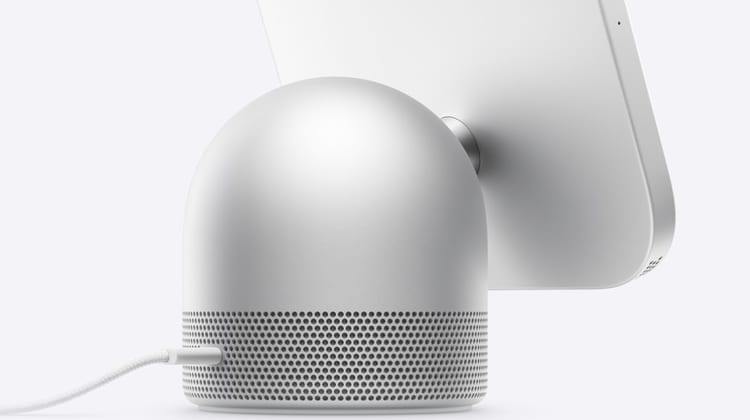
Apple's power adapter guide for HomeView sets exact numbers. Tabletop HomeView takes a USB-C cable and USB-C adapter of at least 30W that supports 15V at 2A or higher. HomeView (Wall Mounted) takes a separate cable and adapter of at least 20W supporting 9V at 2.22A or higher, or a hardwired line-power mount.
If the screen shows "Power Adapter Not Supported" with a lightning bolt and yellow exclamation triangle, reseat the plugs, clean the adapter, port, and cable ends with a soft dry lint-free cloth, try an outlet that powers another appliance, then try a different cable and compatible adapter. A Wall Mounted unit installed by a professional goes back to the installer first. One further test Apple offers: remove the unit from its third-party mount and power it directly with a known-good USB-C adapter and cable.
Give the download an hour before you touch anything
Apple's Apple TV update guide is the closest published ladder for a stuck hub update. Keep the device connected and plugged in until the update completes. If the progress bar sits on "Preparing Update" or "Applying Update", allow more time. Waiting more than an hour? Contact Apple Support before you restart or unplug anything. Apple has not confirmed HomeView uses the same screen labels, so treat the wording as a candidate until a HomeView-specific page appears. One exception: a progress bar frozen under an Apple logo with no text for over an hour is safe to power-cycle by unplugging and plugging back in. The same fix pattern for phones is in our iPhone software update stuck fix.
Second door: Software Update in the Home app
If the setup prompt fails or never appears, try the Home app path Apple documents for HomePod. Open the Home app, tap the More button, then Home Settings, then Software Update, and select Update if one is offered. Keep the device plugged in while it updates. If the Home app later shows "Software Update Required" while adding an accessory, open Home Settings, then Home Hubs & Bridges, find the active hub, and update that hub first. When a home update itself will not complete, Apple's Apple Home guide says to check that two-factor authentication and iCloud Passwords and Keychain are on for you and everyone you invited.
When to contact Apple or your installer
Power problems on a professionally installed Wall Mounted unit go to the installer, not Apple. An update that still fails after every step above goes to Apple's HomeView repair page, which routes to Genius Bar, an Apple Authorized Service Provider, mail-in service, or AppleCare Express Replacement. Just do not yank the power cable mid-update. The one hour rule exists for a reason.
Photo: Apple. Source: MacRumors, Apple Support 127951 / 108414 / 105005 / 102096 / 102287, Apple Store FAQ.