Safari in iOS 27.3 is the biggest browser change in this beta cycle. The first developer beta, build 24C5037i, arrived on November 3 with the rest of iOS 27.3. Vertical tabs, an automatic dark mode for bright websites, and direct Siri control over tabs are all in. Here are 10 Safari features to try in iOS 27.3, with the settings paths. Our iOS 27.3 how-to covers the two headline features step by step.
1. Turn on Vertical Tabs in Safari settings or the View menu
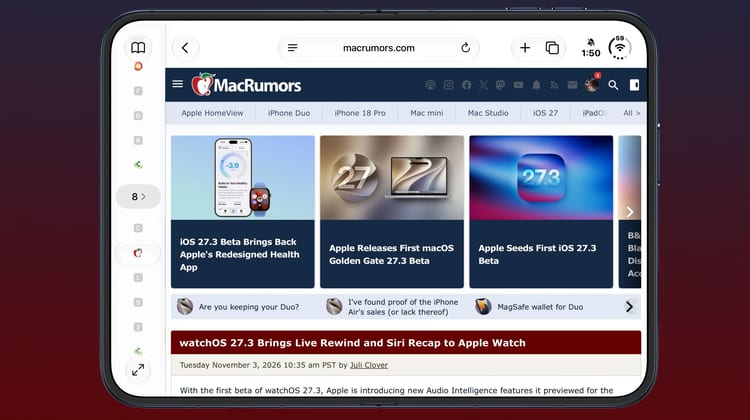
Vertical Tabs is a new Safari layout in iOS 27.3, iPadOS 27.3, and macOS 27.3. The tab bar moves to the left side of the display instead of along the top. On iPhone, open Settings > Apps > Safari and turn on Vertical Tabs. On Mac and iPad, the same switch sits in Safari's View menu. MacRumors notes the layout fits the iPhone Duo's larger display, but Apple ships it across iPhone, iPad, and Mac.
2. Widen the vertical tab bar to show website titles
The bar shows website icons only by default, which saves space when ten tabs are open. Drag it wider and titles appear next to the icons. Icons are for scanning a long row of tabs. Titles are for picking the right page on the first try. Two modes, one bar.
3. Keep Tab Groups and pinned tabs with Vertical Tabs
The new layout does not cost you organization. Vertical Tabs work with Tab Groups and with Topics, the automatic grouping below. Pinning a tab by dragging it still works, and swapping between Tab Groups is unchanged. Existing workflows carry over without a rebuild.
4. Let Apple Intelligence organize tabs into Topics
Topics group related tabs as you browse. On Mac, open Safari > Settings > Tabs and find Organize tabs. Choose Automatically Create Topics and Safari sorts related tabs into groups, or take the manual option and accept only the groupings you want. The setting needs Apple Intelligence, and Apple warns it is not available in all languages or regions on macOS 27. Details are in Apple's Safari Tabs guide.
5. Tap Try for Adaptive Dark Mode on bright sites
Adaptive Dark Mode is Safari's answer to websites that never shipped a dark design. Turn on Dark Mode, open a bright site, and Safari offers a "Try" button. Tap it and Safari darkens the background, changes text contrast, inverts logos and graphics, recolors vector artwork, lifts raised surfaces, and rebalances layered shadows. Each site gets only the tweaks it needs to stay readable. Sites with a native dark design are skipped, and developers can add a tag that tells Safari to show the page as designed.
6. Set Adaptive Dark Mode automatic or site by site
After the first Try, Safari asks how far the feature should go. You can let it apply to all sites that need it, or keep it site by site. Automatic fits news sites read at night. Site-by-site control is better where the designer's colors matter. 9to5Mac confirms both options are in the first beta.
7. Ask Siri AI to move, sort, or close Safari tabs
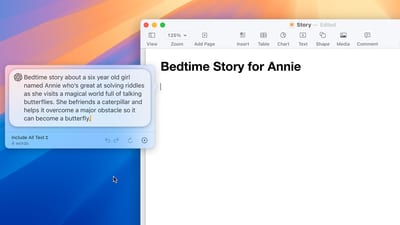
With an Apple Intelligence device, Siri now takes direct action on tabs and windows. Ask it to sort, move, or close tabs, or to arrange them into Tab Groups. Natural language is faster than tapping through a tall stack. Siri's planned webpage awareness, the mode that reads across open tabs and sorts shopping tabs by price, is not in the first beta. Apple says it is coming.
8. Ask Siri to clear history for one site and a time window
Siri also controls web history in 27.3. Ask it to clear history for one site and one period, such as the last 10 days, and everything else stays. No need to nuke the full history after a one-off login. MacRumors gives the last-10-days wording as Apple's own example.
9. Separate work and personal browsing with Safari Profiles
Profiles predate 27.3, but they pair well with the new tab layout. Each profile keeps its own history, cookies, website data, extensions, Tab Groups, and favorites. Open a work window and personal logins stay out of it. A Focus filter can switch profiles automatically. One catch: passwords, AutoFill, and privacy settings stay shared across profiles.
10. Lock Private Browsing with Face ID, Touch ID, or passcode
Private Browsing already drops history and AutoFill and blocks known trackers. Locked Private Browsing adds a lock on top. On iPhone, go to Settings > Apps > Safari and turn on Require Face ID to Unlock Private Browsing. Private windows then lock when the device locks or Safari leaves the foreground, and reopening them needs Face ID, Touch ID, or your passcode, per Apple support. On Mac the switch sits in Safari settings next to Private Browsing. We walked through this setting when it shipped.
All 10 features are in the developer beta now. iOS 27.3 is expected to reach everyone in December after further beta rounds, so public testers stay on iOS 27.2 until then. For the settings worth checking on current software, see our 10 Safari settings after iOS 27.
Photo: MacRumors (featured), 9to5Mac (inline). Source: MacRumors, 9to5Mac, Apple Support.