Apple Intelligence on iPhone is not one switch. It is a stack of writing helpers, a ChatGPT extension, a cloud service, and a set of restriction screens. Here are 10 controls worth knowing, from the Writing Tools panel up to Screen Time.
1. Open Writing Tools on any selected text
Select text, then tap the Writing Tools button. Apple says the tools are available in most places you write, third-party apps and websites included. Tap Describe a change to say what you want, or Rewrite for a fresh pass. Friendly, Professional and Concise set the tone. Proofread checks the text, and Summarize or Key Points cut it down to the important lines. Apple's guide: Writing Tools on the iPhone user guide.
The same panel exists on the Mac. We walked through the Mac version earlier this year in Apple Intelligence Writing Tools for proofread, rewrite and summarize.
2. Compose text with ChatGPT from the same panel
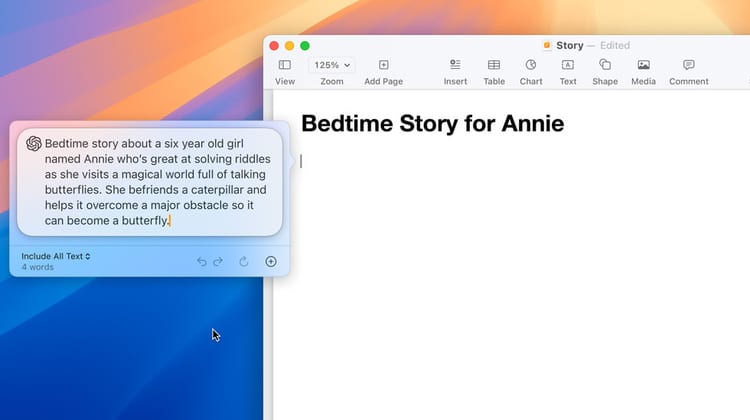
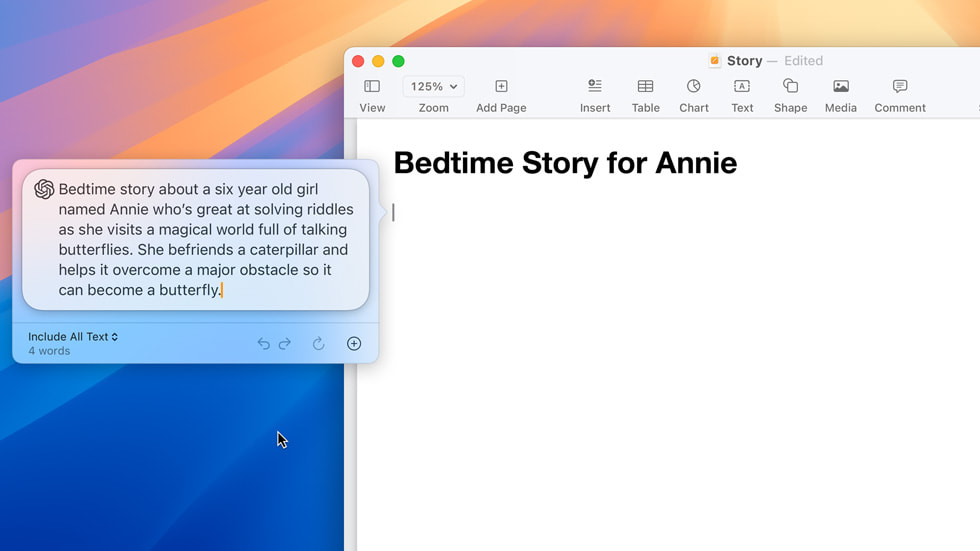
While typing, tap the text field, swipe up and tap Compose. Describe what you want written. Choose Include All Text or Selected Text, then send it. If ChatGPT asks for more details, fill in a field or tap Ignore to continue. After the draft comes back you can rewrite it, take its suggestions, or revert to your original text.
3. Turn on the ChatGPT extension in Settings
Go to Settings, tap Siri, tap ChatGPT, tap Set Up, then follow the onscreen steps. If you use Siri AI (Beta), the path is Set Up Extensions, ChatGPT, then turn on Use Extension. Signing in with a ChatGPT account is optional, but requests are only saved to chat history when you are signed in. You must be at least 13 to use it. Details: Turn on ChatGPT on iPhone.
4. Keep or drop Confirm Requests
By default the iPhone asks before any of your information is shared with ChatGPT. To let Siri forward requests without the prompt, go to Settings, Siri, ChatGPT, then turn off Confirm Requests. Photos and files still trigger a confirmation before they are sent. Apple notes the switch is not available when Siri AI is in use. That option was added after our macOS 27 ChatGPT setup walkthrough.
5. Turn the extension off and silence its suggestions
Settings, Siri, ChatGPT, then turn off Use ChatGPT. With Siri AI, the toggle sits under Extensions. If you want Siri to stop offering ChatGPT in the first place, turn off Setup Prompts as well. The extension can also be blocked through Screen Time, which is item 10 below.
6. Understand where the requests actually go
Apple says most Apple Intelligence tasks run entirely on device, so nothing leaves the phone. More complex requests can go to Private Cloud Compute, which runs larger models on Apple silicon servers. Apple's stated promise: the data is processed only to fulfill the request, is not stored or made accessible to Apple, and the results are not retained. Independent researchers can inspect the server code to check that promise. Apple also lists Secure Enclave, Secure Boot, Trusted Execution Monitor and attestation in the chain. Apple Intelligence and privacy on iPhone.
7. Export an Apple Intelligence Report
Go to Settings, Privacy & Security, Apple Intelligence Report. Pick a duration: the last 15 minutes is the default, 7 days is the long window, and off disables the report entirely. Tap Export Activity, choose where to save it, and you get a file named Apple_Intelligence_Report.json. It lists the requests your iPhone sent to Private Cloud Compute. Open it in any text reader.
8. Summarize and prioritize notifications
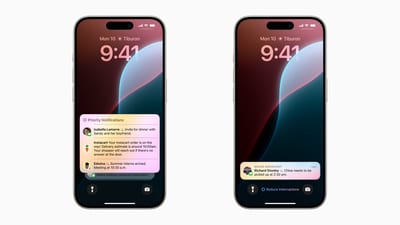
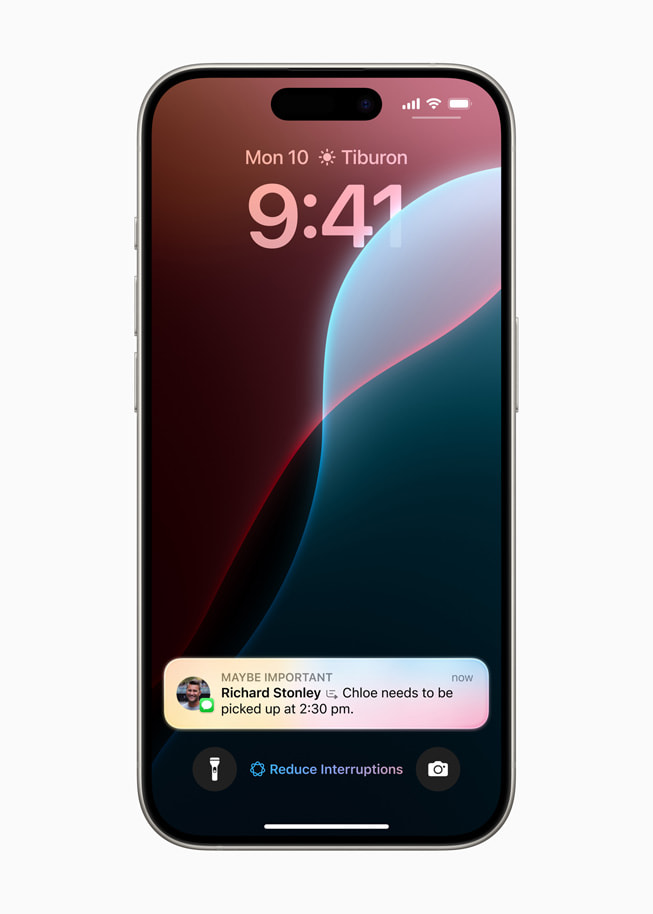
Settings, Notifications, Summarize Notifications. Turn it on, then tap Choose Notifications to Summarize and pick the apps. Long or stacked notifications come back condensed. Prioritize Notifications puts the ones Apple judges important at the top of the stack, and you can kill prioritization for one app by swiping left on a priority notification, tapping Options, then Turn Off Prioritization. The Reduce Interruptions Focus uses the same judgment to silence everything that can wait.
9. Switch off summaries one feature at a time
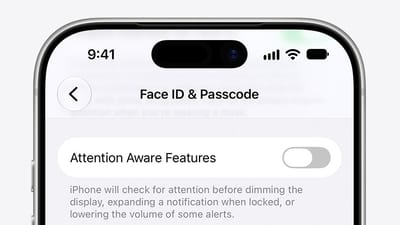
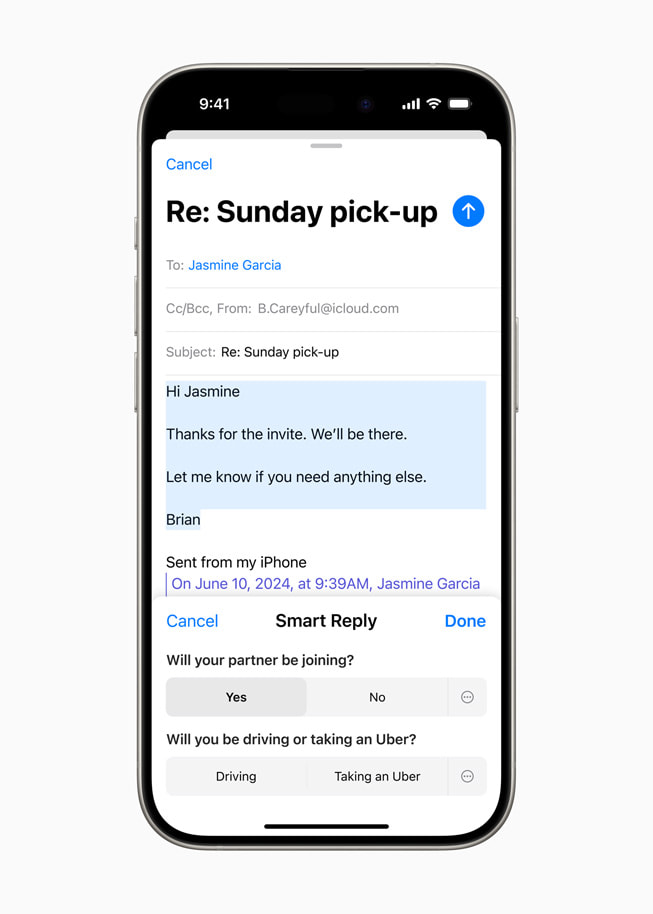
iOS 27 has no single master toggle, so each feature has its own. Messages: Settings, Apps, Messages, then turn off Summarize Messages. Mail: Settings, Apps, Mail, then Summarize Message Previews, and Personalize Smart Replies sits on the same screen. Notification summaries and priority notifications toggle under Settings, Notifications. Voicemail suggestions live under Phone, and Journal has its own Get Writing Prompts switch under Apps.
10. Block Writing Tools and other capabilities with Screen Time
For the hardest lock, go to Settings, Screen Time, Content & Privacy Restrictions, then Siri. There you can tap Don't Allow Siri, switch to Siri Classic, or allow and block individual capabilities. The capability called Writing Assistance covers Writing Tools, proofread, rewrite, summarize and Smart Reply. Image Creation, Math Assistance and ChatGPT Extensions each have their own Allow or Block row. It is the closest thing to removing Apple Intelligence feature by feature without giving up the whole phone. Related: the Screen Time settings to check after iOS 27.
Photo: Apple. Sources: Apple Support iPhone User Guide, Apple Intelligence and privacy.