You hand someone an unlocked iPhone. Safari is still open. Private tabs sit one swipe away.
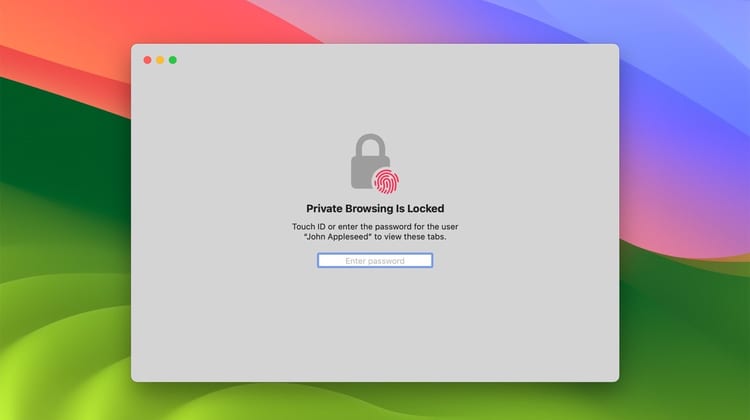
Locked Private Browsing puts Face ID, Touch ID, or your passcode in front of those tabs. Apple documents the switch under How to use Locked Private Browsing in Safari (105028). The control sits in Settings, not inside the Safari tab bar.
Private Browsing already skips History and AutoFill. The lock is the extra step for people who can see your screen while the phone is awake.
Turn on Require Face ID in Safari settings
Open Settings. Scroll down and tap Apps. Tap Safari.
Scroll to Privacy & Security. Turn on Require Face ID to Unlock Private Browsing. On Touch ID models the label says Require Touch ID. Some builds also offer Require Passcode.
On older iOS layouts the Apps row may be missing. Safari then sits lower in the main Settings list. The Privacy & Security block is the same once you open Safari.
When Private tabs lock
Private windows lock when Safari is not in the foreground. They lock when you leave Private Browsing for another Tab Group. They lock when the device locks or sleeps.
Unlock with Face ID, Touch ID, or the device passcode. Private tabs stay open. History still does not record those pages.
Two exceptions matter. Tabs with no loaded webpage do not lock. Tabs playing audio or video also stay unlocked while that media runs. Pause media, leave Safari, then the lock returns.
Open Private Browsing and confirm the lock
Open Safari. Tap the Tabs button. Swipe to Private, or tap Private / New Private Tab. Load any page.
Swipe home or open another app. Return to Safari. Private should ask for Face ID before the tabs reappear. If it opens with no prompt, revisit Settings > Apps > Safari and confirm the Require switch is on.
For shared Privacy habits around forms and inboxes, the Hide My Email tip covers aliases. App icons that need the same Face ID gate are covered in the lock or hide an app tip.
One common mistake
People search for a Lock button inside the Private tab overview. There is no separate Lock All Private Windows control on iPhone. The Mac Safari menu has that. On iPhone the Settings switch is the whole story.
Another miss: turning the switch off after the first Private session prompt, then wondering why tabs stay visible. Re-enable Require Face ID under Privacy & Security. Leave Safari once so the lock can engage.
Stale cookies and jammed pages are a different fix. Clear site data with the Safari history and website data tip when Private is not the issue. Shipping builds for today sit in the Day 5 firmware note.
Quick check after you finish
Open one Private tab. Load a page. Leave Safari for ten seconds. Come back. Confirm Face ID or the passcode sheet appears before the tab shows again.
Lock the phone, unlock it, open Safari. Private should still ask. If it never locks while a podcast plays in that tab, pause playback and try once more.
Photo: Apple Newsroom Safari fingerprinting protection / iOS Privacy / Lockdown Mode
Source: Apple Support - How to use Locked Private Browsing in Safari (105028)