The 80% charge limit is arguing with itself on X again. Some people swear it saved their battery health. Others set it, then screenshot a full 100% charge and call it broken. Apple does have a documented setting for this, and it is not one switch. Here is what Charge Limit does, and where each control lives.
Settings > Battery > Charging is the path on iPhone 15 and later
Apple's iPhone User Guide page for charge limits says it plainly. Open Settings, tap Battery, then tap Charging. Choose the charge percentage that works for you, from 80% to 100% in 5% increments. That covers 80, 85, 90, 95 and 100.
Once a limit is on, the iPhone charges to within a few points of the chosen number and stops. Apple's support page adds the detail people miss: if the charge level drops more than 5% while the phone is still connected to power, charging starts again, back up to within a few points of the limit. So a limit of 90% does not mean a hard wall at exactly 90%.
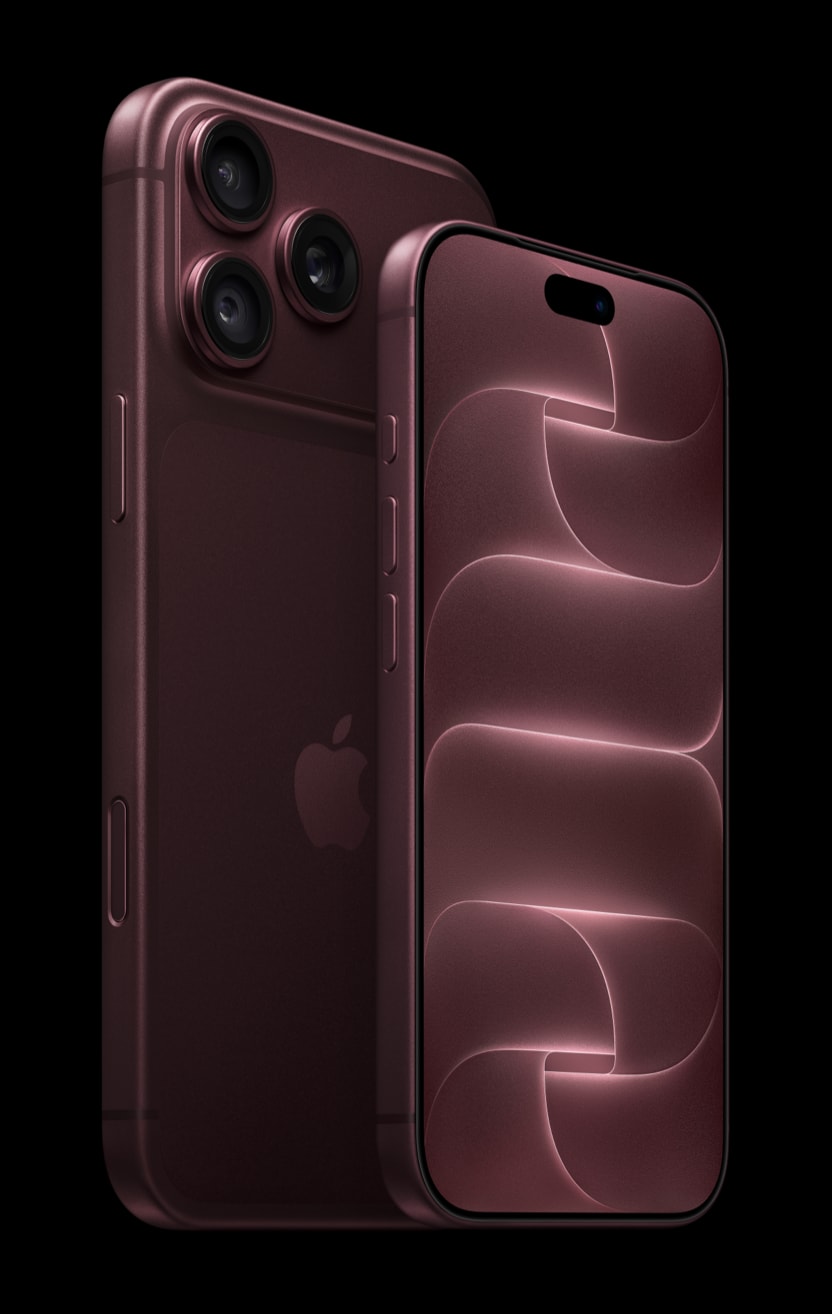
iOS can also push a suggestion. Apple's Charge Limit and Optimized Battery Charging support page gives the wording: "Based on your iPhone habits, a charge limit of 95% is recommended to help preserve your battery." The recommendation appears inside the same Charging screen.
Desk all day: lower limit. Predictable overnight: 100% plus Optimized Battery Charging
This is the split the X argument keeps missing. Charge Limit suits a phone that sits plugged in for hours, a desk or a car mount, where time at full charge is the thing you want to cut.
Overnight charging works differently. When the limit is set to 100%, Optimized Battery Charging is available in that same Charging screen. Apple says it uses on-device machine learning to learn your routine, then delays charging past 80% only when it predicts a long stay on the charger. A Lock Screen notification tells you when the phone will be fully charged. Touch and hold it, then tap Charge Now, if you need to leave earlier.
The catch is the learning period. Apple's footnote: Optimized Battery Charging needs at least 14 days to learn your habits, plus at least 9 charges of 5 hours or more in a given location. New phone, new commute, and the feature will look dead for the first two weeks. It is not.
When the limit is set to 100%, the User Guide lists two ways to override. Tap Allow Until Tomorrow and the limit returns to your set percentage at 6:00 a.m. Tap Set Limit to 100% and it stays at 100% until you change it. There is also a one-off route: Settings > Battery > Charge to 100%.
Your 80% limit still hit 100%? That is calibration, not a bug
The viral complaint is the screenshot showing a full charge under an 80% or 90% limit. Apple has an official answer for it. Both the support page and the User Guide say the iPhone will occasionally charge to 100% to maintain accurate battery state-of-charge estimates. The User Guide adds that it may happen more often when the iPhone is not regularly able to complete a full charge.
This is also the point where the older site explainer is worth a read, on why an iPhone still charges to 100% despite an 80% limit. Same mechanism, same answer.
Heat stops charging above 80% too, so check temperature first
Apple's charging troubleshooting page describes a second, unrelated stop. If the battery gets too warm, software may limit charging above 80% to protect battery lifespan, and the iPhone charges again once the temperature drops. Apple's advice is to move the iPhone and the charger to a cooler location. A phone on a car dash or under a pillow, stuck at 80%, is usually this and not your Charge Limit setting.
One more confusion worth clearing. Charge Limit is not Low Power Mode and not Adaptive Power. They sit near each other under Battery, and Adaptive Power Notifications are a separate toggle that warns you when the phone slows down to stretch a charge. The full list of battery settings worth changing covers the rest of that screen.
iPhone 14 and earlier: only Optimized Battery Charging
No Charge Limit on those models. Apple's instructions for iPhone 14 and earlier are Settings > Battery > Battery Health & Charging, then turn Optimized Battery Charging on or off. It is on by default at setup. Same 14-day learning period applies. Turning off the charging optimizations entirely, Apple says, increases wear on the battery and reduces its lifespan.
Photo: Apple. Sources: Apple Support, Apple iPhone User Guide.