Small Mail and Notes type is a Settings fix, not a pinch on every screen. Apple documents two text paths: a standard size slider, and a larger Accessibility range. The current iPhone User Guide puts the everyday control under Appearance. Apple's older Change the font size page still names Display & Brightness for that same slider on earlier iOS builds.
Apps that support Dynamic Type follow the size you pick. Mail, Messages, Notes, Calendar and Settings are the usual ones. Apps that ignore Dynamic Type stay put.
Settings > Appearance > Text Size
Open Settings, tap Appearance, then Text Size. Drag the slider left or right. Preview text on that screen updates as you move it.
Apple's Adjust iPhone display and text settings guide lists this as the first step on current iOS. On the same Appearance screen you can also turn on Bold Text without opening Accessibility.
This range is enough for most people. If the slider already sits at the far right and type still feels small, use Larger Text next. Do not jump to Display Zoom yet.
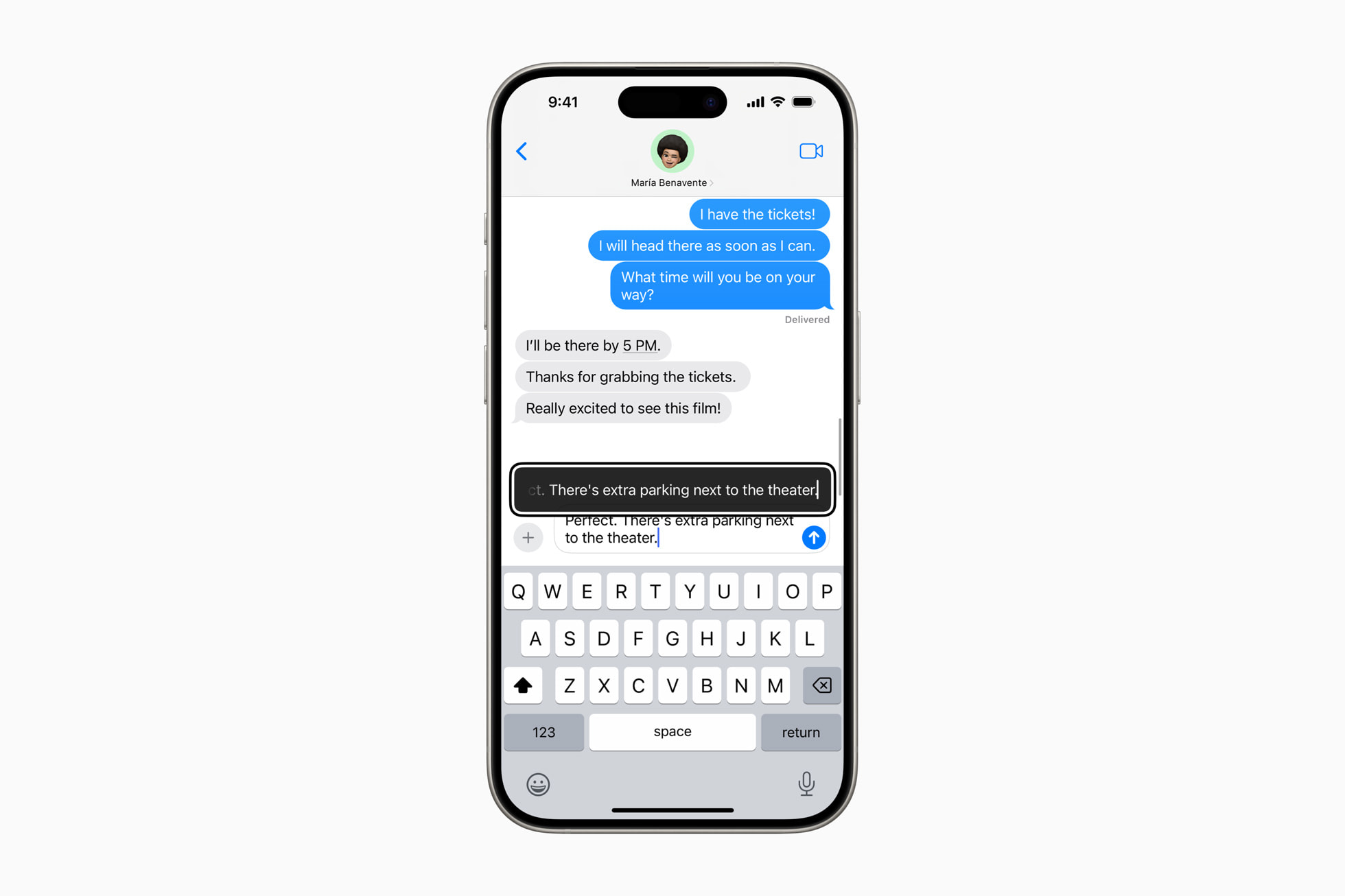
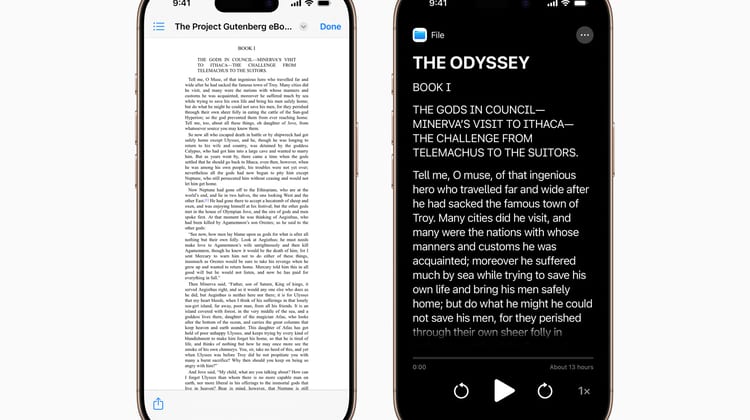
Photo: Apple. Larger text while typing
Settings > Accessibility > Display & Text Size > Larger Text
Go to Settings > Accessibility > Display & Text Size. Tap Larger Text. Turn on Larger Accessibility Sizes, then drag the slider past the normal maximum.
Apple's display and text size preferences page lists Larger Text here with Bold Text, Button Shapes, Increase Contrast and the rest. Those toggles stay on across apps until you switch them off.
Use Bold Text if weight helps more than size. Increase Contrast and Reduce Transparency help when glass-style backgrounds wash out labels. Keep changes one at a time so you know which control fixed the screen.
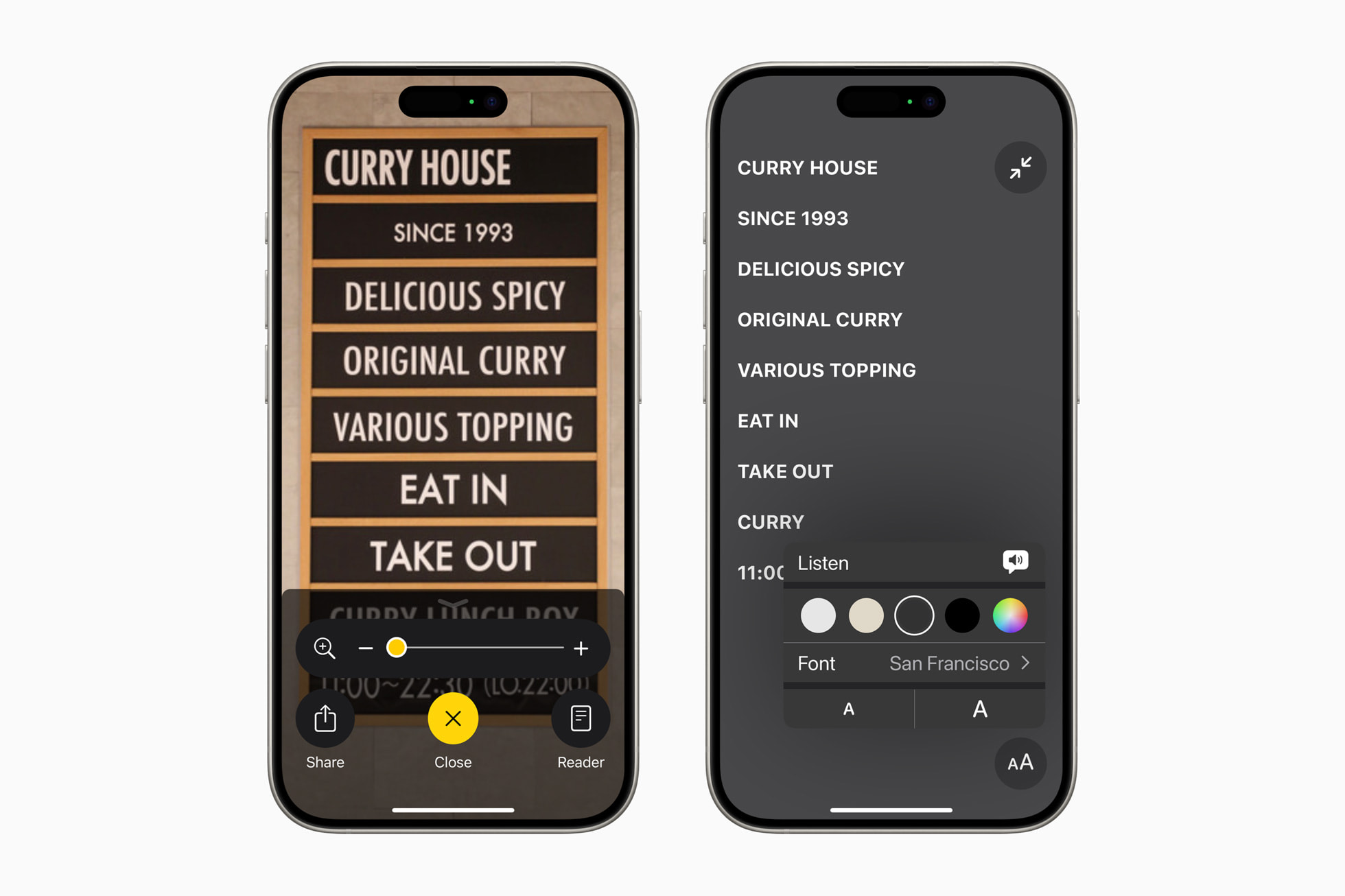
Photo: Apple. Magnifier Reader Mode
Display Zoom is not Text Size
Common mistake: open Appearance > Display Zoom, pick Larger Text, and expect only reading type to grow. Display Zoom magnifies the whole interface. Icons, Home Screen layout and chrome all enlarge. Apple's display guide separates that control from the Text Size slider on purpose.
Another mix-up is Accessibility Zoom, the pinch-and-pan magnifier. That is a temporary lens, not a system text preference. For a triple-click into Zoom or Magnifier, see Accessibility Shortcut. Camera Control can open Magnifier too; that path is in Camera Control settings.
Apple also warns that very large text can make buttons hard to tap. If menus overflow or labels clip, ease the Larger Text slider back a notch. The setting is global. It does not apply to Settings alone.
Quick check after you change size
Open Mail or Notes and scroll a thread. Then open a third-party app you use daily. If that app ignores Dynamic Type, Text Size will not fix it. Live Captions and other vision tools sit elsewhere; start with Live Captions when you need spoken audio written out instead of bigger type.
You can also put Text Size in Control Center for a temporary bump while one app is open. Add the control first via Control Center customization, then drag the slider. For an all-apps change, return to Appearance or Larger Text so the size sticks after you leave that screen.