A video with no subtitles. A podcast in a noisy train. A talk at the next table you cannot hear well. Live Captions on iPhone puts a running text of the spoken audio on screen, in any app, and it also listens to the room.
Apple first brought the feature to iPhone, iPad and Mac for Deaf and hard of hearing users. The 2022 Newsroom announcement says the captions are generated on device. On iOS 27 the switch is still under Accessibility, not under Sounds.
Settings > Accessibility > Live Captions
- Open the Settings app.
- Tap Accessibility, then tap Live Captions.
- Turn on Live Captions.
- Tap Appearance to change the text, size and color of the captions.
Apple's Live Captions page in the iOS 27 user guide lists iPhone 11 or later. Some languages, countries and regions are not supported. Apple also says the accuracy may vary, and the captions should not be relied on in high-risk or emergency situations.
The same Accessibility menu has a triple-click shortcut. If you use Live Captions often, it can go on the side button with the steps in our Accessibility Shortcut tip.
Microphone or iPhone Audio
When the feature is on, a small Live Captions window shows up. Tap it and pick the source.
- iPhone Audio: captions for sound playing on the phone, like a video, a podcast or a FaceTime call.
- Microphone: captions for an in-person conversation around you.
- Pause Listening: stops the transcription without turning the feature off.

Photo: Apple. Live Captions in Microphone mode, shown on Apple Vision Pro
The window can be dragged to another spot on the screen. Swipe left or right to hide it. It also hides by itself when there is no audio. There is a button to make it full screen, handy when the phone sits on a table during a meeting. From the More Options button you can Copy Captions, then paste them into Notes or Messages, or tap Clear All.
Live Captions is text. It is different from Sound Recognition, which listens for sounds like a doorbell or a smoke alarm and sends an alert. That one is covered in our Sound Recognition tip.
Keep Call Captions, 1 Minute or 1 Hour
Under the same Live Captions screen there is Keep Call Captions. Two options.
1 Minute keeps call captions for up to one minute during the call. They are cleared when the call ends. You cannot copy them, take a screenshot or record the screen of the transcription.
1 Hour keeps call captions for up to one hour after the call ends. Copy, screenshot and screen recording work.
The common mistake: 1 Hour announces itself
Many people choose 1 Hour only to save the text. They do not expect the next part. Apple says that with 1 Hour, all call participants hear a short audio announcement at the start of the call, "This call is being transcribed." If you pause Live Captions or switch back to 1 Minute during a call, they hear "This call is no longer being transcribed."
So check the setting before a work call or a call with family. If you only need to follow the conversation and not keep it, 1 Minute is enough and nobody hears a notice.
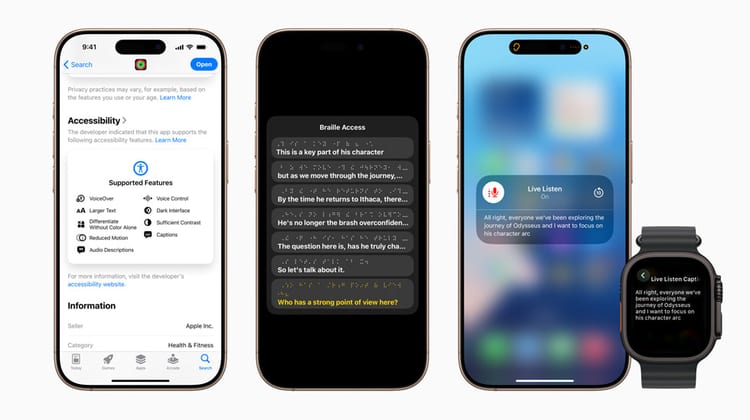
Live Captions also reaches Apple Watch. With a Live Listen session on iPhone, the May 2025 Newsroom post says a paired watch shows captions of what iPhone hears. The guide steps above are for iOS 27. The next update, iOS 27.2, is still at release candidate.
Photo: Apple
Source: Apple iPhone User Guide (iOS 27), Apple Newsroom