The status bar says No Service. Or Searching. Sometimes SOS only. Calls and cellular data stop. Wi-Fi may still work. Apple Support page If you see SOS, No Service, or Searching, published June 23, 2026, walks through reconnect steps before you assume the radio is broken. The order is short. Airplane Mode. Restart. Carrier checks. Software and Carrier Settings. Dual SIM and travel settings come after that.
Turn Airplane Mode on, wait, then restart
Open Settings. Turn Airplane Mode on. Leave it on for at least 15 seconds. Turn it off. Apple says that toggle can pull the phone back onto a network that is already available nearby.
If the status bar still looks wrong, restart the iPhone. Power off, wait a few seconds, then power on. Do not skip the wait on Airplane Mode. Fifteen seconds is the floor Apple lists, not a tip. If Wi-Fi itself will not join after the restart, treat that as a separate path with our Wi-Fi won't connect fix.
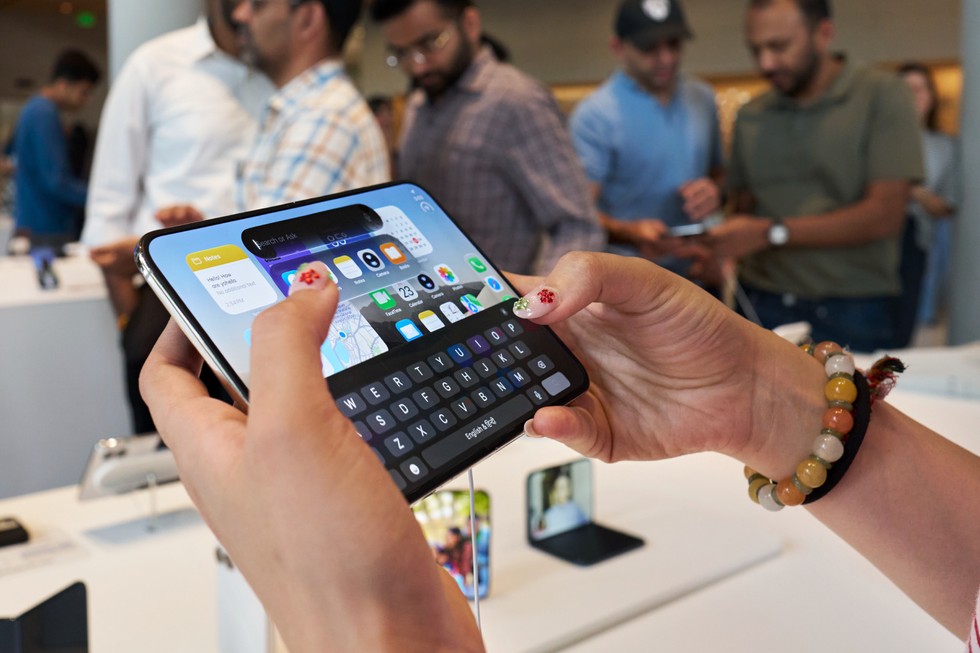
Photo: Apple. Store demo, iPhone Duo
Confirm Cellular Data and Dual SIM lines
Service bars can return while data stays off. Apple's Use cellular data page, dated September 14, 2026, starts in Settings, Cellular. Turn Cellular Data on. On a Dual SIM or Dual eSIM phone, open Cellular Data and choose which line should carry data.
Still on Dual SIM, open Settings, Cellular, tap the line you need, then tap Turn On This Line if it is off. If the line is missing, ask the carrier to set up eSIM, or reseat a physical SIM. A damaged SIM needs a replacement from the carrier. Personal Hotspot depends on the same cellular path, covered in our Personal Hotspot tip.
Traveling abroad is a different switch. Open Cellular Data Options and turn Data Roaming on when your plan needs it. Leaving roaming off abroad can look like No Service for data even when voice works.
Check Carrier Settings under About
Carrier Settings are not the same as an iOS update. Apple's Manually update carrier settings article, dated March 17, 2026, says connect to Wi-Fi or cellular first. Then open Settings, General, About. If an update is available, follow the onscreen prompt. Installation usually finishes in under a minute.
The version number sits next to Carrier under eSIM on About. Tap it for more carrier detail. Still update iOS when a system update is waiting. A stuck Software Update download is a different problem, see the software update stuck fix.
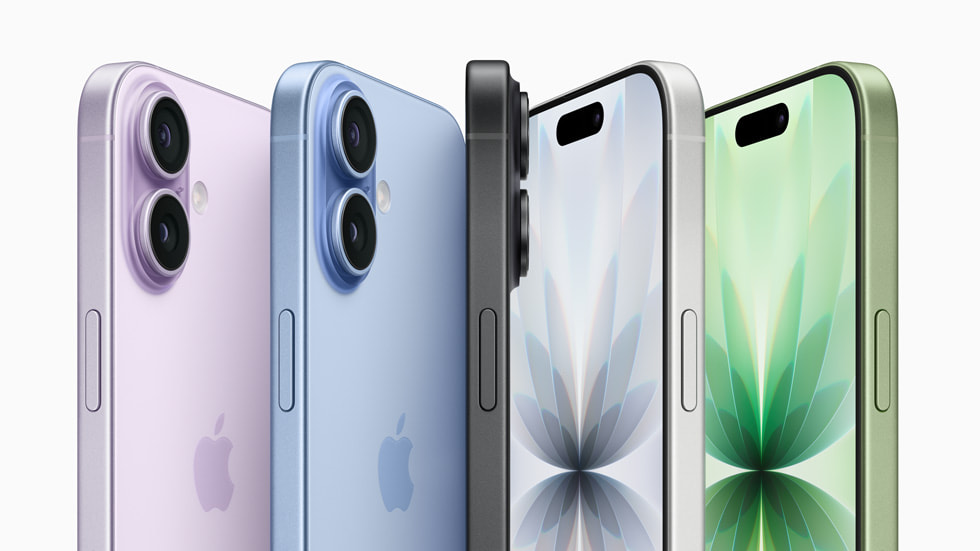
Photo: Apple. iPhone 17 color lineup
When to call the carrier
If the phone still shows No Service after Airplane Mode, restart, Cellular Data, Dual SIM, and Carrier Settings, Apple points to the carrier. Ask them to confirm the account is active. Ask about coverage and outages at your location. Ask whether the device is blocked, and whether the data plan matches this phone. Some regions also require IMEI registration for phones bought abroad. Only the carrier can see those account flags.
Sharing a working Wi-Fi password from another Apple device can keep you online while the cellular side is sorted, as in our share Wi-Fi password tip. That does not fix No Service. It only covers you until the line reconnects.
Source: Apple Support 120000 (SOS, No Service, Searching), 109323 (cellular data), 109324 (carrier settings)
Photo: Apple