A 32B model on a Mac is slow to type. LM Studio has a setting for this, called speculative decoding. A much smaller model runs next to the big one and guesses ahead. The big model checks the guesses. All of it stays on the Mac.
New to the app? Our LM Studio setup guide for Apple silicon covers the install and first download.
Main model and draft model
The LM Studio speculative decoding page describes two models. A larger main model. A smaller, faster draft model. The draft proposes tokens quickly, and the main model verifies them faster than it would generate them. It only accepts tokens that match what it would have written. So quality is the same as the main model alone.
The catch is vocabulary. A draft model must use the same vocabulary as the main model. In practice that means a small model from the same family.
Pick the Draft Model in the chat sidebar
Docs say the option shows on Power User mode or higher. In current builds that mode is merged into Developer mode, turned on in Settings > Developer. Then:
- Load the main model with Cmd-L.
- Open the Speculative Decoding section in the right sidebar.
- Click Draft Model and choose from "Select a compatible draft model".
- Start chatting. Nothing else to switch on.
LM Studio indexes which downloaded models fit together. If the list is empty, download a lower parameter variant of the same model. The docs give Llama 3.1 8B Instruct with Llama 3.2 1B Instruct, and Qwen 2.5 14B Instruct with Qwen 2.5 0.5B Instruct.
On a Mac, keep both models on the same engine. An MLX main model goes with an MLX draft. The 0.3.10 release notes list a clearer error for a draft model with a different engine.
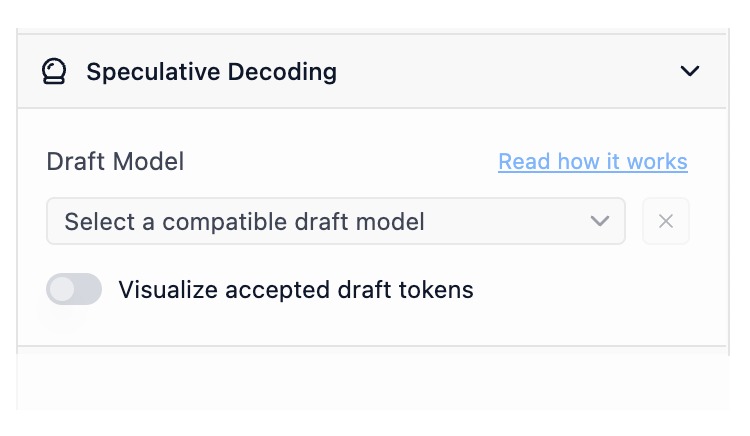
Visualize accepted draft tokens
Under the picker is a toggle, Visualize accepted draft tokens. With it on, the reply is colored by which model produced each token. Per the LM Studio 0.3.10 release post, more green is better. A mostly uncolored reply means the draft is being rejected.
The same post has a test on an M3 Pro MacBook Pro with 36GB RAM. Qwen2.5 32B MLX 4-bit with a Qwen2.5 0.5B draft went from 7.30 to 17.74 tokens per second on a quicksort prompt. That is LM Studio's number for one prompt, not a promise.
Size rules and prompts that do not speed up
The docs table. 7B main, draft up to 1B. 14B main, up to 3B. 32B main, up to 7B. For a 3B main model there is no recommended draft. Bigger gap, bigger speed-up, generally.
Two models take more compute than one. If the draft is not fast enough, or guesses wrong too often, generation will not get faster and can get slower. It also depends on the prompt. A formula or code has one likely next token, and the draft guesses it. A story that opens with "The door creaked open" branches every word, so more drafts get thrown away.
To make a pair the default, go to the My Models tab and click the gear icon. The dialog has a Speculative Decoding tab. That draft is then used in chat and in server requests. For server use, see LM Studio's OpenAI-compatible API, or start it from Terminal with the lms command.
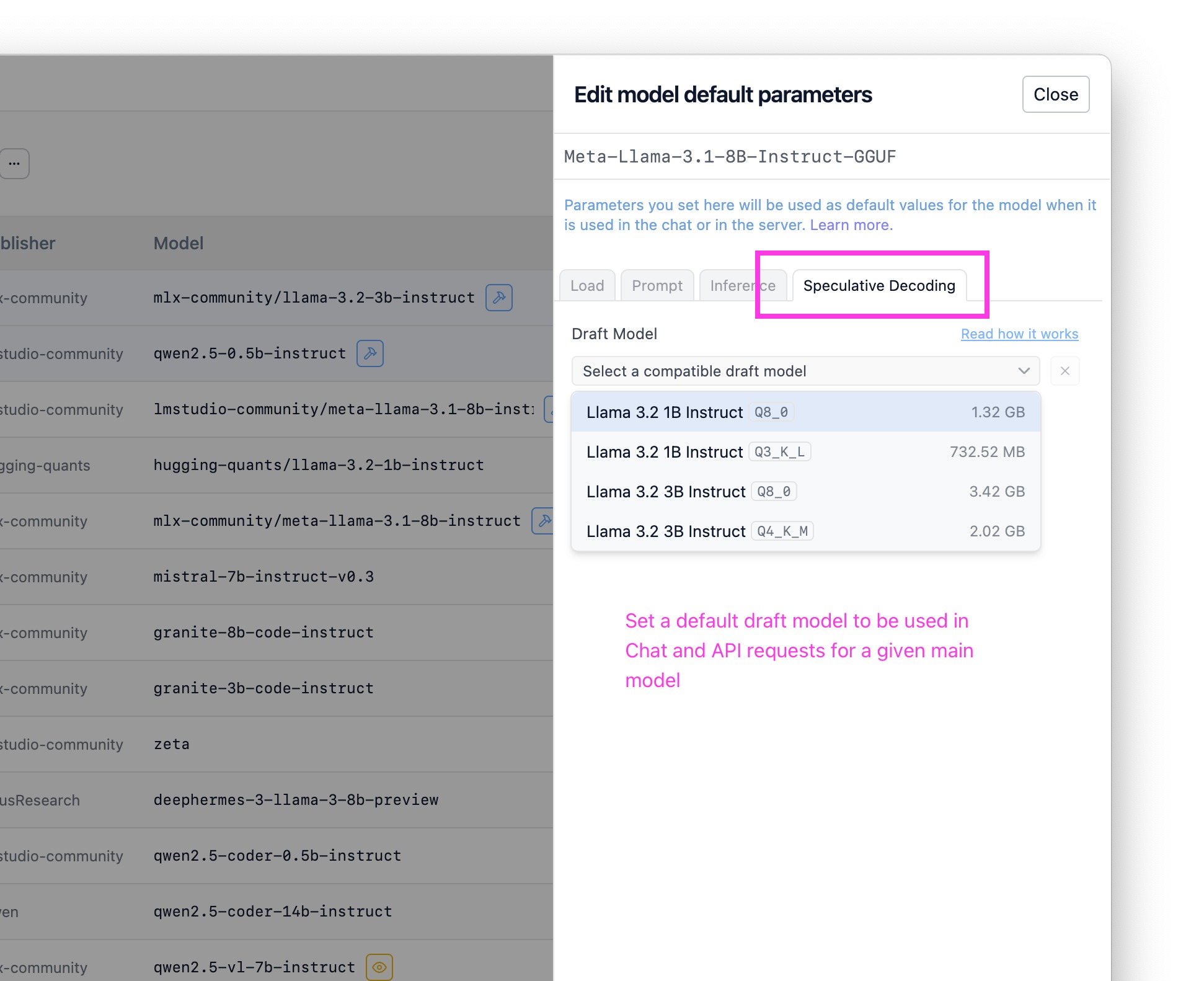
Photo: Apple (iMac with M4); LM Studio (app screenshots)
Source: LM Studio docs (Speculative Decoding, Developer mode); LM Studio blog (0.3.10, February 18, 2025)