macOS 27 Golden Gate posts on X this week were not all happy. One post with about 4,700 views came from Mike Rundle, who moved a MacBook Pro from macOS 15.7.9 Sequoia to macOS 27 to support iPhone Duo. He did not like Liquid Glass in Xcode. Another post said Apple Intelligence was taking more than 30GB on some Macs, and asked owners to check Storage.
New Macs are also close. Apple plans a two-day showcase in Los Angeles on October 27 and 28, Gurman says. Whether the Mac is old or new, these 10 settings are worth a look. Each path was checked against Apple's Mac User Guide for macOS 27 in October 2026. Some options depend on the Mac model.
1. Set a Charge Limit on a MacBook
Open System Settings and click Battery. Click the info button next to Charging, then turn on Charge Limit. The battery stops at the level you set.
For a full battery before a trip, click the battery icon in the menu bar and choose Charge to Full Now. Optimized Battery Charging is on the same screen. It learns your routine and holds charging past 80% when the Mac expects to stay plugged in. The iPhone side is in our iPhone battery settings list.
2. Choose when Low Power Mode runs
Also in Battery settings. The Low Power Mode menu has Always, Only on Battery and Only on Power Adapter.
Energy Mode lets you pick Low Power, Automatic or High Power for battery and for adapter. High Power is for long heavy jobs on 14-inch and 16-inch MacBook Pro models. Under Options, "Optimize video streaming while on battery" plays HDR video in SDR to use less energy.
3. Move the Liquid Glass slider
System Settings, then Appearance. The Liquid Glass slider goes from clear on the left to the heaviest tint on the right. Anywhere in between is allowed.
Icon & widget style has Default, Dark, Clear and Tinted. If toolbars pick up odd colors from the wallpaper, turn off "Tint window background with wallpaper color."
4. Pick which apps get notification summaries
System Settings, Notifications, then Summarize notifications. Apple Intelligence condenses long or stacked alerts, for example a busy group chat.
Summaries can be turned off per app. Go back to Notifications, click the app under Application Notifications, and switch "Summarize notifications" off. Mail and Messages have their own summary switches in each app's settings.
5. Try the Reduce Interruptions Focus
System Settings, Focus, Reduce Interruptions. If it is not listed, click Add Focus and add it.
This Focus reads the content of notifications and lets through only the ones that may need attention now. Other Focus modes like Personal can use Intelligent Breakthrough & Silencing too. Anything you allow or silence by hand always stays that way.
Photo: Apple
6. Decide between Siri AI and Siri Classic
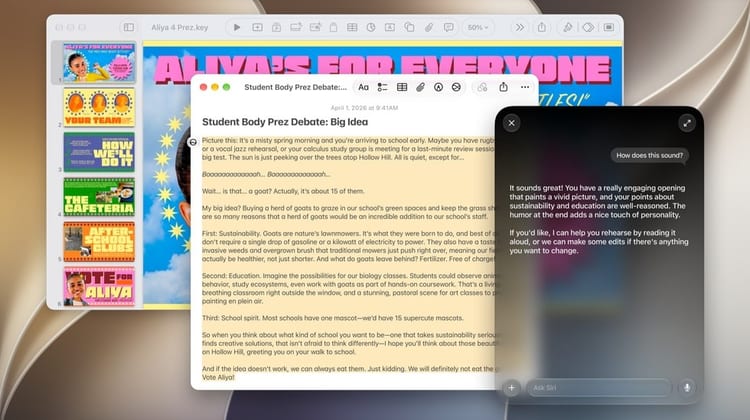
Siri AI is in beta in macOS 27 and starts in English. It needs an Apple Intelligence Mac. Some server features have daily usage limits, Apple says.
To go back to the old Siri, open System Settings, click Siri, then Turn Off Siri and confirm. Click Turn On Siri and select Use Siri Classic. If you keep Siri AI, our guide to writing drafts with Siri AI shows one daily use.
7. Check Storage before a big update
System Settings, General, Storage. The X post on Apple Intelligence size pointed owners to the info button next to macOS on this screen. Check your own Mac there before believing any number.
The recommendations here include Store in iCloud, Optimize Storage and Empty Trash automatically. The last one erases items that have been in the Trash for more than 30 days.
8. Review Automatic Updates
System Settings, General, Software Update. Click the info button next to Automatic Updates. There are three switches: "Download new updates when available," "Install macOS updates" and "Install Security Responses and system files."
A laptop must be on the power adapter to download updates automatically. The fourth macOS 27.2 beta is out for developers, posts on X said, next to iOS 27.2 beta 4.
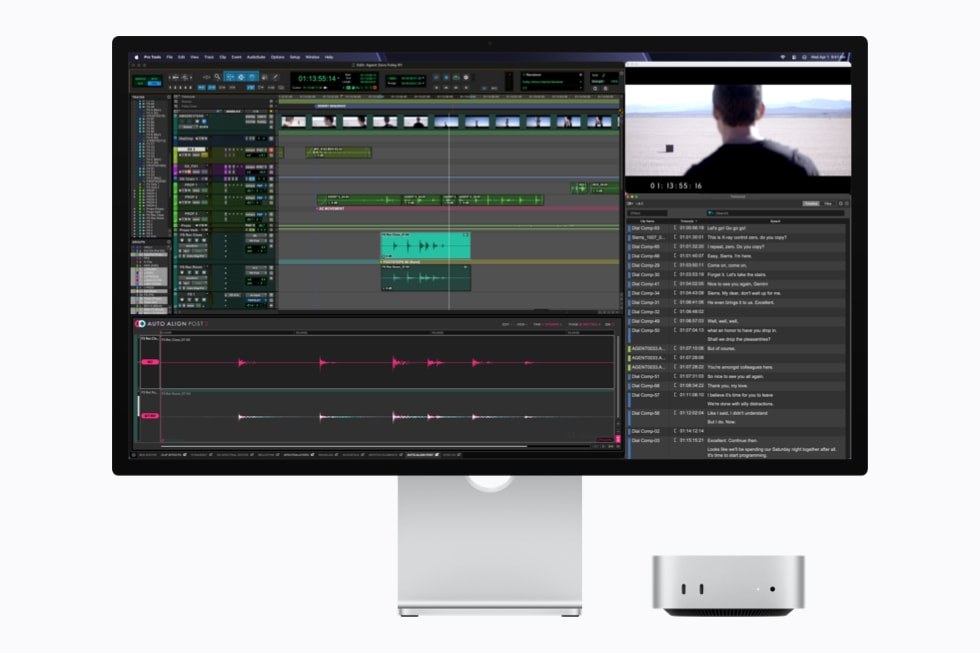
Photo: Apple
9. Set up window tiling
Drag a window to the left or right edge, a corner, or the menu bar, and it snaps into place. Hold Option while dragging for faster tiling.
The green button in the top-left corner has Move & Resize and Fill & Arrange layouts. Press Option over it for more. If dragging a window to the top keeps opening Mission Control, turn off "Drag windows to top of screen to enter Mission Control" in Desktop & Dock.
10. Edit Control Center and the menu bar
Click Control Center in the menu bar and choose Edit Controls at the bottom. Drag controls in or out, change the order, or Control-click to resize some items.
To pin a control to the menu bar, Control-click it and choose Add to Menu Bar. To remove a menu bar icon, hold Command and drag it off. The colored privacy dots in the menu bar belong to Control Center. Click one to see which app is using the microphone, camera or system audio.
Photo: Apple Newsroom / macOS 27 Siri AI, Mac Studio, Mac mini
Source: Apple Mac User Guide for macOS 27 (What's new in macOS 27; Change Battery settings on a Mac laptop; Change Appearance settings; Summarize notifications and reduce interruptions; Turn off and restrict access to Apple Intelligence features; Optimize storage space; Keep your Mac up to date; Tile windows; Quickly change settings with Control Center); posts on X