Two iPhone security stories ran on X this week. iVerify described P7, a new variant of the DarkSword iOS exploit kit, and London police announced about 700 arrests in a crackdown on phone thieves. One is spyware, the other is street theft. Most of the fix is in Settings either way.
Here are 10 settings to check this weekend. Every path below was checked against Apple Support pages in October 2026. We covered the spyware report in the iOS 27.0.1 and DarkSword news brief.
1. Install the current iOS update
Open Settings, General, Software Update. The screen shows the installed version and any update waiting. Tap Download and Install if one is listed.
The iPhone hacking kits in the news work against old builds. Apple's own update page calls staying current one of the most important things you can do for security.
2. Set Automatic Updates to Automatically Install
In the same Software Update screen, tap Automatic Updates. Turn on Automatically Install.
iPhone then installs updates overnight while charging and on Wi-Fi. You get a notice before it installs.
3. Turn on Stolen Device Protection
Go to Settings, Face ID & Passcode, enter the passcode, then tap Stolen Device Protection. It needs iOS 17.3 or later, two-factor authentication, Find My, and Significant Locations.
Away from home or work, saved passwords and cards need Face ID or Touch ID with no passcode fallback. A thief who watched you type the code still gets stuck.
4. Pick Always for the security delay
Inside Stolen Device Protection there are two choices: Away from Familiar Locations, or Always. Always applies the rules at home too.
With it on, changing your Apple Account password means a one-hour Security Delay and a second Face ID check. That hour is time to mark the phone lost on iCloud.com. Apple says the feature must be on before the phone goes missing.
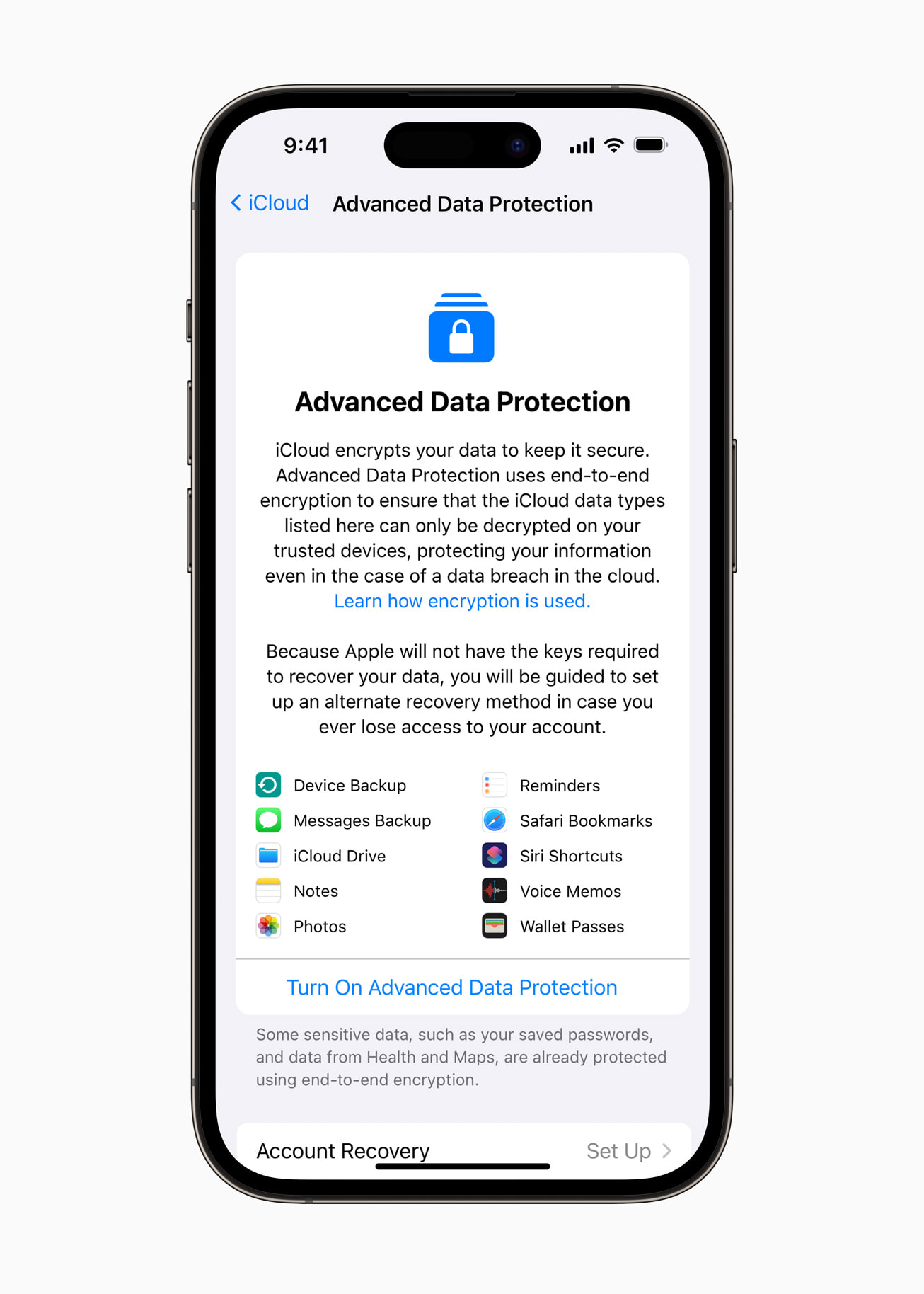
Photo: Apple
5. Turn off Lock Screen access you do not need
In Settings, Face ID & Passcode, scroll to Allow Access When Locked. Turn off items you do not need, such as Control Center.
Apple notes the trade: you lose quick access too. For single apps, the Require Face ID app lock tip covers locking or hiding them.
6. Confirm two-factor authentication
Most Apple Accounts already use it. Check that your trusted phone number is one you still own.
Apple Pay and Sign in with Apple both require two-factor authentication. Stolen Device Protection does too.
7. Add Security Keys if you get targeted phishing
Security Keys for Apple Account replace the six-digit code with a physical FIDO Certified key or a trusted Apple device. You need at least two keys and iOS 16.3 or later on every signed-in device.
Lose all keys and all trusted devices, and Apple says you could be locked out permanently. Buy two, store one away from home.
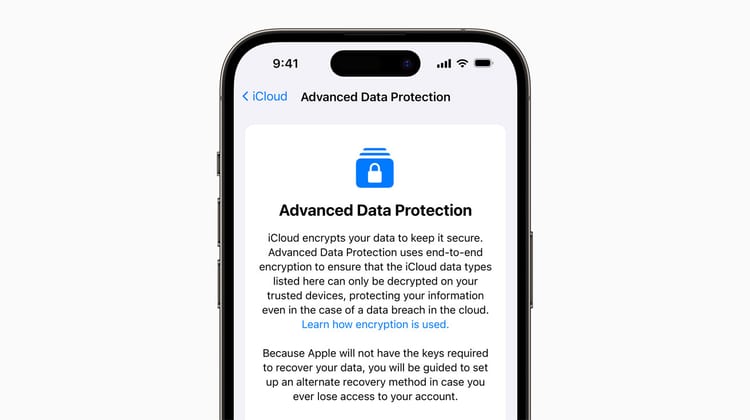
8. Turn on Advanced Data Protection for iCloud
Open Settings, tap your name, then iCloud. Scroll down to Advanced Data Protection and tap Turn on Advanced Data Protection.
iCloud Backup, Photos and Notes then use end-to-end encryption. Apple no longer holds those keys, so set up a recovery contact or recovery key first. The setup flow asks for one.
9. Run Safety Check
Go to Settings, Privacy & Security, Safety Check. It needs iOS 16 or later.
Manage Sharing & Access lets you review which people and apps can see your data. Emergency Reset cuts all sharing at once. Locked Safari tabs are a separate switch, covered in the Private Browsing Face ID tip.
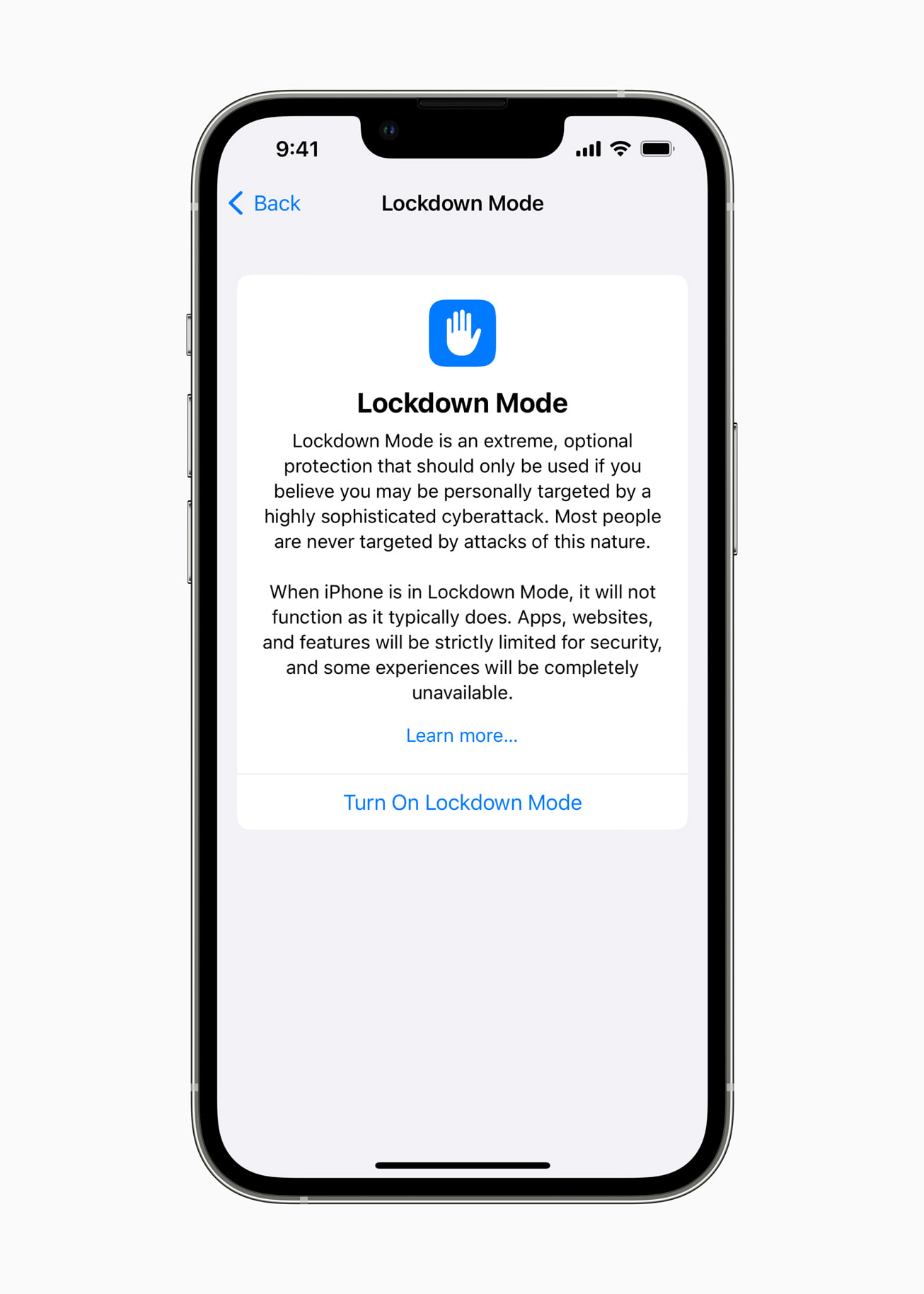
Photo: Apple
10. Know when Lockdown Mode makes sense
Settings, Privacy & Security, Lockdown Mode, then Turn On Lockdown Mode and restart. Apple describes it as extreme protection for the very few people who might be personally targeted by mercenary spyware.
The phone works differently with it on. Most Messages attachments are blocked, some web tech is off, and FaceTime calls from people you have not called in 30 days are blocked. It has to be turned on separately on iPad and Mac.
Photo: Apple Newsroom / Apple advanced security, Advanced Data Protection, Lockdown Mode
Source: Apple Support, About Stolen Device Protection for iPhone (120340); About Lockdown Mode (105120); How to turn on Advanced Data Protection for iCloud (108756); Security Keys for Apple Account (102637); Two-factor authentication (102660); Update your iPhone or iPad (118575); Apple Personal Safety User Guide; posts on X by ThreatWire and LBC