Ringtones stay mute. Speakerphone crackles. Videos play soft or distorted. Apple Support 118432, “If your Apple device’s speaker isn’t working or the sound is distorted,” dated March 16, 2026, walks the checks in order. Silent mode first. Then Focus. Then cases and cleaning. Then the Sounds slider. Only after that does it ask you to test a call.
This is about hearing sound from the speaker. It is not the mic path where callers cannot hear you. That one sits under microphone not working on calls or Voice Memos.
Turn off Silent mode and Do Not Disturb
On iPhone models with a Ring/Silent switch, flip the switch forward toward the display so the orange mark is not showing. That is Ring mode.
If your iPhone uses the Action button, or you are on iPad, open Control Center. Make sure Silent mode is off. When the Action button itself is set to Silent mode, press it to leave Silent, or change that Action button feature in Settings.
Open Settings. Tap Focus. Tap Do Not Disturb. Make sure Do Not Disturb is off. A scheduled Focus can mute alerts even when the Ring switch looks right. For building that schedule on purpose, see the Focus Do Not Disturb schedule tip.
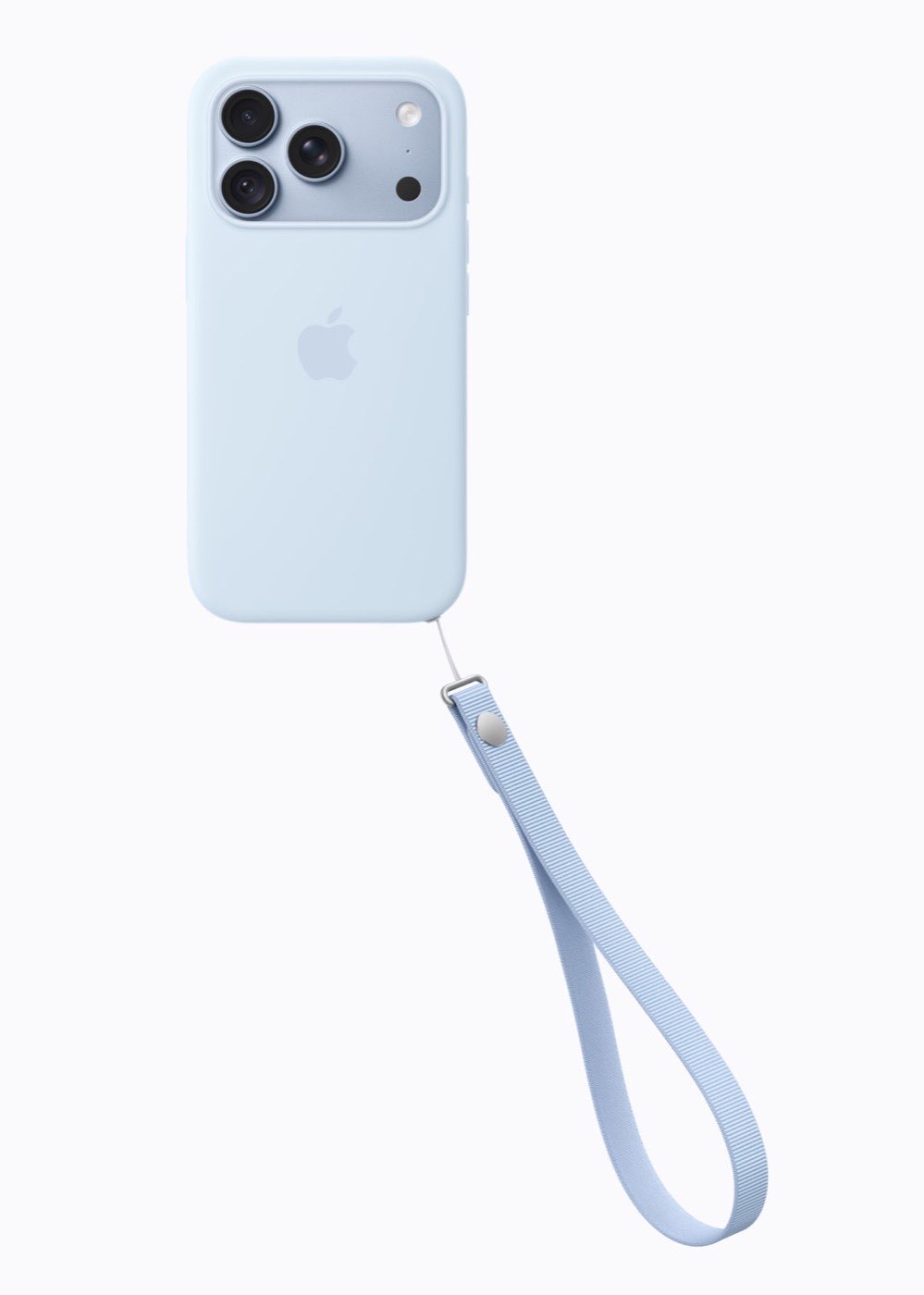
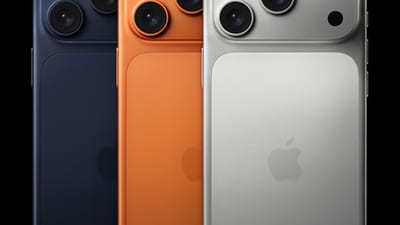
Photo: Apple
Remove cases and clear the speaker openings
Take off screen protectors, films, and cases. Anything covering the bottom edge or the earpiece can dull sound or make it crackle.
Look at the speaker opening. On iPhone, check the receiver at the top as well. Lint and dust block the path more often than a software toggle.
Apple says to clean with a small, soft-bristled brush that is clean and dry. Do not poke metal or wet cloth into the ports.
Test Ringtone and Alerts in Sounds
Open Settings. Tap Sounds, or Sounds & Haptics, depending on the model. Drag the Ringtone and Alerts slider back and forth.
You should hear the alert tone change with the slider. If there is no sound, or the speaker button looks dimmed, Apple says the device may need service.
If AirPods or another headset still play fine while the built-in speaker stays quiet, check accessory EQ separately in the AirPods Custom EQ settings guide. Keep this article on the phone speaker path.
Photo: Apple
Make a call and use speakerphone
When the Sounds slider does play audio, Apple’s next step is a real call. Place a phone call. Switch to speakerphone. On iPad or iPod touch, use FaceTime instead. FaceTime is not available in all countries or regions.
If you still cannot hear the other person, or you hear static or crackling, Apple points to network or reception. Try again later, or move to a different location. Weak signal can sound like a broken speaker even when the hardware is fine.
Get service if sound is still broken
Support 118432 ends at Get service when Silent mode, Focus, cases, cleaning, the Sounds slider, and the call test still leave no sound or heavy distortion. Book Apple support rather than inventing extra menus.
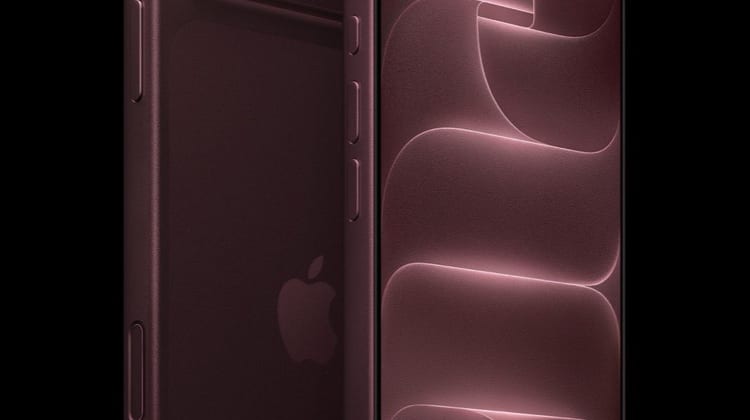
Photo: Apple Newsroom / iPhone 18 Pro, iPhone 17 Lock Screen
Source: Apple Support 118432, March 16, 2026