Live Text reads the words inside a photo, a paused video, or the live Camera view. You can copy a Wi-Fi password off a router sticker, call the number on a shop sign, or translate a menu without typing it out. It works in Safari, Photos, Camera and Quick Look, per Apple's iPhone User Guide for iOS 27.
Two separate switches control it. One of them sits in Camera settings.
Turn on Live Text in Language & Region
Open the Settings app. Tap General, then tap Language & Region. Turn on Live Text.
This is the main switch. Apple's guide says to make sure it is on for all supported languages before you start using the feature.
Live Text is not available in all regions or languages. Apple keeps the list on its iOS and iPadOS Feature Availability website. A missing switch usually means region or language.
Copy or call from the Camera view
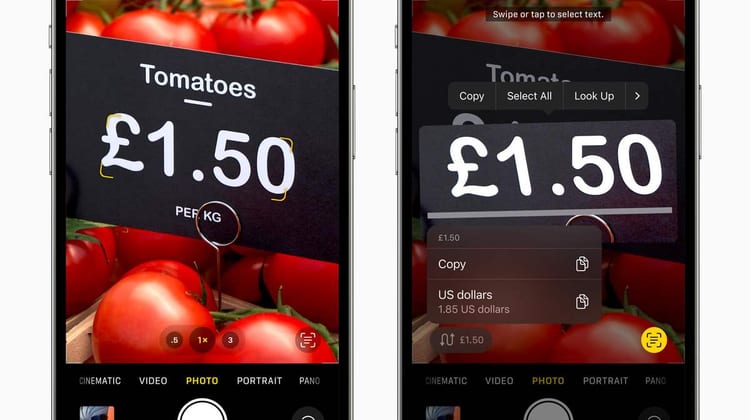
Open Camera and point the iPhone at the text. A yellow frame appears around the text once it is detected. Then tap the Live Text button. In Apple's screenshots it shows at the lower right of the frame.
Touch and hold the text, then drag the grab points to pick only the part you need. The menu has Copy, Select All, Look Up, Translate, Search Web and Share. Share sends it by AirDrop, Messages or Mail.
Some text also gets a quick action at the bottom of the screen. Depending on the content, it can start a phone call, open a website, start an email or convert a currency. In Apple's own example, a £1.50 price tag on a market stall comes back as US dollars. Tap the Live Text button again to go back to the normal camera.
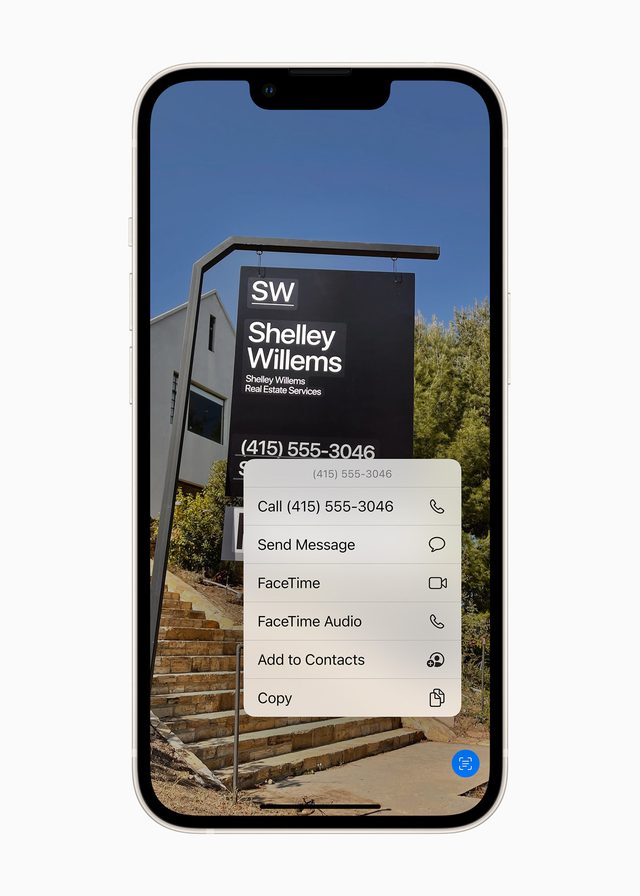
Photo: Apple
Photos, screenshots and paused video
Old pictures work too. Open a photo, or pause a video that has text in it. Tap the Live Text button, then touch and hold the selected text. The same menu and quick actions appear.
Screenshots count, because they land in Photos. A screenshot of a booking code or an error message can be copied out the same way. If you set up Back Tap to take a screenshot, that is a tap on the back of the iPhone, then one tap on the Live Text button.
On a trip, Translate turns a chalkboard sign or a menu line into your own language. Pair it with the Offline Maps you download before you lose signal.
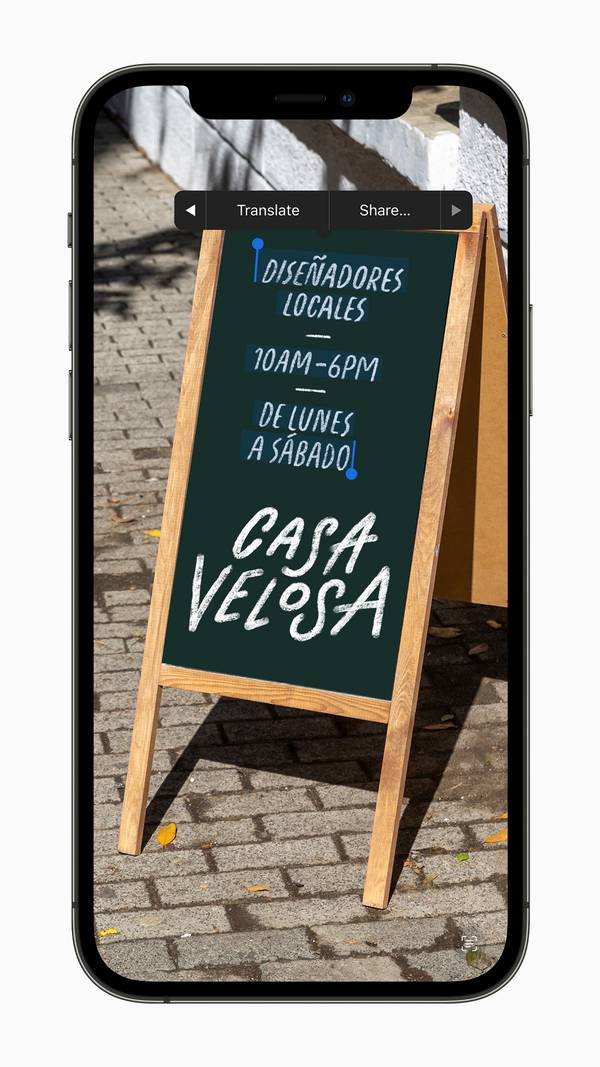
Photo: Apple
Common mistake: Show Detected Text is off
A common case. Live Text works in Photos, but Camera never shows the yellow frame. That is the second switch.
Go to Settings > Camera and look for Show Detected Text. Apple's guide says turning it off turns off Live Text in the iPhone camera.
The other switch can catch people as well. If Live Text under Language & Region was turned off in a settings clean-up, text in Photos stops responding too. Check both places before deciding the iPhone does not support it.
Where Visual Intelligence fits
With Apple Intelligence, Visual Intelligence can also work with text around you. On iOS 27, Apple lists iPhone 15 Pro, iPhone 15 Pro Max and iPhone 16 models or later for Apple Intelligence. iOS 27 also brings a Siri mode in Camera for Visual Intelligence.
Apple's Live Text pages do not list an Apple Intelligence requirement. So on an older iPhone, Live Text is the tool for copying a number off a sign.
Photo: Apple Newsroom (Live Text in iOS 15 and iOS 16)
Source: Apple iPhone User Guide for iOS 27, "Use Live Text with your iPhone camera" and "Interact with content in a photo or video on iPhone"