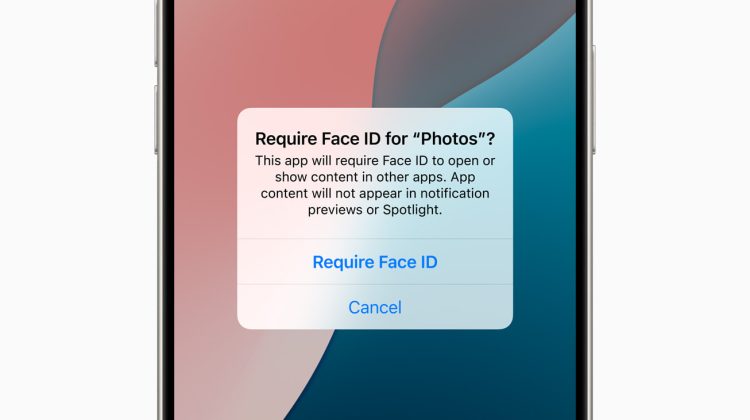
You hand someone the iPhone to show one photo. Next they open Messages. Or banking. Or photos you did not mean to share.
iOS keeps a fix for that on the Home Screen. Touch and hold an app. Tap Require Face ID. The app stays on the grid, but Face ID, Touch ID, or the passcode is required to open it. Content from that app stops showing in places like notification previews, search, and Siri suggestions.
The same menu can hide the icon. The app leaves the Home Screen and sits in the Hidden folder in App Library. Apple’s Personal Safety guide (ipsd0be4c185) and the iPhone User Guide still describe both steps on iOS 27.
Lock an app from the Home Screen
Go to the Home Screen. Find the app.
Touch and hold the icon until the quick actions menu opens. Tap Require Face ID (or Touch ID or Passcode on older models). Tap Require Face ID again, then authenticate.
After that, opening the app asks for Face ID. Apple lists built-in apps that cannot be locked: Calculator, Camera, Clock, Contacts, Find My, Maps, Shortcuts, and Settings. Third-party apps and most other Apple apps can.
Locked status does not sync over iCloud. You lock the app on this iPhone only.
Hide an app into App Library
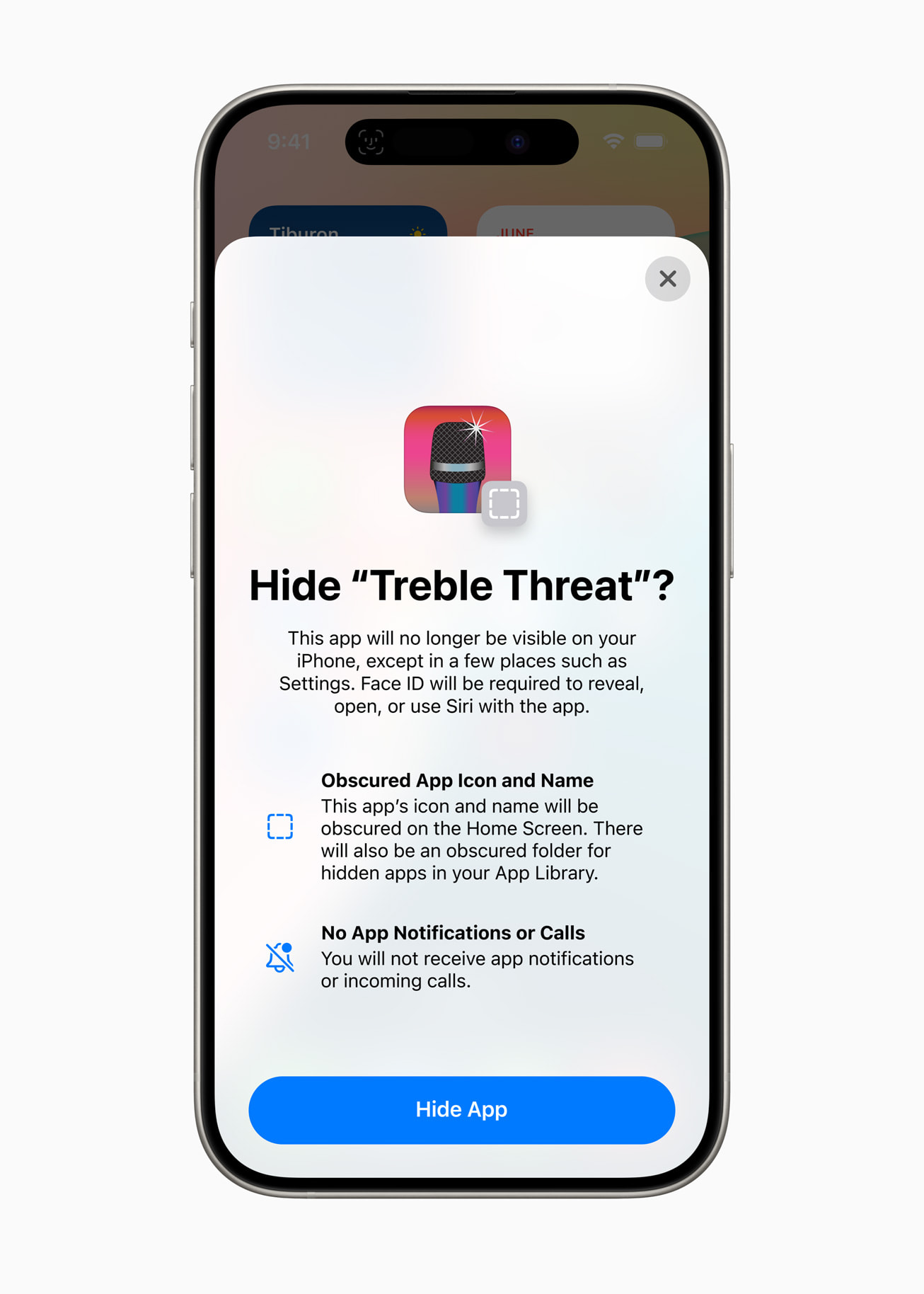
Touch and hold the app again. Tap Require Face ID. This time choose Hide and Require Face ID, authenticate, then tap Hide App.
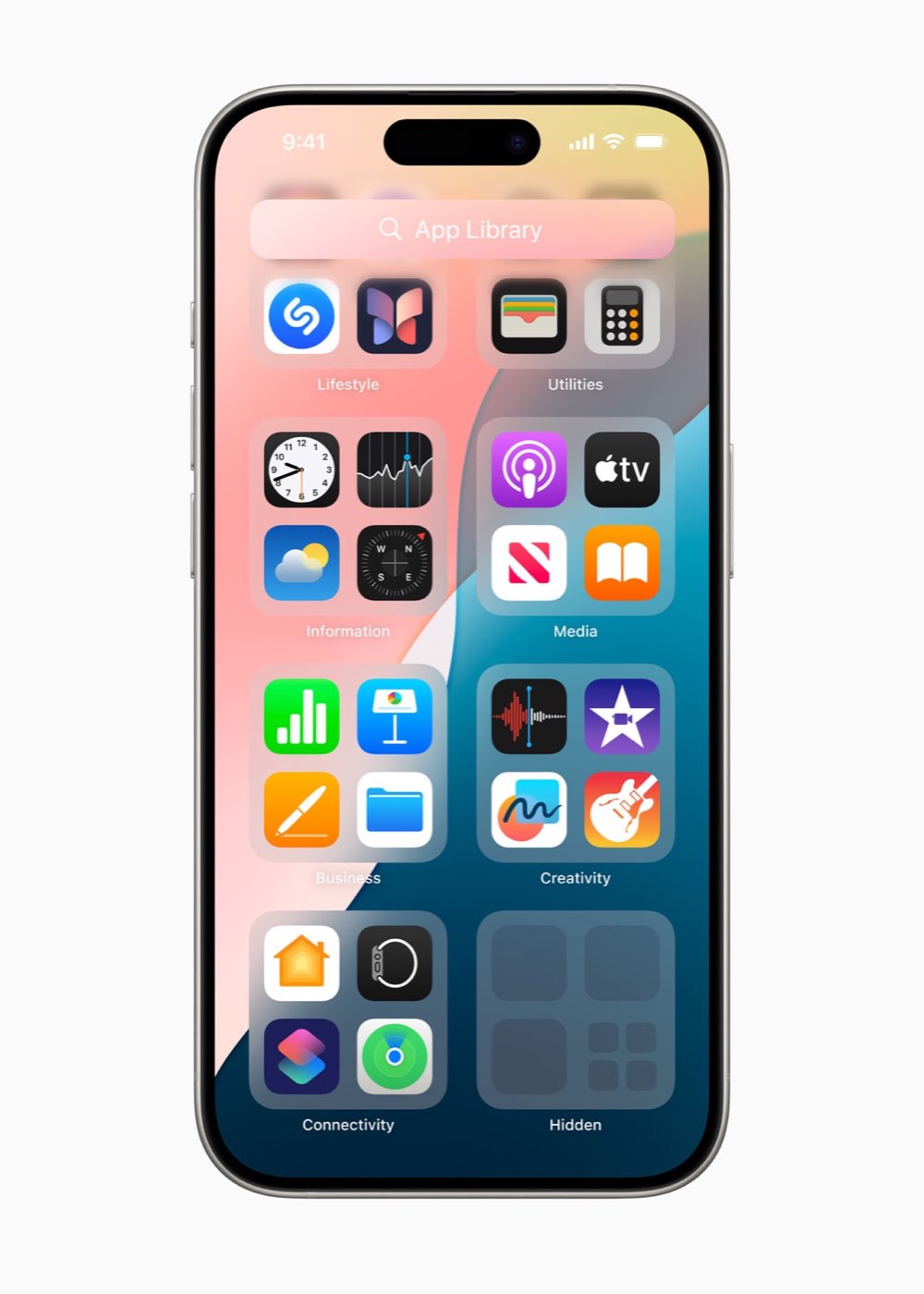
The icon disappears from Home Screen pages. Open App Library by swiping left past the last Home Screen page. Tap the Hidden folder at the bottom. Authenticate to see the apps inside.
Apple notes that apps that ship installed with iOS 18 or later cannot be hidden. Only apps you download separately get the hide path. Lock still works on many of those built-ins that support Require Face ID.
What still shows after you hide
Hiding removes the Home Screen icon. Apple still lists a few places where the app name can appear: Settings, Apps, Hidden Apps (needs authentication), Screen Time, Battery, Battery Health & Charging, and App Store purchase history.
A common mistake is thinking hide means the download vanishes from Family Sharing or Screen Time. Parents in a Family Sharing group can still see that a teen downloaded the app and how long it was used. Children under 13 in the group cannot lock or hide apps at all. Ages vary by country.
Unhide or stop requiring Face ID
Open App Library, tap Hidden, authenticate. Touch and hold the app. Tap Don’t Require Face ID (or Touch ID or Passcode), then authenticate again. The app returns to the Home Screen and near the top of App Library.
If you only locked the app and never hid it, the same Don’t Require Face ID row on the Home Screen icon clears the lock.
Away from familiar places, Stolen Device Protection can block passcode fallback when someone tries to open a locked app. Pair the two if theft is the worry, not just shoulder surfing.
When to lock instead of hide
Lock is enough when you still want the icon visible for yourself. Banking, messaging, Photos, and health trackers are frequent picks. Hide is for when you do not want the icon on the page while someone else holds the phone.
Silent callers and Focus are separate tools. Silence Unknown Callers cuts unknown rings. A scheduled Do Not Disturb Focus quiets banners on a timer. Neither replaces Require Face ID on a single app.
If Face ID itself fails before you can open a locked app, reset Face ID under Settings, Face ID & Passcode, then lock the app again.
Public iOS 27 shipping remains on the current tip listed in our iOS 27.2 public beta firmware note. The lock and hide controls do not need Apple Intelligence.
Photo: Apple
Source: Apple Support Personal Safety (lock or hide apps), Apple Newsroom iOS 18 privacy section, Apple iPhone User Guide