Night notifications keep lighting the Lock Screen. On iOS 27 you do not need to tap Focus every evening. Do Not Disturb can follow a schedule and turn itself on.
Apple’s guide puts the control under Settings, Focus, Do Not Disturb. Add Schedule sets a start time and an end time. The crescent icon shows in the status bar when the Focus is active.
This is Focus. It is not Screen Unknown Callers under Phone. One silences by time or mode. The other only cares whether the number is saved in Contacts.
Settings path for a Do Not Disturb schedule
Open Settings. Tap Focus. Tap Do Not Disturb.
Scroll to Set a Schedule. Tap Add Schedule. Pick Time, then set From and To. Choose the days if the sheet offers them. Save the schedule.
Tap an existing time under Set a Schedule to edit or delete it. You can add more than one schedule.
Location and App triggers sit on the same Add Schedule sheet. Time is the option most people mean by “every night.”
Sleep Focus is different. It follows the bedtime you set in Health. If you already use Sleep, check that schedule in Health before you stack another Do Not Disturb time on top.
What the schedule does when it fires
When the start time hits, Do Not Disturb turns on. Calls, alerts, and notifications stay quiet unless you allow specific people or apps. The Do Not Disturb icon appears in the status bar and on the Lock Screen.
Messages can show that you have silenced notifications. Allowed people can still break through.
At the end time, the Focus turns off on its own. Share Across Devices under Settings, Focus can mirror the same Focus to other Apple devices on the same Apple Account. Turn that off if you only want the iPhone quiet.
Allow People and Apps during Do Not Disturb
Inside Do Not Disturb, tap People. Choose Allow Notifications From and pick family or a work contact that must ring. Or choose Silence Notifications From if only a few names should stay muted.
Apps works the same way. Calendar alerts or a delivery app can stay allowed while social apps stay silent.
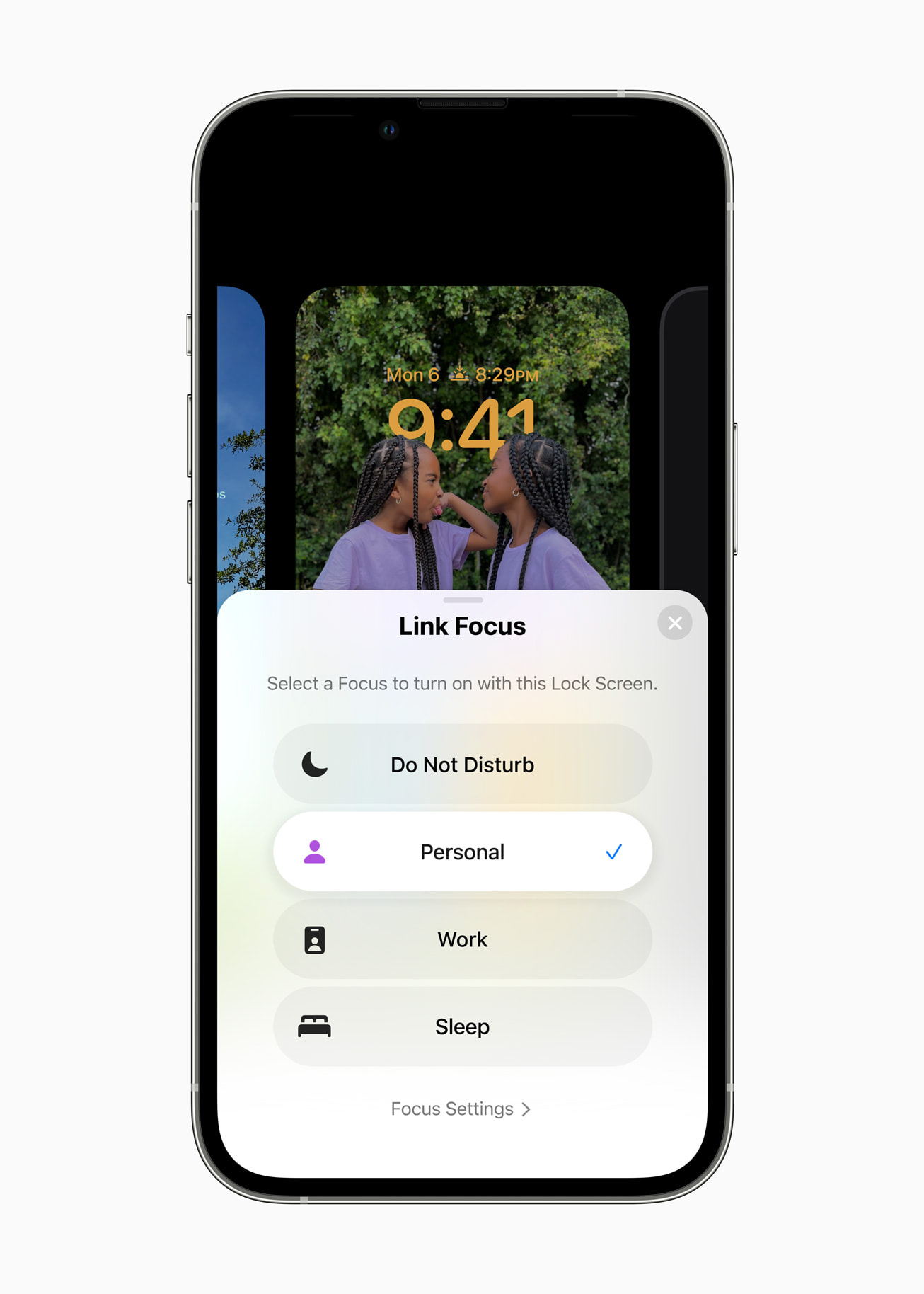
Options lets you show silenced notifications on the Lock Screen or dim it. Customize Screens can link a Lock Screen wallpaper so swiping to it turns Do Not Disturb on.
Common mistake: blaming Focus for unknown-number silence
Someone schedules Do Not Disturb from 11 p.m. to 7 a.m., then wonders why a courier never rings at noon. Focus was not on. Screen Unknown Callers under Settings, Apps, Phone was set to Silence. That path is covered in yesterday’s Silence Unknown Callers tip.
Another mix-up: leaving an old schedule on. Apple’s support page says to open Settings, Focus, Do Not Disturb, then check Set a Schedule when the mode keeps coming back after you turn it off in Control Center.
Allowed people still need a contact card. A hospital callback from a desk line you never saved will stay quiet if People is allow-list only and that number is not on the list.
Turn it off from Control Center
Swipe down from the top-right corner on Face ID models to open Control Center. Tap Focus, then tap Do Not Disturb to turn the active mode off. Touch and hold Focus first if you need the menu of modes.
Ask Siri for a one-off block if you need it. A schedule still returns at the next start time unless you delete it in Settings.
Battery Charge Limit and Face ID reset live on other menus. An 80% Charge Limit under Settings, Battery, Charging does not change Focus. If Face ID unlock fails after a haircut, use Reset Face ID under Face ID & Passcode instead of hunting Focus.
Public iOS 27 is still on build 24A437 as of today’s firmware note. Focus paths above match current Apple Support wording for that train.
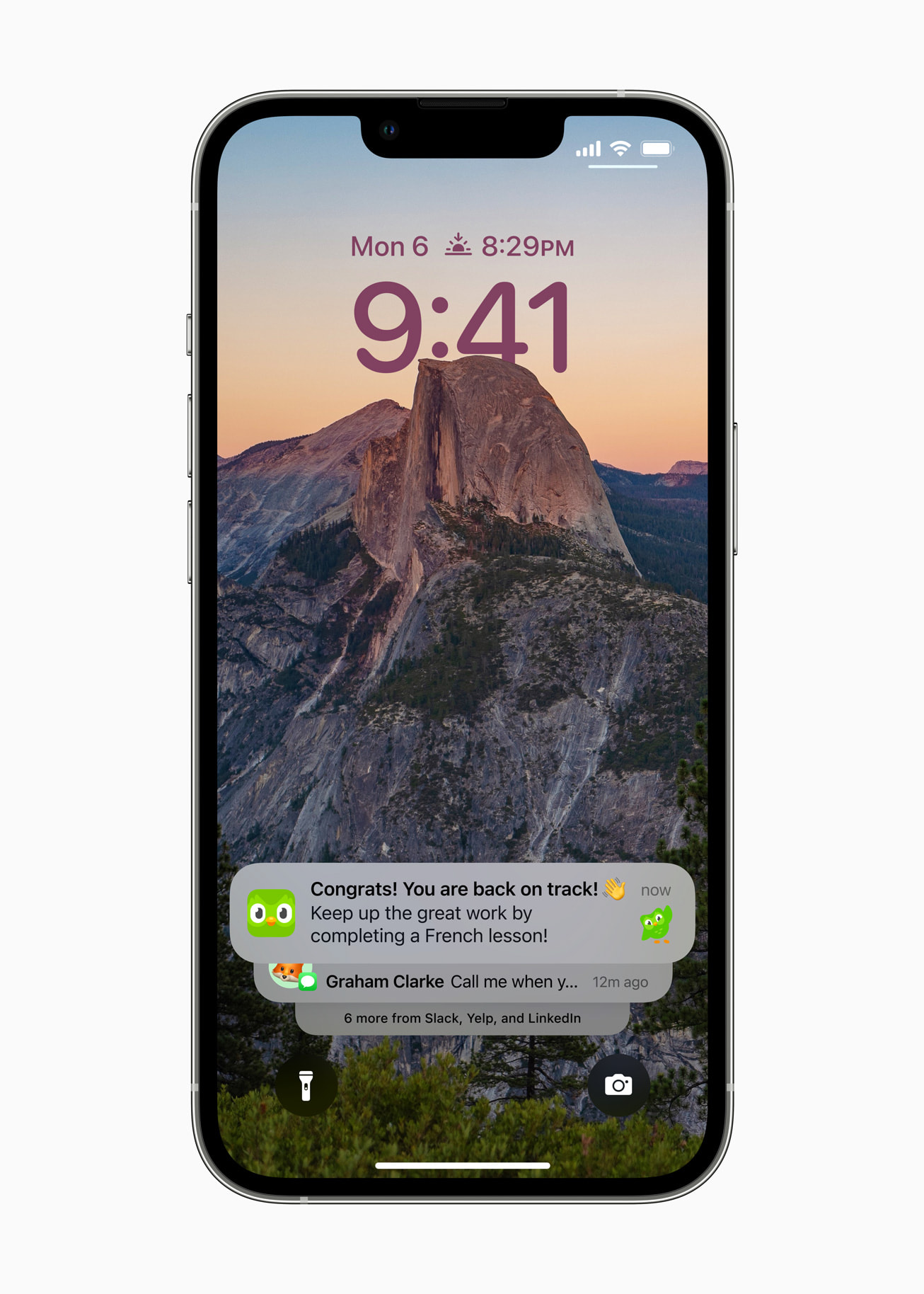
Photo: Apple Newsroom / Focus Lock Screen, Focus switcher, Lock Screen notifications
Source: Apple Support — How to turn Do Not Disturb on or off on your iPhone; iPhone User Guide — Turn on or schedule a Focus on iPhone