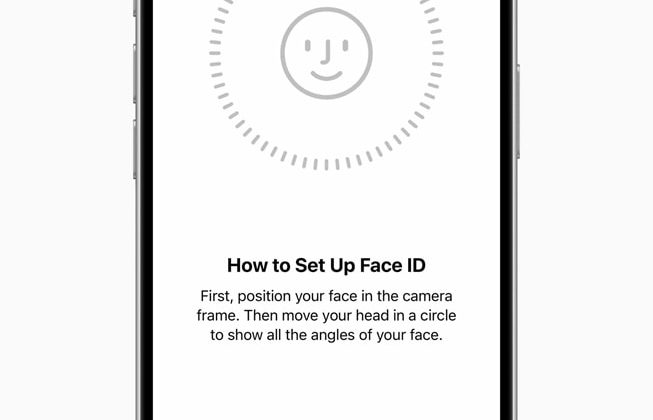
Someone steals your iPhone and already knows the passcode. Away from home, Stolen Device Protection blocks the easy next steps. Face ID is required. Passcode alone is not enough for several sensitive actions.
Apple’s live Support page (120340) puts the switch under Settings, Face ID & Passcode. The feature ships with iOS 17.3 and later. On public iOS 27 it is still there. Turn it on before the phone goes missing.
This is not Reset Face ID. Reset clears the face scan. Stolen Device Protection adds biometric checks and a security delay when the phone is away from familiar places.
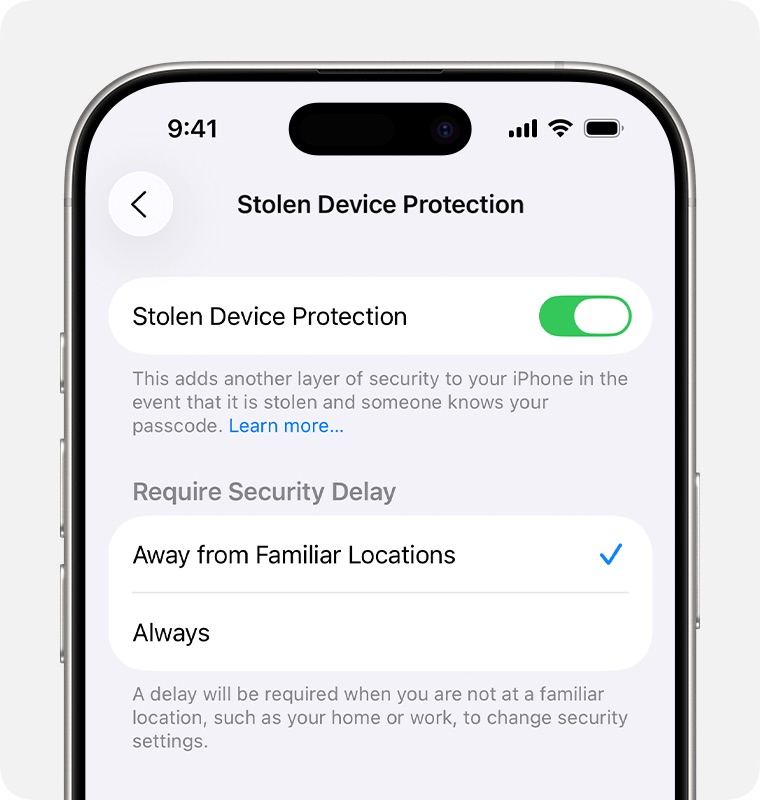
Settings path to turn Stolen Device Protection on
Open Settings. Tap Face ID & Passcode. Enter your device passcode.
Tap Stolen Device Protection. Turn Stolen Device Protection on.
Under Require Security Delay, leave Away from Familiar Locations unless you want the stricter Always option. Always applies the extra Face ID checks and the one-hour delay even at home or work.
Apple says you need a passcode, Face ID (or Touch ID), two-factor authentication on your Apple Account, Find My on, and Significant Locations under Location Services. If the menu is missing, set up Face ID first.
Significant Locations sits under Settings, Privacy & Security, Location Services, System Services. Stolen Device Protection uses those places to decide when the extra rules apply.
What Face ID covers away from familiar locations
Away from home or work, some actions need Face ID or Touch ID with no passcode fallback. Apple lists passwords and passkeys in Keychain, Safari payment AutoFill, turning off Lost Mode, opening a locked app, Erase All Content and Settings, certain Wallet and Apple Cash steps, Quick Start for a new device, and eSIM setup or transfer.
Apple Pay purchases can still use the passcode. That exception is easy to miss.
A locked app plus Stolen Device Protection means the app opens only with Face ID or Touch ID when you are away from familiar places. That pairs with privacy tools covered in recent tips, not with Focus schedules.
Security Delay for passcode and Apple Account changes
Critical changes can require a Security Delay. Face ID first, then about one hour, then Face ID again. Apple’s list includes changing the Apple Account password, signing out, updating trusted devices or recovery contacts, adding or removing Face ID, changing the device passcode, Reset All Settings, MDM enrollment, and turning Stolen Device Protection off.
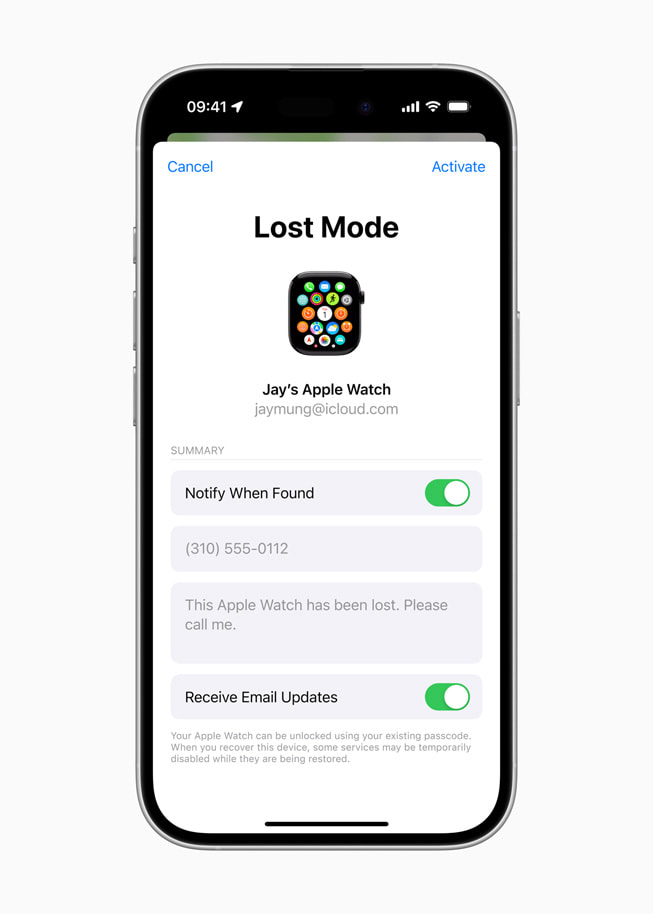
The delay is meant to buy time so you can mark the phone lost in Find My. Apple’s page links Lost Mode from iCloud.com for that path.
If the phone reaches a familiar location during the wait, the delay can end early. That is normal. It is not a bug.
Common mistake: expecting passcode to unlock every gate
People leave Stolen Device Protection off, or turn it on and still assume the passcode works everywhere. Away from familiar locations, several menus refuse the digits. Face ID is the gate. If Face ID fails after a haircut or new glasses, fix the enrollment with Reset Face ID under Face ID & Passcode before you rely on this feature.
Another mix-up: treating Focus or call silence as theft protection. A Do Not Disturb schedule under Settings, Focus, Do Not Disturb only quiets alerts. Silence Unknown Callers only skips unknown numbers. Neither stops a thief who already typed your passcode.
Today’s News brief on iOS 27.2 beta 2 AutoLock strings is a separate, still-disabled idea. Stolen Device Protection is the shipping control you can turn on now.
Turning it off before a sale or trade-in
Sell, gift, or trade the phone only after you turn Stolen Device Protection off at a familiar location when possible. Away from those places, turning it off starts a security delay. Apple also notes Find My stays on while the feature is enabled.
After an iCloud restore or direct transfer, the setting usually comes back with the backup. Familiar locations may take a short time to settle on the new device.
Photo: Apple Newsroom / Face ID unlock, Lost Mode; Apple Support / Stolen Device Protection settings
Source: Apple Support – About Stolen Device Protection for iPhone