Face ID fails to unlock. Passcode again. On iOS 27 Apple still keeps the fix under Settings, Face ID & Passcode.
Apple’s live Support page says restart first. Then clear anything covering the TrueDepth camera. If that is not enough, tap Reset Face ID and run Set Up Face ID again.
The current iPhone User Guide still lists the same menu names: Set Up Face ID, Set Up an Alternate Appearance, Face ID with a Mask, Reset Face ID.
Restart and clear the TrueDepth camera
Restart iPhone. Enter your passcode. Try Face ID once more before you wipe the enrollment.
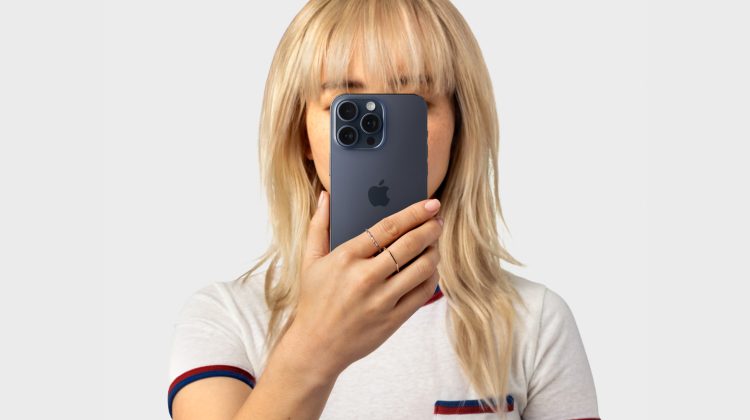
Remove smudges, a thick case lip, or a screen protector that covers the top sensor area. Hold the phone about an arm’s length away, roughly 10–20 inches from your face.
On iPhone 18 Pro models, Apple notes the TrueDepth camera sits at the top toward the left corner. In landscape, keep a finger off that zone. Extreme backlight from the sun also makes matches harder.
A dirty camera is not a network issue. Wi‑Fi problems belong on Reset Network Settings, not Face ID.
Reset Face ID, then Set Up Face ID again
Open Settings. Tap Face ID & Passcode. Enter your device passcode.
Tap Reset Face ID. After the reset, tap Set Up Face ID and follow the onscreen face scan.
Reset clears stored face data on the device, including alternate appearances. It does not erase photos or apps. Apple’s Face ID technology note says that data stays on-device and is not backed up to iCloud.
After setup, confirm Use Face ID For switches you need — iPhone Unlock, Apple Pay, Password AutoFill — are turned on under the same page.
Set Up an Alternate Appearance
You do not always need a full reset. If your look changed a lot — new glasses, heavy makeup, a different beard — use Set Up an Alternate Appearance on the same settings page.
Path: Settings → Face ID & Passcode → Set Up an Alternate Appearance. Follow the scan. Face ID keeps learning for most people, but a second enrollment helps when one look fails often.
Apple says Face ID works with many prescription or clear glasses. Sunglasses are a different story when Face ID with a Mask is on.
Face ID with a Mask on iPhone 12 and later
The live User Guide still shows Face ID with a Mask for iPhone 12 models or later. Turn it on under Settings → Face ID & Passcode, then complete the eye-area scan.
With a mask, Face ID looks at characteristics around the eyes. Eyes must stay visible. A mask pulled too high can block unlock. Apple says Face ID with a Mask is not designed for sunglasses, and it does not work in landscape.
If you usually wear glasses, wear transparent glasses (not sunglasses) while you turn the feature on. You can tap Add Glasses for another clear pair after setup.
When Reset Face ID is not enough
If Face ID keeps asking you to position your face without finishing setup, or the camera itself is not working, Apple’s page ends at Get service. Book support rather than hunting ghost menus.
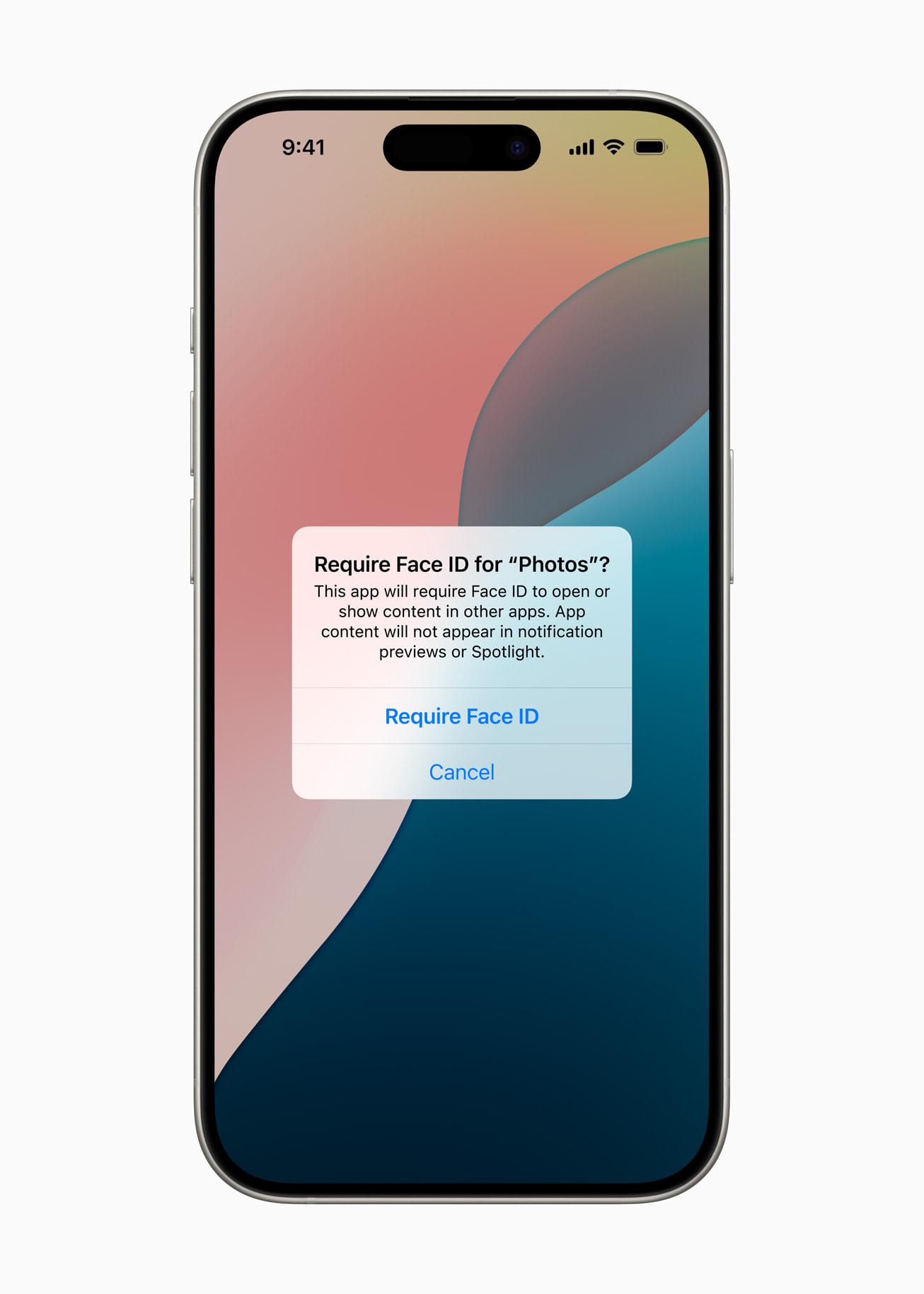
Also check that Face ID is set up and that Unlock or Apple Pay is enabled under Use Face ID For. A locked app prompt that fails is still Face ID & Passcode, not a Phone switch like Silence Unknown Callers.
If Settings labels look different, confirm current public iOS 27 in today’s firmware note (24A437). Battery Charge Limit will not repair Face ID.
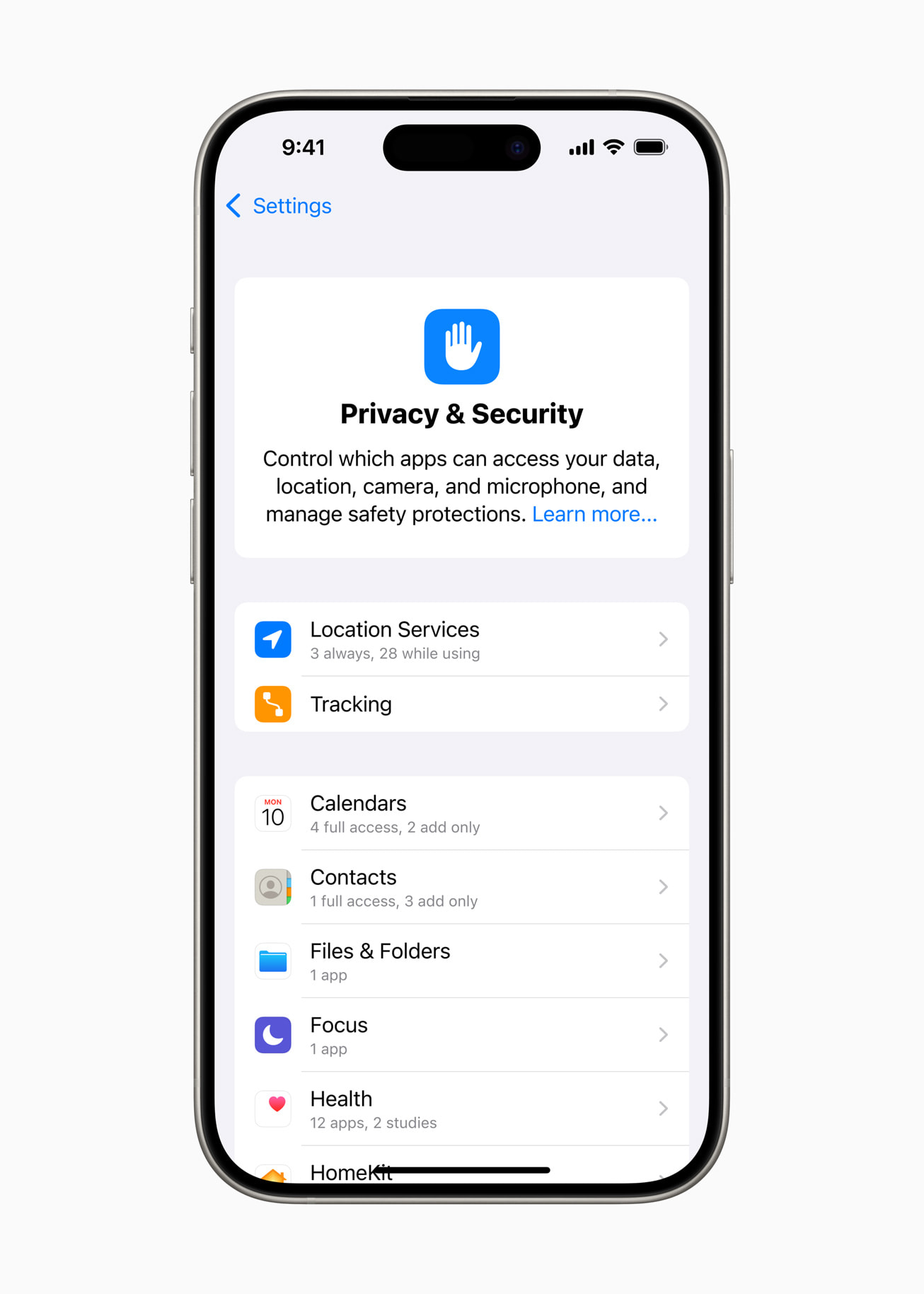
Photo: Apple Newsroom / privacy hero, locked app, Privacy and Security settings
Source: Apple Support — If Face ID isn’t working on your iPhone or iPad Pro; iPhone User Guide — Set up Face ID on iPhone; Apple Support — Use Face ID while wearing a mask