Spam rings pile up. Delivery callbacks too. On iOS 27 the Phone row that cuts those rings is Screen Unknown Callers, with Silence as the quiet option.
Apple’s support page puts it under Settings, Apps, Phone. Pick Silence and unsaved numbers go to Voicemail without a ring. Numbers you already saved in Contacts still get through.
This is not Focus. It is not Ask Reason for Calling either. Silence is the blunt setting: no ring, straight to Voicemail, still listed in Recents.
Settings path for Screen Unknown Callers
Open Settings. Tap Apps. Tap Phone.
Scroll to Screen Unknown Callers. Choose Silence.
Apple lists three choices. Never lets unsaved numbers ring like any other call. Ask Reason for Calling screens the caller first. Silence mutes the call and sends it to Voicemail.
FaceTime has its own Silence Unknown Callers switch under Settings, Apps, FaceTime. Turn that on if video and audio FaceTime from unknown numbers should stay quiet too.
The menu sits on current public iOS 27 builds. If you are still on an older train, check today’s iOS 27 firmware note (24A437) before you hunt for Apps under Settings.
What Silence does on an incoming call
Silence targets phone numbers that are not saved in Contacts. Those calls do not ring or vibrate. They go to Voicemail. They still show up in Recents so you can open the entry later.
Apple’s Manage unknown callers page tells you to add the numbers that matter first. Family. Friends. The child’s school. The doctor’s office. Once those cards exist, the calls ring normally even with Silence selected.
Call Filtering is a different block lower on the same Phone page. Turn on Unknown Callers there and missed calls move into an Unknown Callers list behind the Filter button. That list is optional. Silence can work without it.
Silence versus Ask Reason for Calling
Ask Reason for Calling is call screening. The caller is asked why they are calling before your phone rings. Apple notes that standard calling and data rates may apply. If you called emergency services, call screening turns off for 24 hours. While roaming, phone calls are not screened.
Silence skips that back-and-forth. No screening prompt. No ring. Voicemail only.
Live Voicemail is related but separate. Older software needed Live Voicemail on for screening. Silence on current iOS 27 does not ask you to open Live Voicemail first. Do not mix the three controls when you are debugging a missed ring.

Common mistake: missing school and delivery callbacks
People turn on Silence, then miss a pharmacy callback or a courier who dials from a rotating number. Those lines were never saved as contacts. The phone did what the setting says.
Before you leave Silence on, save the numbers you expect this week. School office. Clinic. Building front desk. If a one-off call must ring, set Screen Unknown Callers back to Never for that day, then return to Silence.
Another mix-up: blaming Focus Do Not Disturb. Focus silences alerts by schedule or mode. Screen Unknown Callers only cares whether the number is saved. You can have both on. Check the Phone Apps path when the symptom is “unknown numbers never ring,” not “everything is quiet after 10 p.m.”
If you want a quick jump into Settings later, Back Tap still maps from Accessibility, Touch. That shortcut does not change who is allowed to ring.
When to leave Never selected
Waiting on a hospital return call from a desk line you do not recognize yet. Interview day with recruiters who withhold caller ID. Those days fit Never better than Silence.
Ask Reason for Calling sits in the middle if you want a name and a reason before the ring. Silence is for the weeks when unknown rings are mostly spam.
Battery and storage tips stay on other menus. An 80% Charge Limit under Settings, Battery, Charging will not touch Phone. Camera Siri mode for Visual Intelligence is another separate row covered in today’s Camera Siri brief.
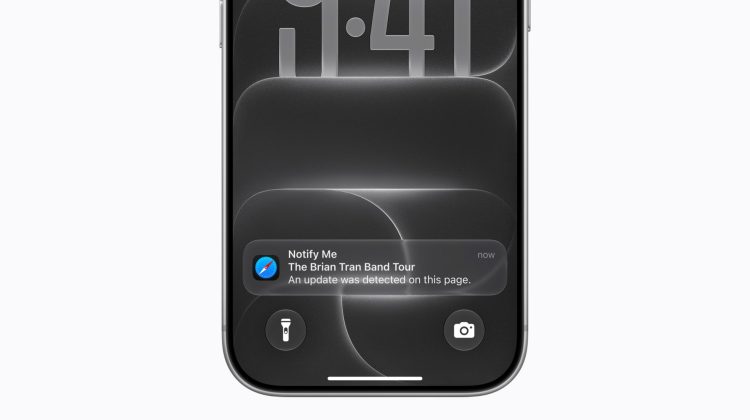
Photo: Apple Newsroom / iPhone notify, Lock Screen, and lifestyle scenes
Source: Apple Support — Manage unknown callers on iPhone; iPhone User Guide — Screen and block calls on iPhone