On iPhone 15 and later, Charge Limit sits under Settings, Battery, Charging. You pick a cap between 80% and 100% in 5% steps. The phone stops near that number instead of sitting at full for hours.
Apple puts the control there for battery wear. Overnight MagSafe. A desk cable that stays plugged in. Those patterns keep the cell near 100% for a long stretch. A lower limit cuts that time.
The path is the same on iOS 27. New iPhone 18 Pro units hitting Apple Stores get the Charging row too. Older phones stop at Optimized Battery Charging under Battery Health & Charging.
Settings path for Charge Limit
Open Settings. Tap Battery. Tap Charging.
Tap 80%, 85%, 90%, 95%, or 100%. Apple’s support page says iPhone 15 and later use this path. The phone charges to within a few points of your pick, then stops.
If the level drops more than 5% while still on power, charging starts again toward the same cap. That loop is normal. It is not a broken charger.
What 80% does, and what it does not
At 80%, the phone is not trying to finish every day at 100%. It aims to reduce time spent fully charged. Apple’s Charge Limit note says the battery still ages from heat and use. The setting only trims one factor.
You may see a recommendation on the Charging screen. Apple’s example wording suggests a limit like 95% based on habits. That line is optional. Keep 80% if you want the lower cap.
Charge Limit is separate from storage cleanup. If apps fill the drive, look at Offload Unused Apps on iOS 27 instead. Battery health and free storage are different menus.
Override for one night
Need a full pack before a flight. Keep the limit, but ask for 100% once.
On the Charging screen, Allow Until Tomorrow puts the old percentage back at 6:00 a.m. Set Limit to 100% keeps full charge until you change it again. There is also a Battery row labeled Charge to 100% for a quicker override.
Faster wall charging still matters on travel days. Apple’s 40W AVS adapter notes for Duo and 18 Pro sit next to this tip. The limit only caps how high the meter goes. It does not change the watt rating of the brick.
Optimized Battery Charging at 100%
Set the limit to 100% and Optimized Battery Charging becomes available. That feature delays the last stretch past 80% when iOS thinks the phone will stay plugged in. A Lock Screen notice shows when full charge is expected. Touch and hold, then Charge Now, if you need the rest early.
Apple says Optimized Battery Charging needs about 14 days to learn habits. It also wants several long charges in the same place before it engages. A brand-new phone may stay quiet for a while.
On iPhone 14 and earlier there is no Charge Limit slider. Those models only get Optimized Battery Charging under Settings, Battery, Battery Health & Charging.
Common mistake: thinking Charge Limit is broken
People set 80%, then watch the meter climb to 100% and assume the switch failed. Apple documents that behavior. With a limit under 100%, the phone will occasionally charge all the way up to keep the percentage estimate accurate.
It may happen more often if the phone rarely finishes a full charge. One night at 100% after days at 80% is not proof the setting reset itself. Open Settings, Battery, Charging and confirm the selected percentage is still there.
Another mix-up: blaming MagSafe for ignoring the limit. MagSafe and a USB-C cable both follow the same Charging row. If you want a gesture shortcut into Settings later, Back Tap still maps from Accessibility, Touch. That does not change the charge cap.
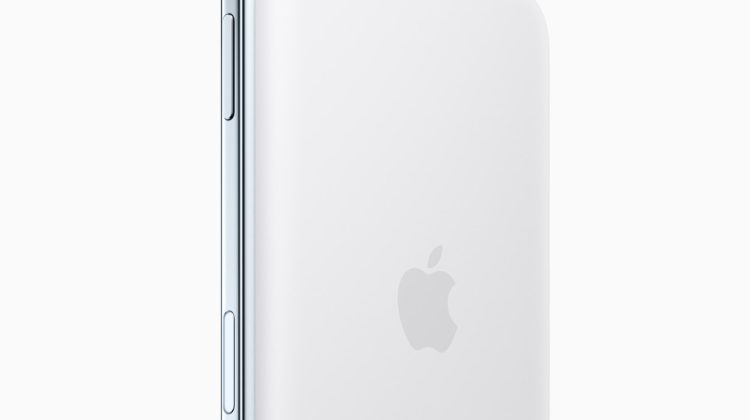
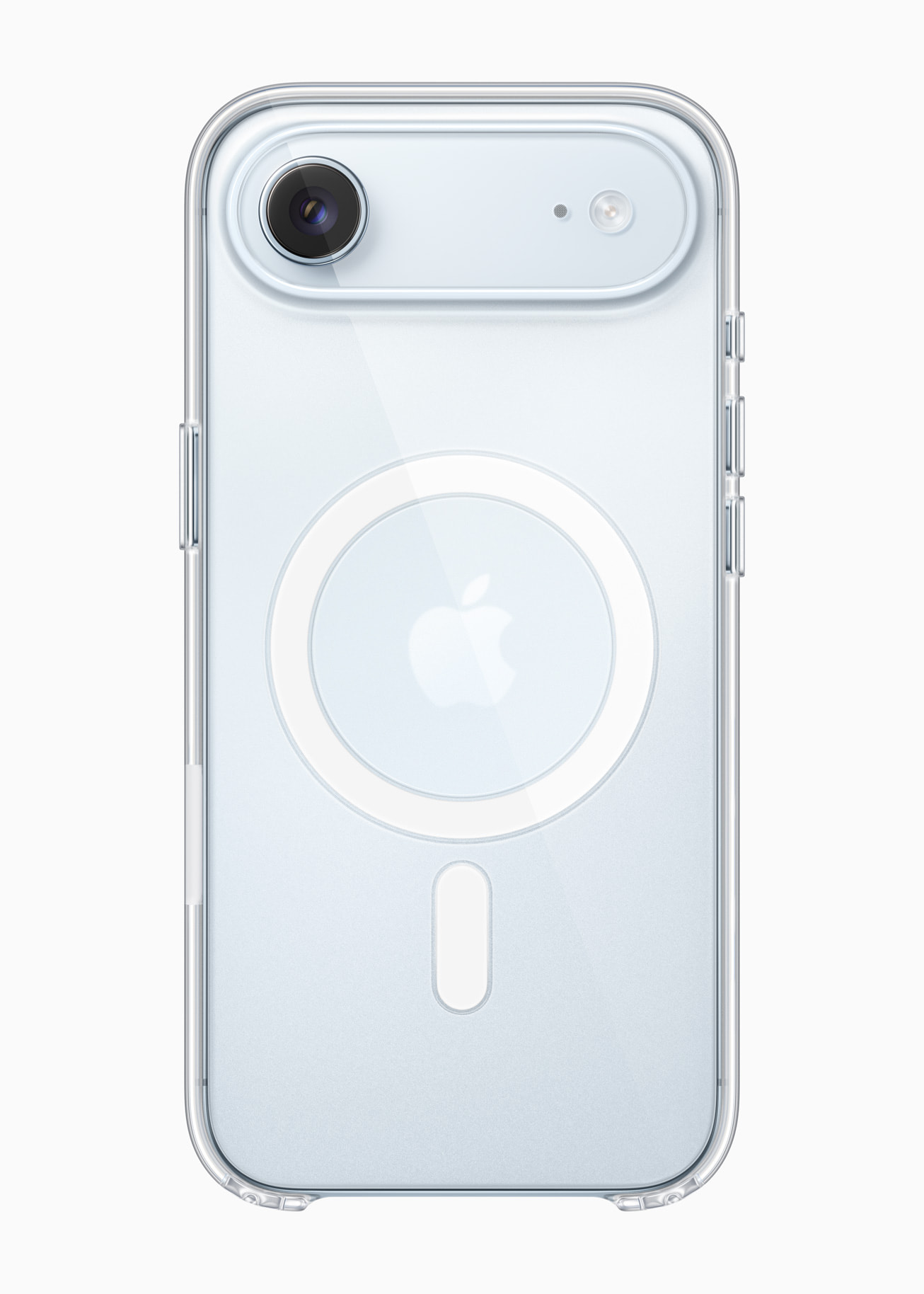
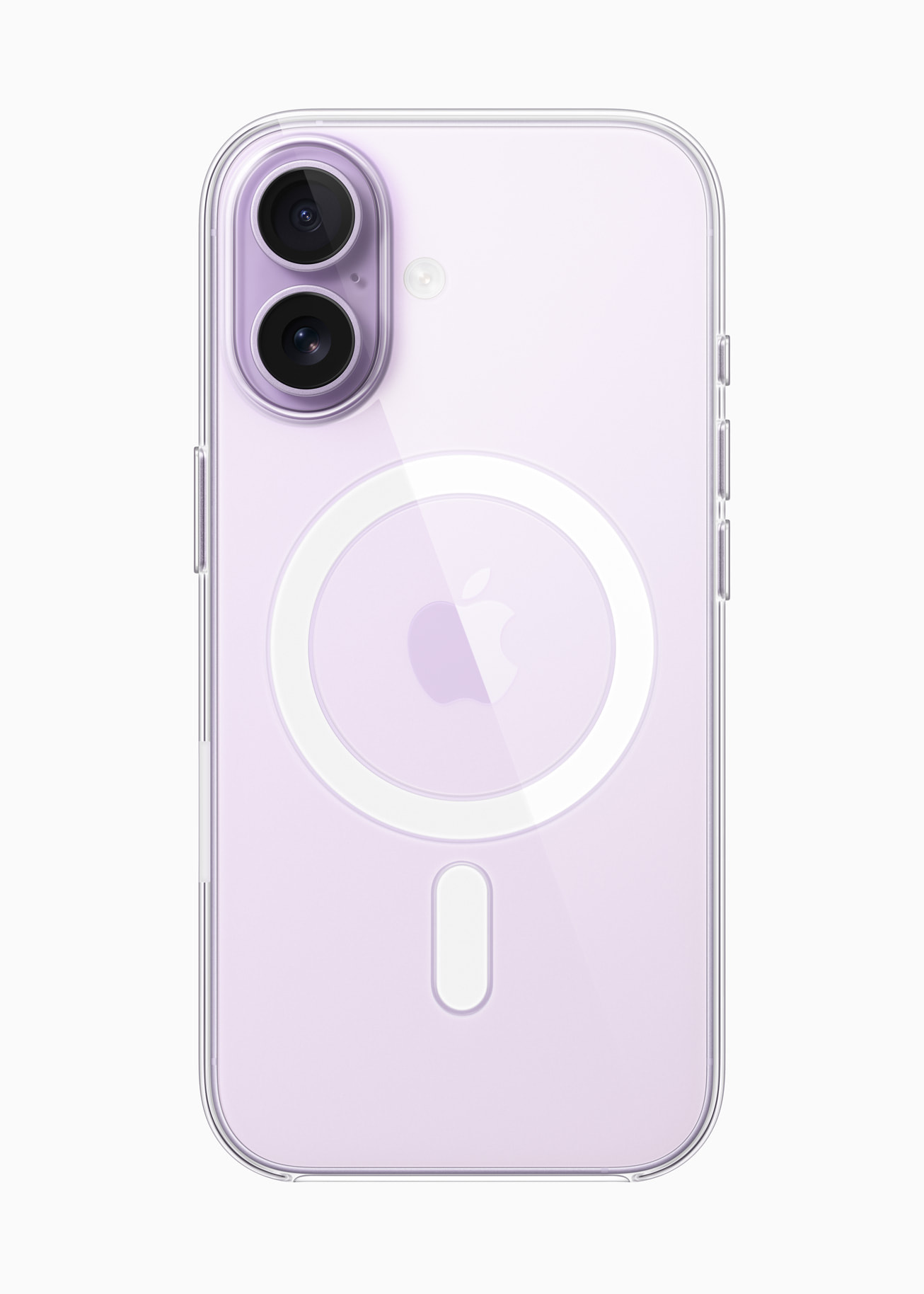
Photo: Apple Newsroom / iPhone Air MagSafe Battery and MagSafe cases
Source: Apple Support — About Charge Limit and Optimized Battery Charging; iPhone User Guide — Set a charge limit